---
title: Lock locations against scan movements
sidebar:
order: 3.3
---
After matching physical stock to its recorded locations, use **Scan movement lock** to prevent scan movements, restocking and corrections from changing those checked locations.
| Scope to protect | Choose | Stock added later |
| --------------------------------------------------------- | ------------------ | ----------------------------------------------------------------------------------------- |
| Entire shelves | **Entire shelves** | Protected too |
| Stock scanned into selected shelves during specific dates | **By scan dates** | Only the previewed and saved units are protected. Later syncs are not added automatically |
**Regular receipt, outbound and movement documents remain available.** Stock-count checks and checking stock already on the same shelf remain possible. This setting does not stop all inventory operations.
For a large batch, first follow [continuous scanning through locking](/en/guides/inventory/putaway#continuous-scanning-through-locking) to finish syncing all devices and reconcile the physical stock.
## What you need first
- **Manage settings** permission. Inventory write permission alone cannot lock or unlock shelves.
- Check physical stock, labels and the recorded site and shelf.
- For date-based selection, finish syncing pending scans first. Dates use the **site's timezone**, not the viewer's timezone.
## 1. Open the site's settings
Open **Settings** → **Sites and locations**, find the site, and click **Scan movement lock** at ①.
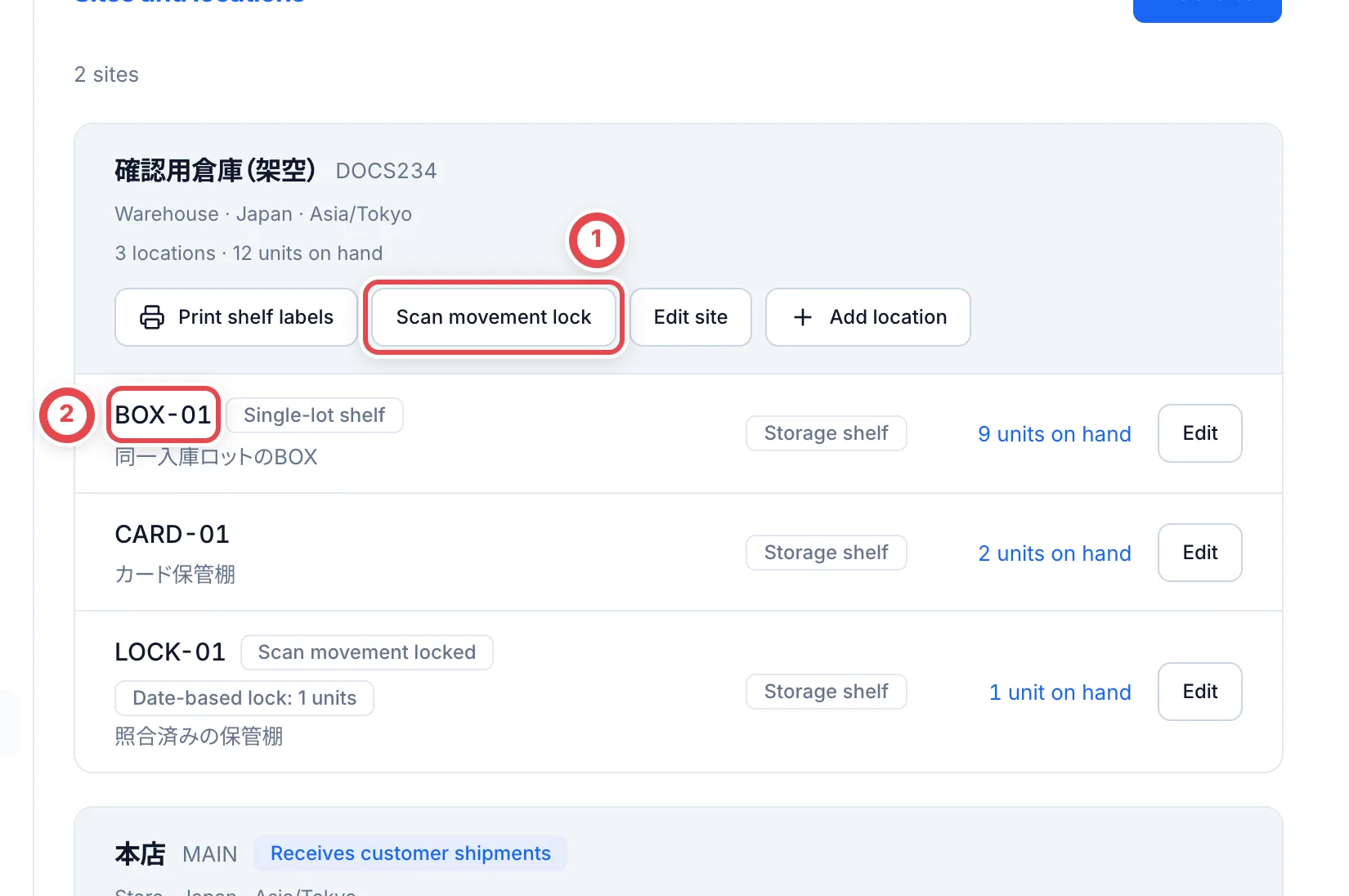 Check the site and click ①. Match the shelf codes, including ②, to the physical shelves.
## 2. Lock entire shelves
Choose **Entire shelves** at ① and **Lock shelves** as the action. Select shelves at ②, check the selected shelf and stock counts, and enter the reason at ③.
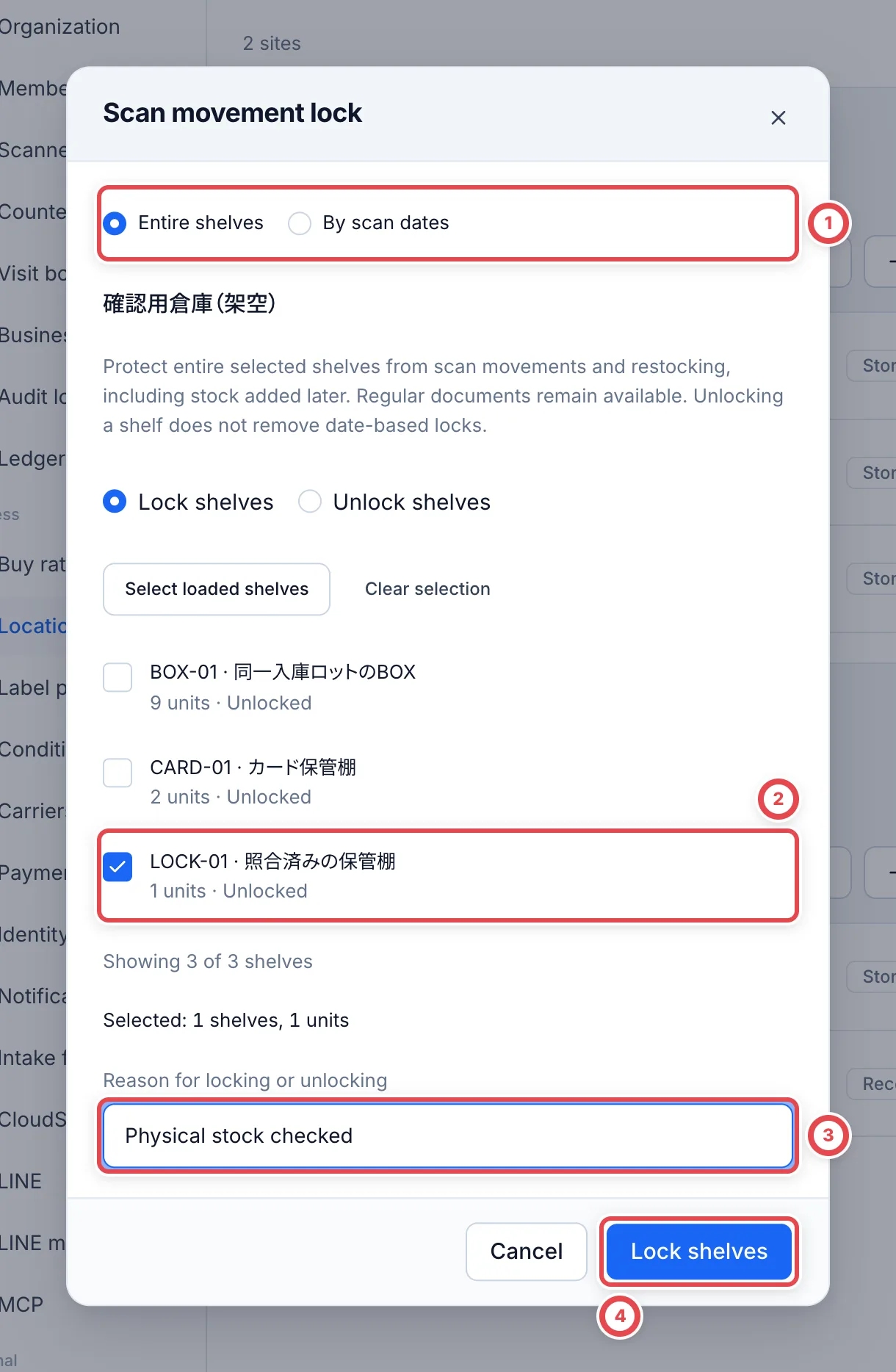 **Select loaded shelves** only selects shelves already loaded. Use **Load more shelves** for the next page. You can select up to 500 shelves at once.
Save with ④. Reopen the dialog and confirm **Scan movement locked** and the reason on the selected shelves.
## 3. Lock stock selected by scan dates
Choose **By scan dates** at ① and select the shelves. Enter **First scan date** and **Last scan date** at ②. Both dates are included. Check the displayed site timezone, then click **Preview stock** at ③.
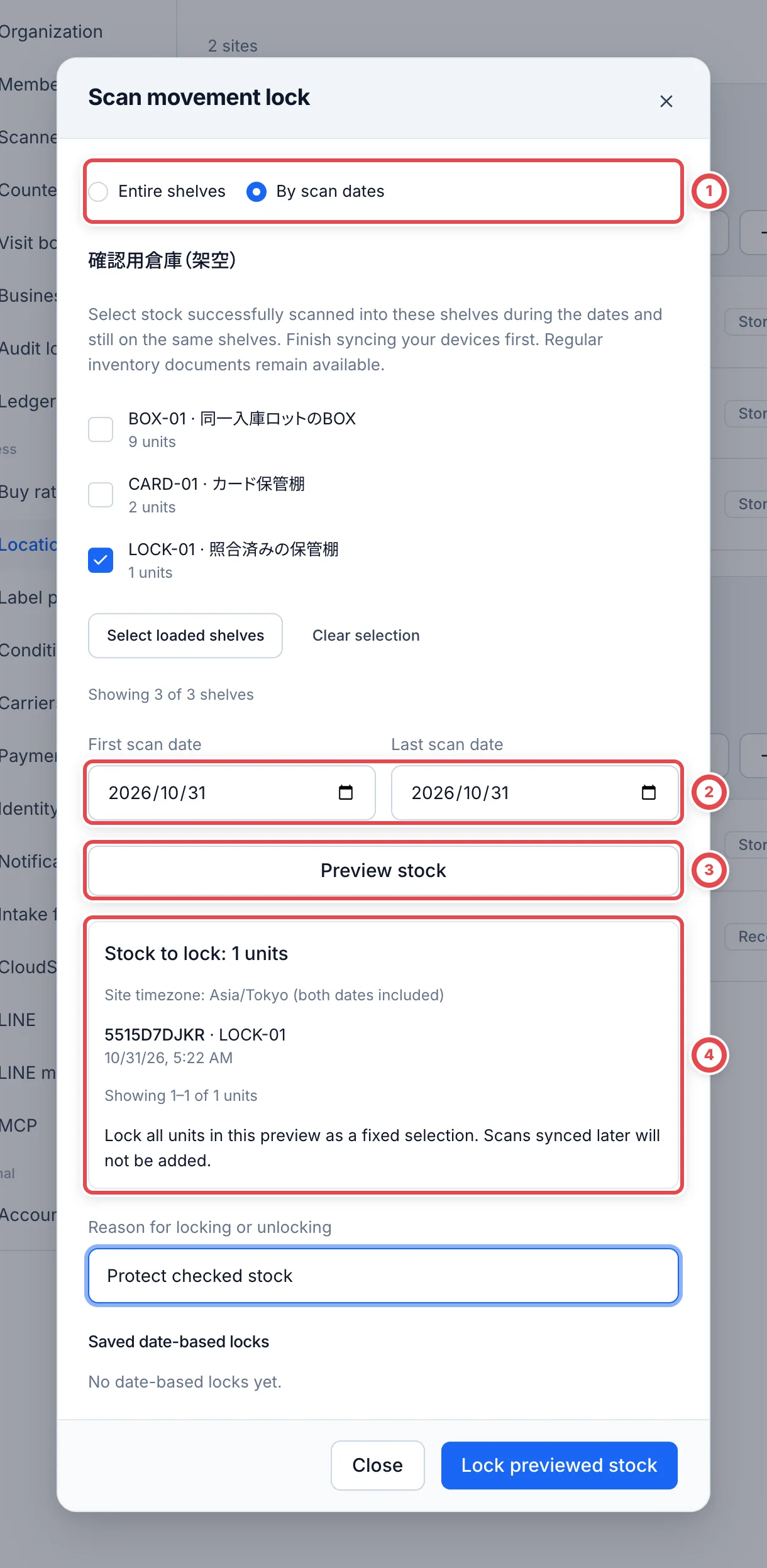 Candidates must have a valid putaway, check or correction into those shelves during the dates and still be on the same shelves. Units moved elsewhere, refused scans and undone scans are excluded.
Check the quantity, shelves and label numbers at ④, enter a reason, and click **Lock previewed stock**. **All previewed units are saved as a fixed selection. Later syncs are not added automatically.** To protect more stock, finish syncing, preview again and save the additional selection.
Targets are displayed 100 at a time. Use **Next units** to check subsequent pages. Saving protects the whole preview, including units on other pages. The limit is 10,000 units and 500 shelves per selection; split larger selections by shelf or dates. Dates refer to when the phone read the code, not when the server received it. An hour-based cutoff is not supported.
After saving, check **Saved date-based locks** and open **View saved units**. If stock changes before saving, preview the targets again.
## 4. Unlock
| Setting | Steps |
| ---------------- | --------------------------------------------------------------------------------------------------------------- |
| Whole-shelf lock | Under **Entire shelves**, select the shelves, choose **Unlock shelves**, enter a reason and save |
| Date-based lock | Open **Unlock this selection** on the saved selection, check its dates and quantity, enter a reason and confirm |
Unlocking one setting does not remove another overlapping date-based or whole-shelf lock. Reopen the settings and check both scopes.
## 5. Recover from a refused scan
A scan that moves protected stock out of its recorded shelf, or an undo that reverses that location, is refused, including physical-stock-priority corrections. Match the physical stock and label to the protection shown for the refusal, then ask a settings manager to review it.
**Additional putaway into a locked shelf is allowed.** A whole-shelf lock also protects the added units from later scan movements and undos. A date-based lock protects only the saved selection; newly added units are not included automatically.
Unlocking does not automatically apply an earlier refused scan. After any required settings change, scan it again as a new read. Retrying the old request is not a new scan.
## Troubleshooting
| What's happening | What to check and how to recover |
| ----------------------------------------- | -------------------------------------------------------------------------------------------------------------------- |
| Settings are missing or cannot be changed | Ask an admin to check **Manage settings** permission. |
| The date preview has no targets | Check the site, shelf, timezone and scan dates. Finish syncing devices and confirm units are still on those shelves. |
| Stock changed before saving | Preview again and match the current targets and quantities to physical stock. |
| A scan is still refused after unlocking | Check both whole-shelf and overlapping date-based locks. Make a new scan instead of replaying the old refusal. |
| Select loaded shelves missed some shelves | Load the next page and select the additional shelves. Only loaded rows are selected. |
| A regular document still moved stock | The lock protects scan-originated changes. Regular inventory documents remain available. |