---
title: Bulk lots and set prices
sidebar:
order: 6
---
| When | Use | What is recorded |
| ----------------------------------------------------------- | --------- | -------------------------------------------------------------------------------------- |
| You buy 300 normal cards together for ¥100 | Bulk lot | The bundle becomes one line, with its card count and the amount for the whole lot |
| You appraised each card and offer ¥50,000 for them together | Set price | Each card's appraisal stays, and the offered total for the whole quote becomes ¥50,000 |
**A bulk lot is one amount for the bundle. A set price is the offered total for the whole quote.** For 300 cards at ¥100, the ¥100 is not multiplied by 300.
## Bulk lots
Use a bulk lot in the final appraisal, after you receive the goods. Add it before you finalize and present the final quote.
### 1. Click Add a bulk lot
If you are viewing the final appraisal, click **Edit appraisal**. **Add a bulk lot** (①) is above the lines in the editor.
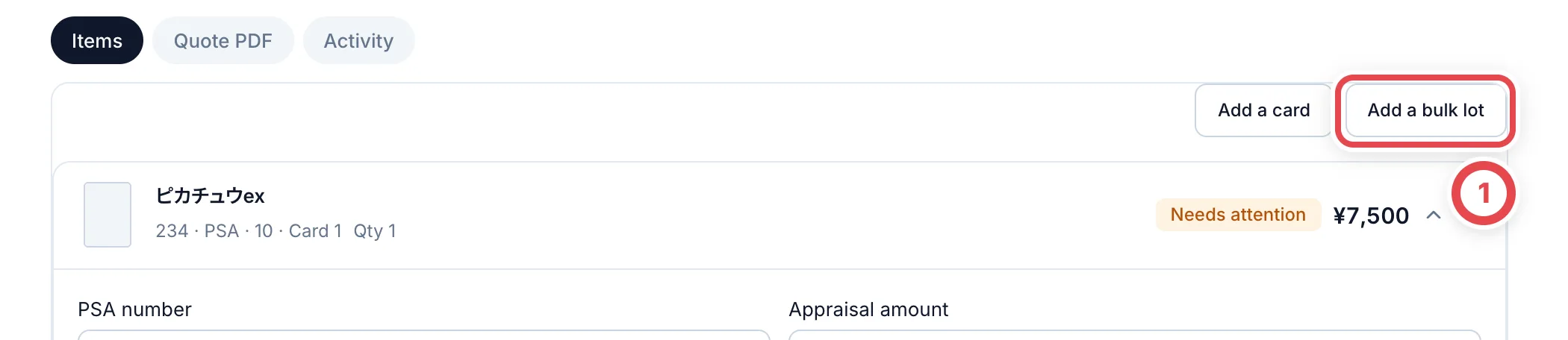 In the individual final editor, save any changes to amounts, numbers or purchase decisions before adding a bulk lot. Save changes to the set total first as well.
### 2. Enter the name, count and amount
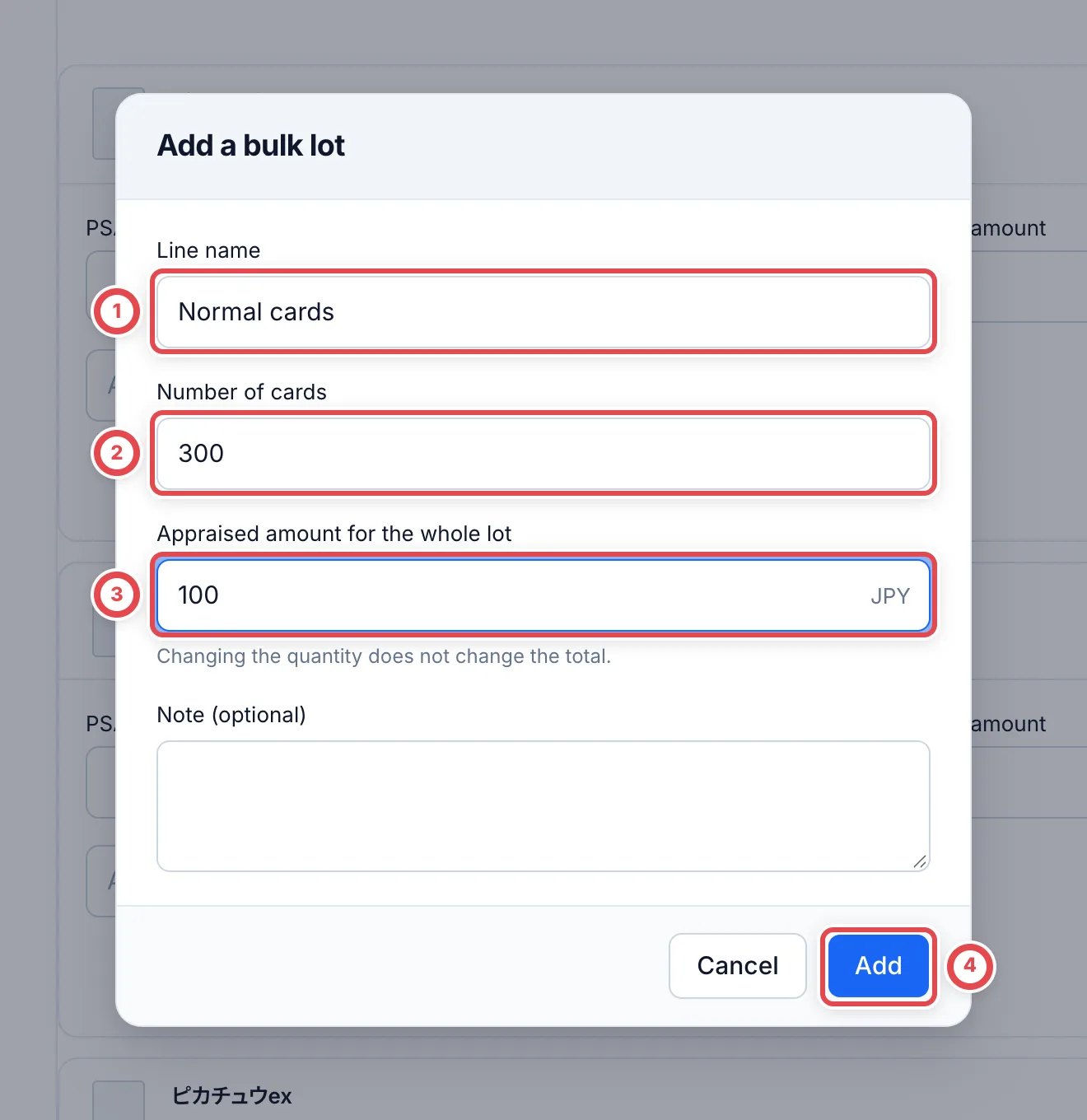
Enter a name such as "Normal cards" in **Line name** (①), the number of cards in the bundle in **Number of cards** (②), and the amount for the whole bundle in **Appraised amount for the whole lot** (③). If needed, write a **Note (optional)** too, then click **Add** (④).
 :::note
For 300 cards at ¥100, **Number of cards** is 300 and **Appraised amount for the whole lot** is 100. **Changing the count does not change the amount for the whole lot.** If you change the amount too, edit it separately.
:::
### 3. Check the line and move on
Check the count and the amount on the line you added. After saving the final appraisal, continue to presenting the final quote. Online purchases may require a second review first, depending on the amount. In-store purchases do not request second reviews.
### Stock and returns
| Case | What happens |
| ------- | -------------------------------------------------------------------------------------------------------------- |
| Stock | The bundle becomes one unit and keeps its card count. The 300 cards do not each get their own unit or QR label |
| Returns | If you don't buy the bundle, the whole bundle line becomes a return item |
If you want to appraise and manage cards one by one, don't use a bulk lot. Register them as ordinary card lines.
## Set prices
A set price keeps each card's appraisal and sets the total offered for the whole quote.
See [Change to a set price](/en/guides/purchase/set-price) to set or change the total.
## Troubleshooting
| What's happening | What to check and how to fix it |
| -------------------------------------------------------- | ---------------------------------------------------------------------------------------------------------------------------------------------------------------------------------------------------- |
| You can't find **Add a bulk lot** | Open **Edit appraisal** in the final appraisal. It is not on the preliminary quote screen |
| You think the bulk lot amount is multiplied by the count | The amount is for the whole bundle. Changing the count does not change the amount |
| You want each card in the bundle in stock one by one | A bulk lot becomes one unit. To manage cards one by one, register them as ordinary card lines |
| You can't use **Accept some** on a set-price quote | Requote a preliminary set-price offer with the intended items. Individual online final quotes allow selecting units and checking their shares; in-store purchases require requoting before signature |
| You want to stop using the set price | In the individual final editor, clear **Set total (optional)** and save. Elsewhere use **Remove set price** and save ([steps](/en/guides/purchase/set-price)) |