---
title: Request a missing card in the catalogue
sidebar:
order: 9.1
---
When searches by name, number and set cannot find the correct card, request registration. Open it from an unidentified line, item addition or AI-reading review. Purchase editing permission is required.
The current request form creates a shop-only provisional card when you select its game, allowing the purchase to continue. Shared catalog registration is a separate review. For older requests without a provisional card, apply the card to the line after the operator registers it. This action is not offered by every picker, such as the receipt form’s search.
## 1. Open the request from an unidentified line
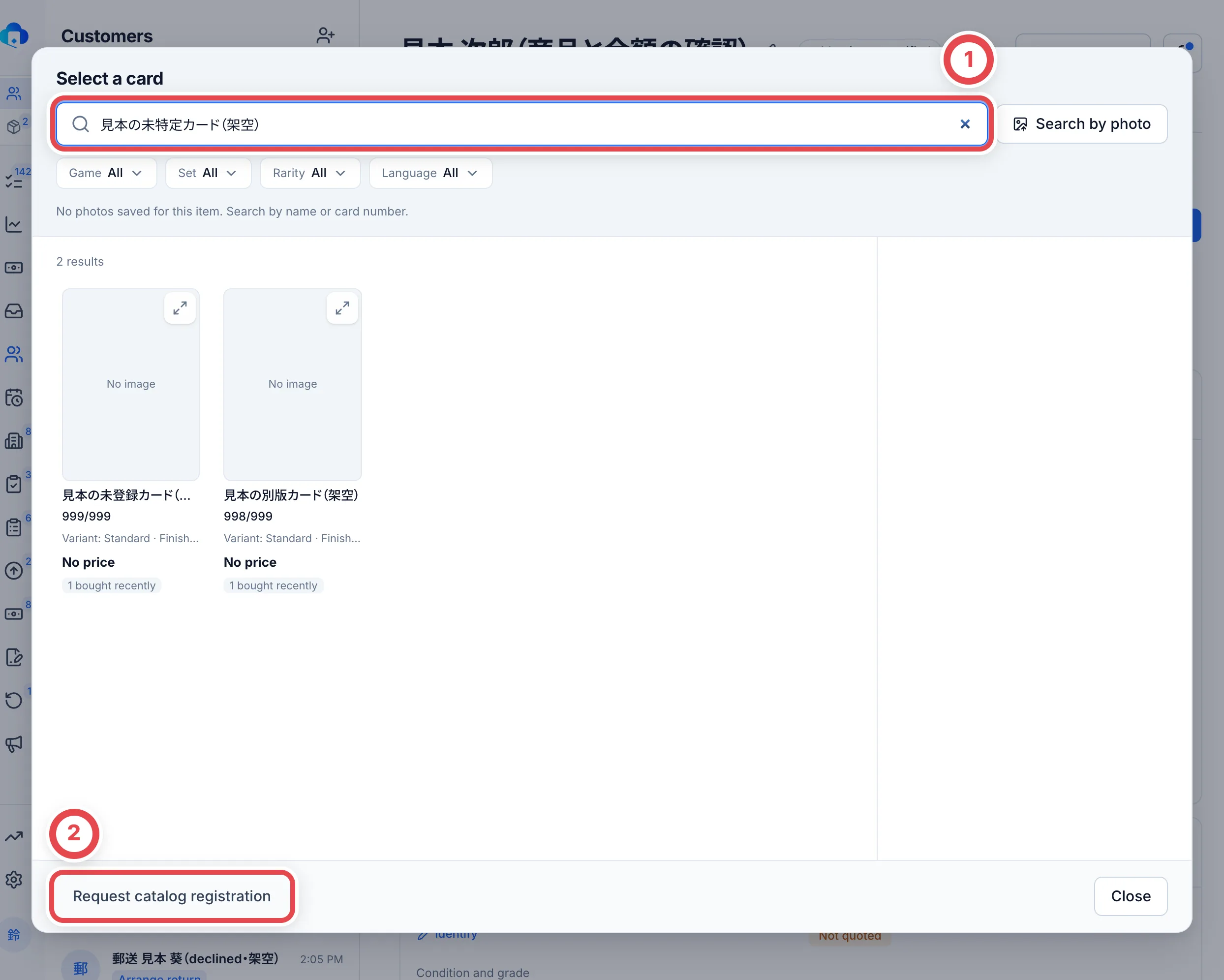
On the customer’s **Appraisal requests**, select **Identify** for the correct line. Check search terms and game, set, rarity and language at ①. Avoid choosing a different variant. If the card is absent, use **Request catalogue registration** at ②.
 ## 2. Check card details and shared photos
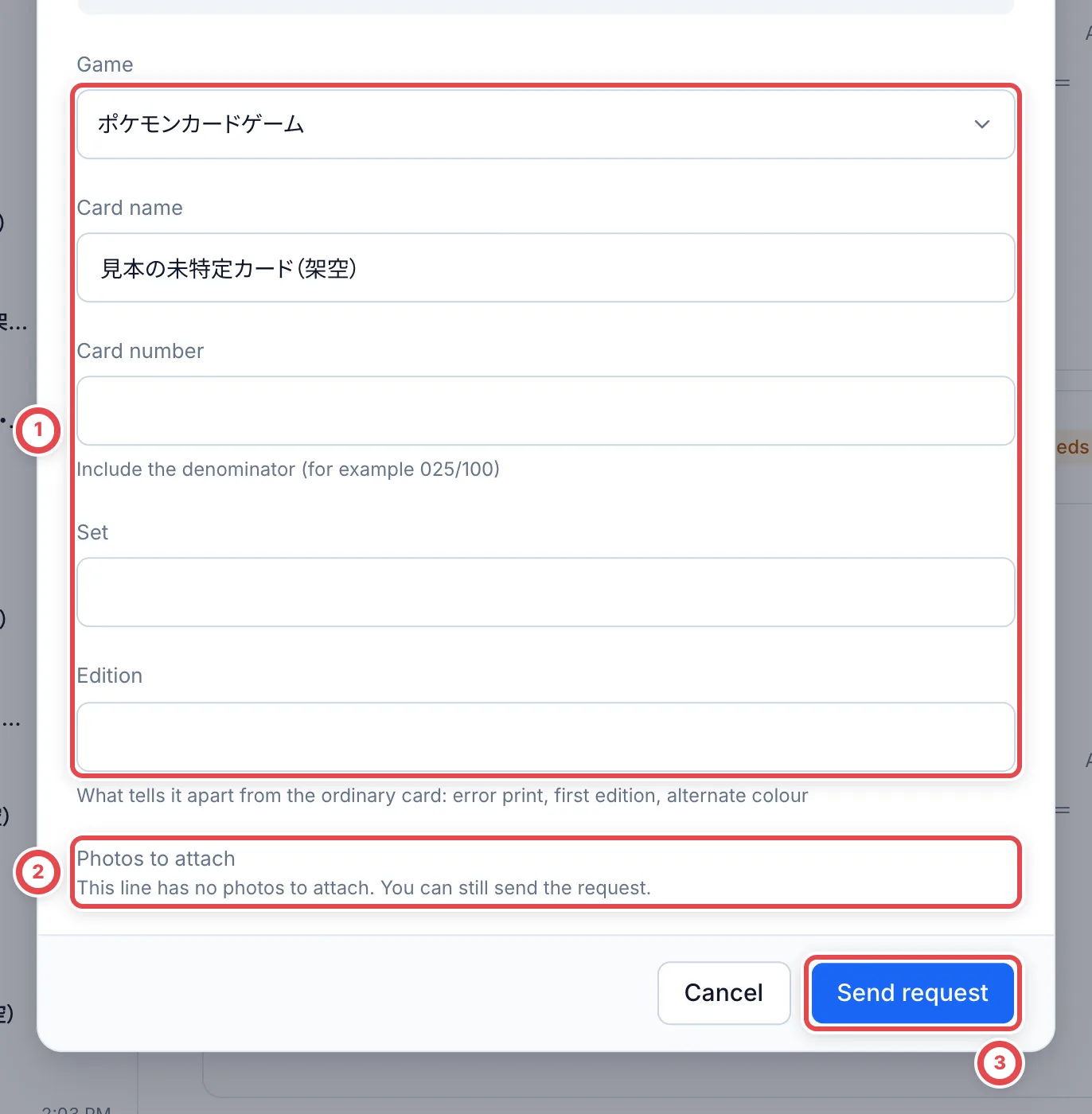
Check the game and card name at ①; the name is required. Include the denominator in the card number, and add set and edition details where known. Check the photos selected at ②. Internal appraisal photos are excluded from this request.
:::warning
The request button at ③ saves the selected details and photos as a registration request. Check that they belong to this line and contain no unnecessary personal information.
:::
If you know the SNKRDUNK product URL, select the physical item’s grading company and grade (or condition for ungraded cards), then use **Fetch product details**. If the result differs from existing input, review whether to retain the input or use the candidate. If lookup fails, you can enter the required details manually. Fetching does not confirm registration.
A request can be submitted without photos. If more visual detail is needed, add suitable photos to the line first.
 ## 3. Read the response and apply the registered card
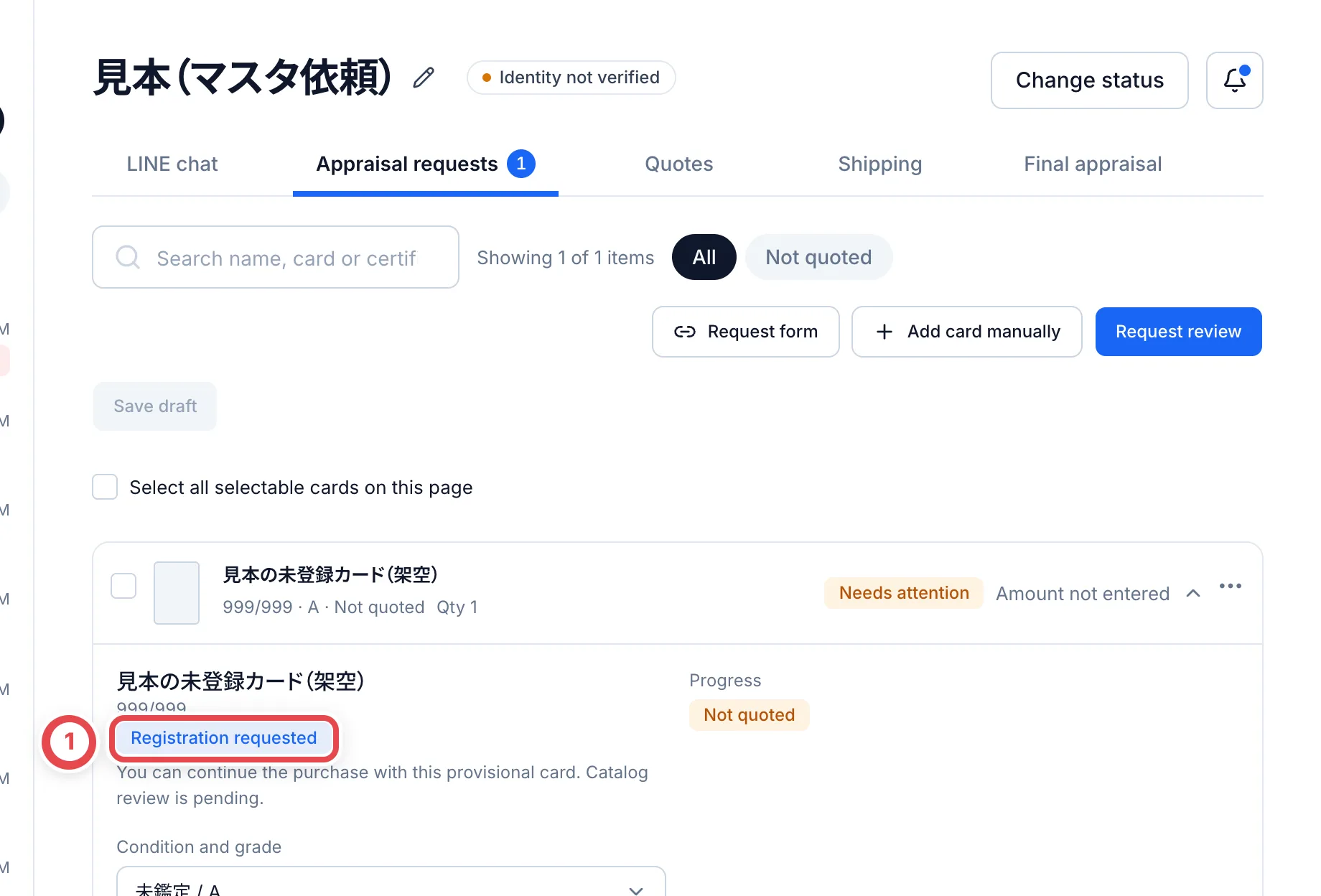
Reopen the original line and check its request status at ①. A notice that you can continue with a provisional card means you can appraise that shop-only card while catalog review is pending. See the next section for shop review.
| Status | Next action |
| ----------------------------------------------- | ------------------------------------------------------------------------------------------------------------------------------ |
| Registration requested, with a provisional card | Continue appraisal with the provisional card; use shop review below for shared catalog registration. Avoid duplicate requests. |
| Registration requested, older request | Wait for the operator; avoid duplicate requests. |
| Registered, older request | Verify name, number and edition, then use the offered button to identify this line with that card. |
| Declined | Read the operator’s note, correct details and request again, or search again. |
After applying the card, reload the line and check card, edition and quantity before pricing.
 ## 4. Review a provisional card in the shop
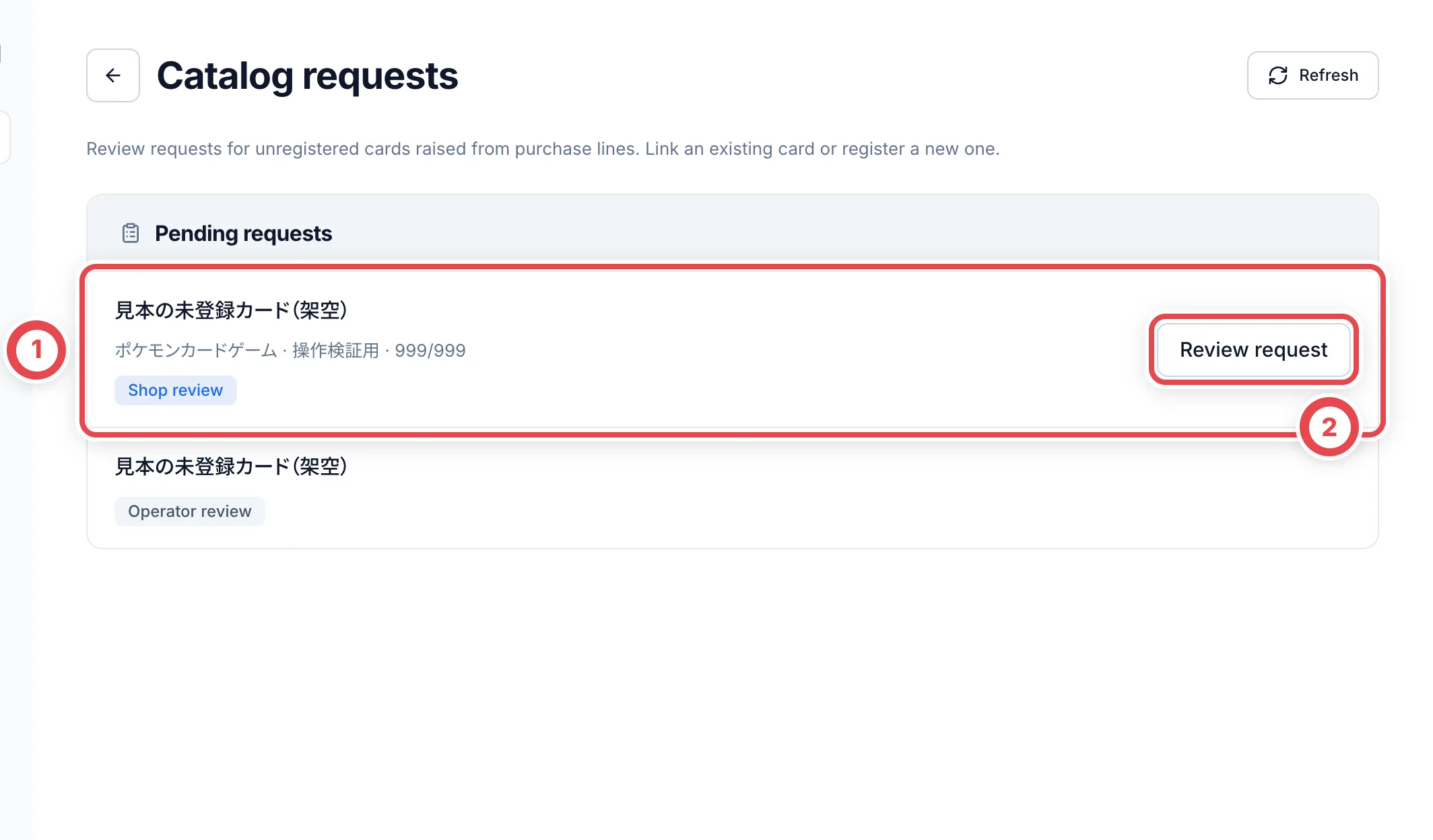
Open **Market prices** → **Catalog requests**. Requests marked ① **Shop review** show ② **Review request** for authorized members. **Operator review** requests cannot be confirmed here.
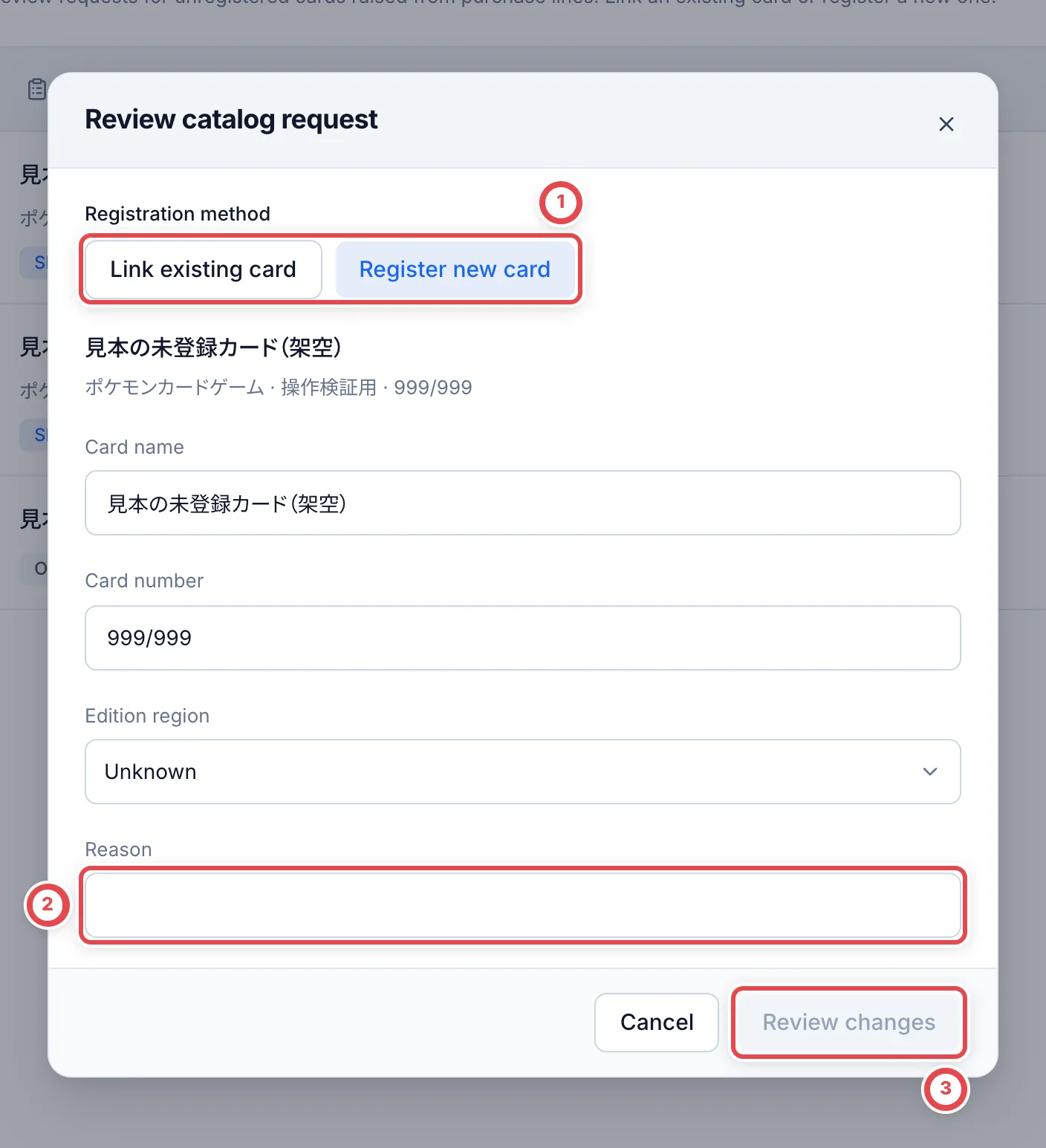
 Choose the method at ①. If the card already exists, use **Link existing card** → **Find existing card** and match its game, number and printing. Otherwise choose **Register new card** and check its name, number and Edition region. Do not guess Japan when the region is unknown.
Check any image selected for use. If the option to use a SNKRDUNK product as the market source appears for a Japanese card, verify that URL too. Enter ② **Reason**, then click ③ **Review changes**.
 Check the registration details and the affected purchase-line and inventory counts in the preview. Use **Back** to correct them.
:::warning
**Confirm registration** registers the shared card or links an existing card and applies the change to related purchase and inventory records. Opening the preview does not commit it. Check the target, impact and reason before confirming.
:::
Refresh the list, then check the original line and stock for the correct card, number and printing. Approval requires catalog-approval and purchase-history correction permissions, plus inventory-history correction permission if stock exists. If the records have changed, reopen the request and review the latest impact.
## 5. Add a SNKRDUNK link for an identified product
If the card or sealed product is already identified but has no shared SNKRDUNK link, use **Add link** on the appraisal item. The shop must have SNKRDUNK links enabled, and you need purchase editing permission. Identify an unknown product first or use the catalog registration request above.
1. Compare the displayed product name, number and language with the physical item
2. Enter a product URL in the form `https://snkrdunk.com/apparels/…` under **SNKRDUNK product URL**. Use **Check product page** to confirm the product and printing. **Get product details** can retrieve its name and image. If retrieval fails, check the product page before saving
3. Click **Save and request approval**. **This saves a provisional link for this purchase and requests shared catalog registration.** It does not yet set the shared link for all shops
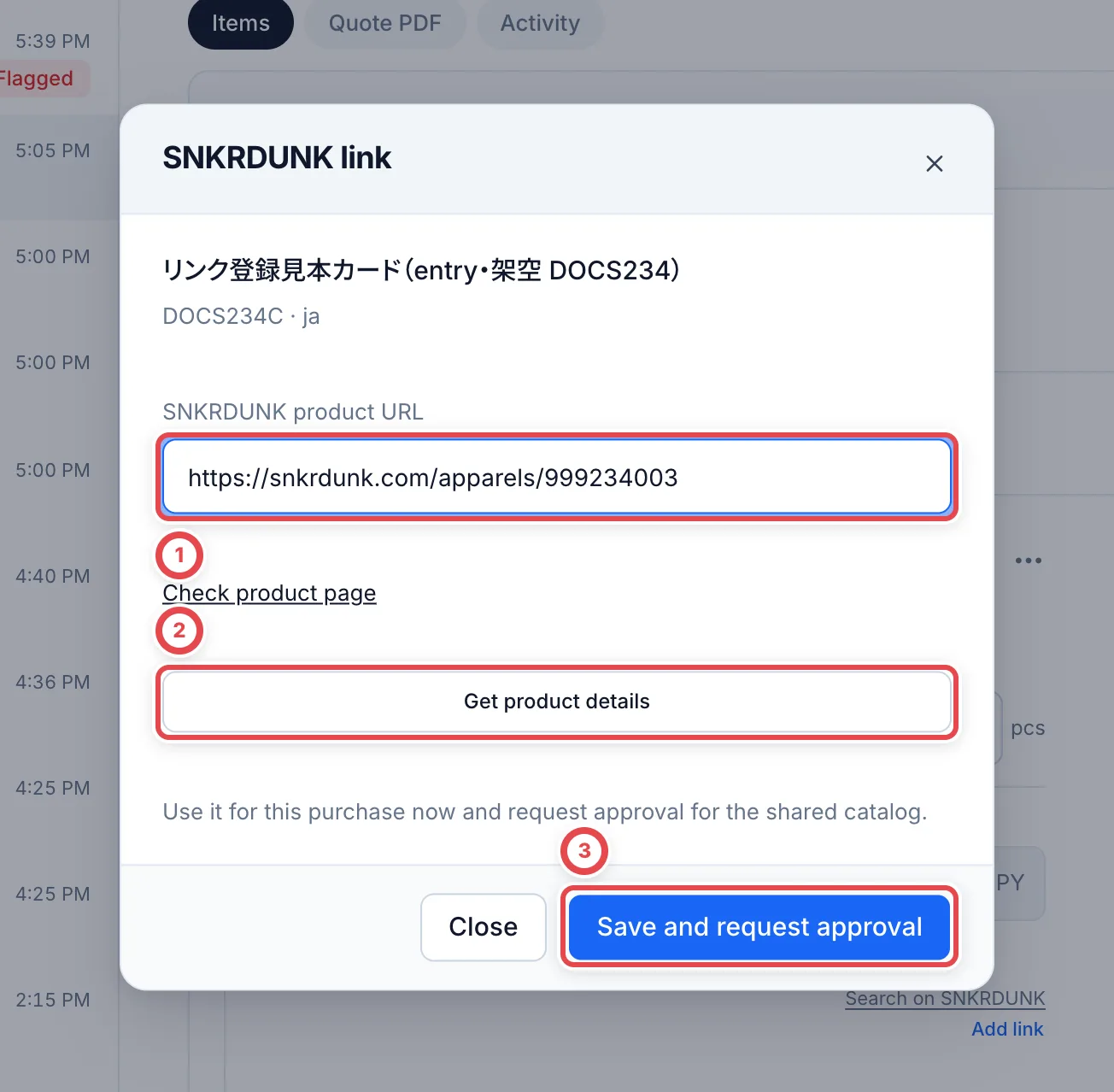 Enter the URL at ①, optionally retrieve details at ② and request registration at ③.
While pending, **Link status** shows the URL and state. If product identification changes, withdraw the existing request before adding the correct one. Products with a shared link, an operator-disabled link or a non-editable appraisal cannot receive a new link here.
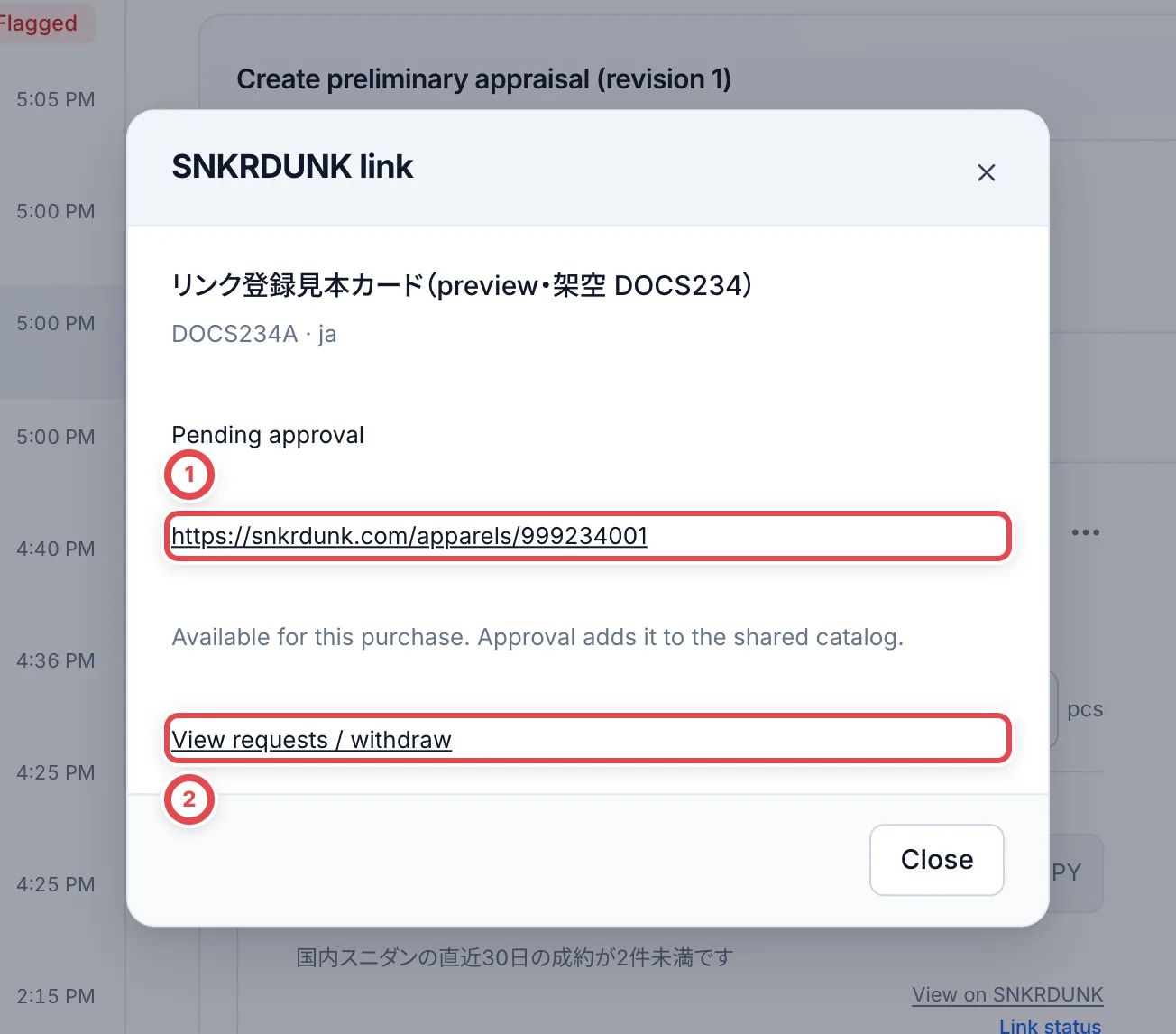 ① is the provisional link for this purchase. Open the request list or withdraw it with ②.
### Approve the shared link in the shop
Open **Market prices** → **Catalog requests** → **SNKRDUNK link requests**. Members with catalog approval permission see **Approve** and **Reject**; purchase editors see **Withdraw**.
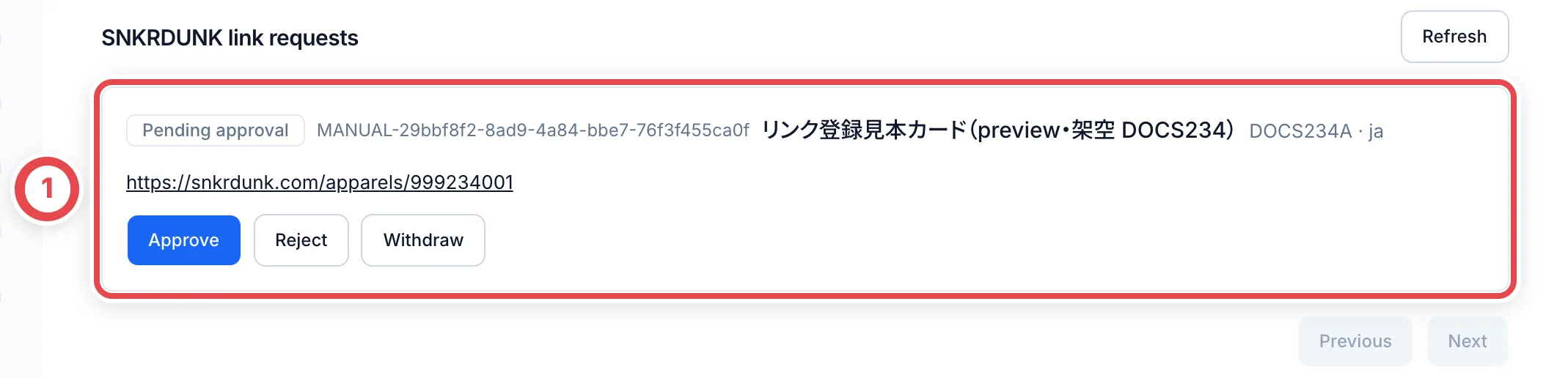 Match the product and URL in ① before choosing Approve, Reject or Withdraw.
Compare the product name, number, language and URL, plus the current shared link when shown. Use **Approve** to open the confirmation and enter a reason.
:::warning
**Confirm** in **Approve shared link** applies the URL to the shared catalog for all shops. Check the exact product and printing before confirming; this is more than a note for the current deal.
:::
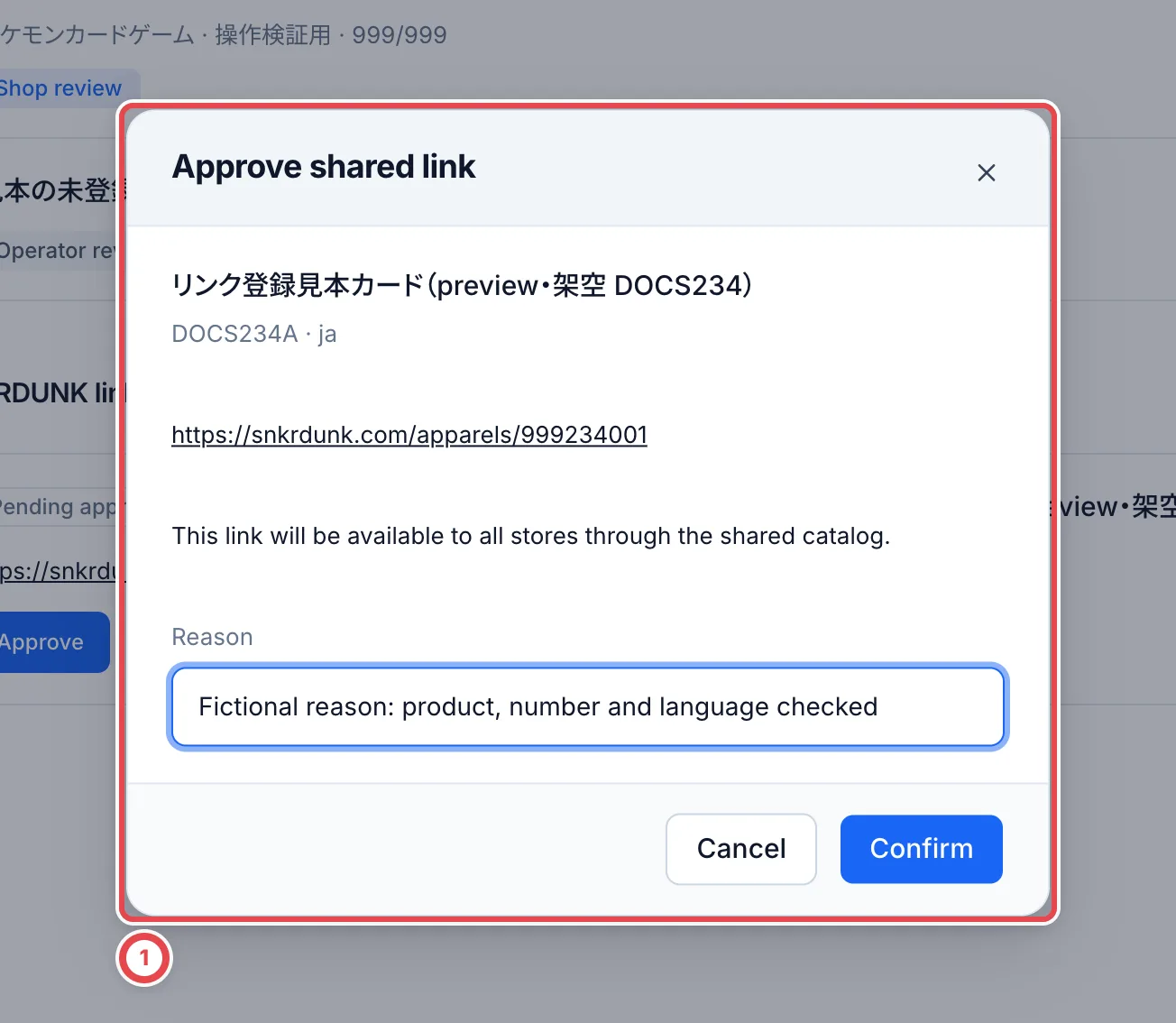 Check the shared-catalog impact and reason in ① before confirming.
Rejecting or withdrawing stops use of the provisional link for this purchase. Refresh the list and verify the request status and link on the original appraisal. If the product changed, reopen and compare the latest target.
## Troubleshooting
| What you see | What to check |
| --------------------------- | ---------------------------------------------------------------------------------------------------------------- |
| No request action | Check that the appraisal line is unidentified, editable and not already waiting/registered. |
| Photos cannot load | Reload, or submit the details without photos if suitable. |
| Still waiting | Check with the shop reviewer for a provisional card, or the operator for an older request; reopen the same line. |
| Registered but cannot quote | Apply the registered card to the line first. |
For a researcher’s registration route, see [Research and reviews](/en/guides/purchase/research-and-reviews).