---
title: Counter tablets
sidebar:
order: 3
---
A counter tablet is an iPad or similar device you keep in the shop so customers can review the final quote during a counter purchase. The customer checks the purchase on the tablet, then enters their details, agrees and signs. You can also use the customer's own smartphone, so you can run counter purchases without registering a tablet.
For how to run a deal itself, see [Start a counter purchase](/en/guides/purchase/counter).
## What you need
- Only members who can manage settings (owners and admins) can register or change tablets. Other members can view the list
- An iPad or similar device with a camera, and an internet connection to Toreca Cloud
- The site where you will keep the tablet (optional)
## The steps and tablet statuses
| Step | What you do | Tablet status |
| ---- | ---------------------------------------------- | ----------------- |
| 1 | Register the tablet and show the QR code | Awaiting scan |
| 2 | Scan the QR code with the tablet's camera | In use |
| 3 | Show the final quote on the tablet from a deal | In use |
| 4 | Register again or stop it (if needed) | In use or Stopped |
If 10 minutes pass without the QR code being scanned, the status becomes **Not registered**. Click **Register again** to show a new QR code.
## 1. Register the tablet and show the QR code
Use **Copy** beside **Standby screen link** to reopen a registered tablet. If copying is blocked, select the URL and copy it manually. Opening this link on a different tablet does not register it.
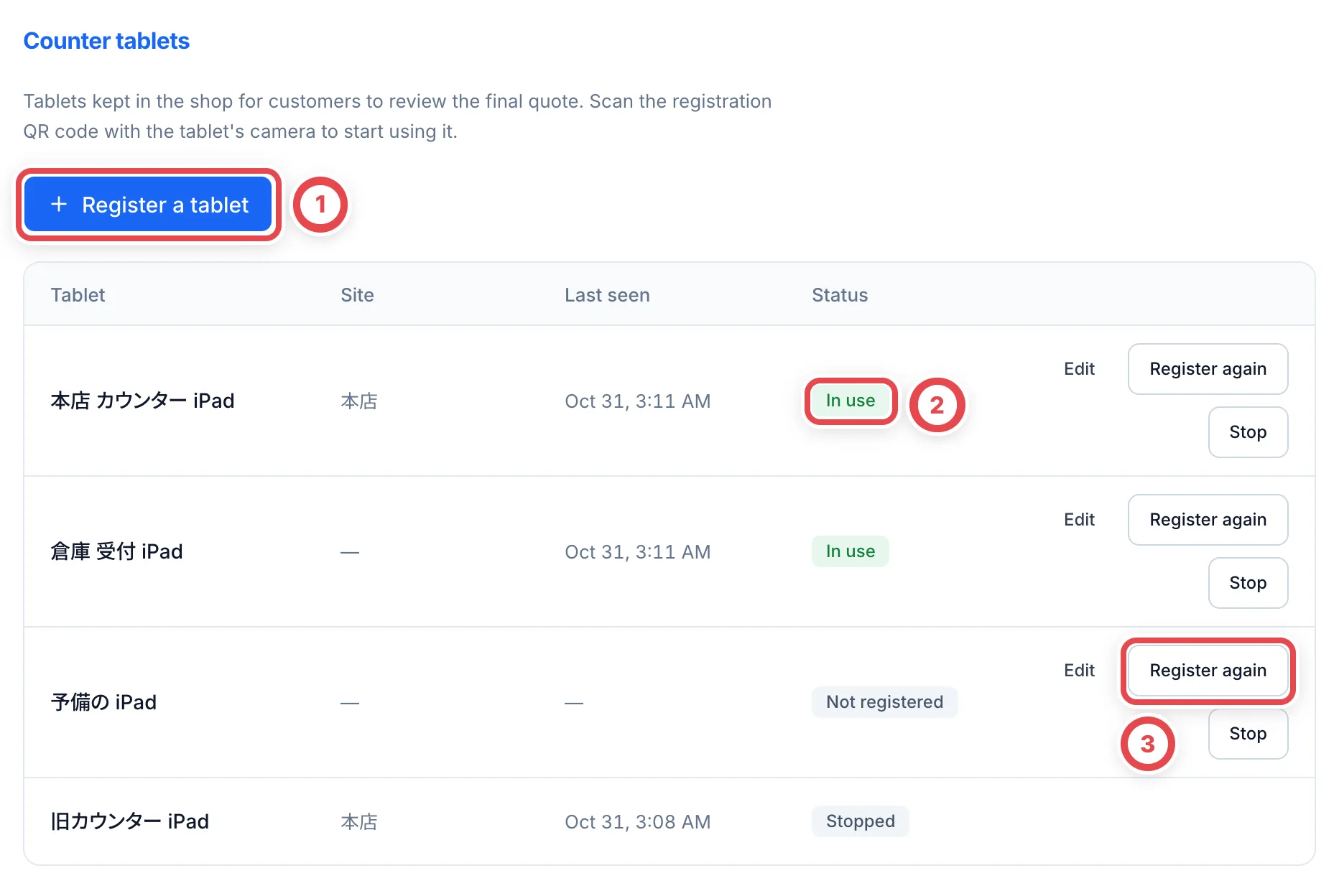
Under **Settings** › **Counter tablets**, click **Register a tablet** at ①.
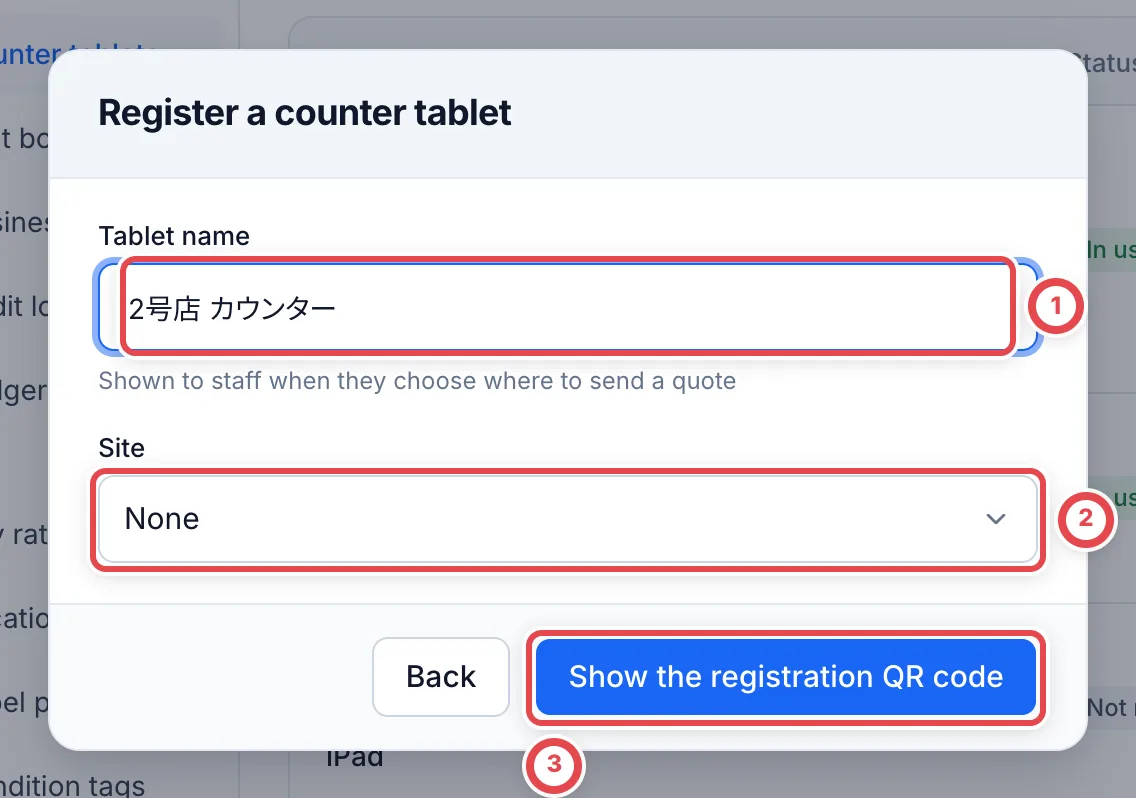
 When **Register a counter tablet** opens, enter a **Tablet name** at ① (up to 60 characters) and a **Site** at ② (optional). The name appears when staff choose where to send a quote from a deal, so use one that tells them where the tablet is. Click **Show the registration QR code** at ③.
:::warning
**Show the registration QR code** adds the tablet to the list immediately.
:::
 ## 2. Scan the QR code with the tablet's camera
**Scan with the tablet's camera** opens. Scan the QR code at ① with the camera of the iPad you are registering, and leave the page that opens on screen. That finishes the registration. Within a few seconds of the scan, this dialog closes by itself, a message confirms the tablet is registered, and the status in the list becomes **In use**.
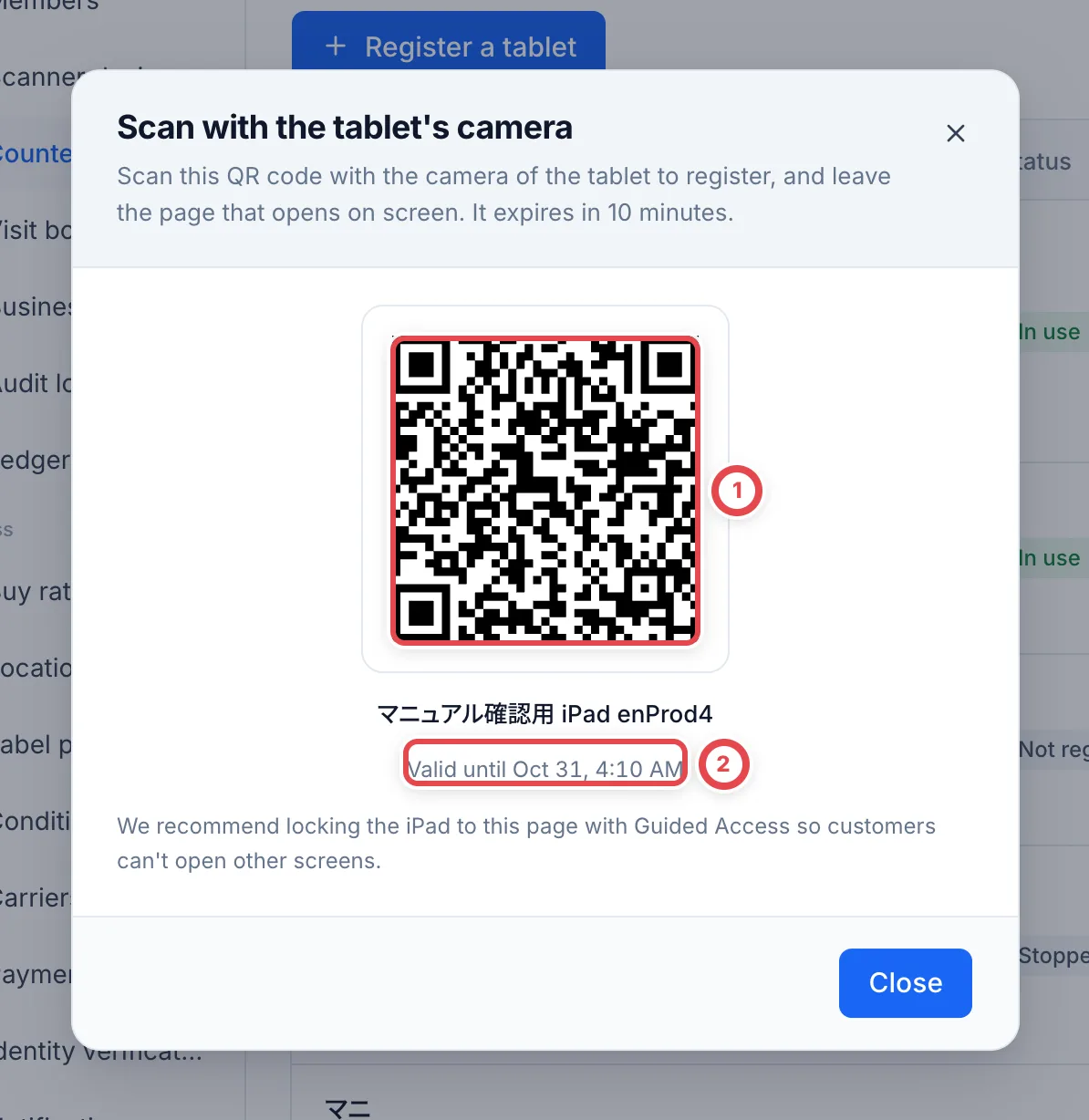 Scan ① with the iPad's camera. The code stops working after the time at ②.
- The QR code stops working 10 minutes after it is shown. It can be scanned only once
- If scanning is unavailable, copy the **Registration link** and open it in the tablet’s browser. It has the same expiry and single-use limit as the QR code
- If you close this dialog, the same QR code can't be shown again. If you close it before scanning, click **Register again** in the list to show a new one
- To stop customers from opening other screens, we recommend locking the iPad to this page with Guided Access
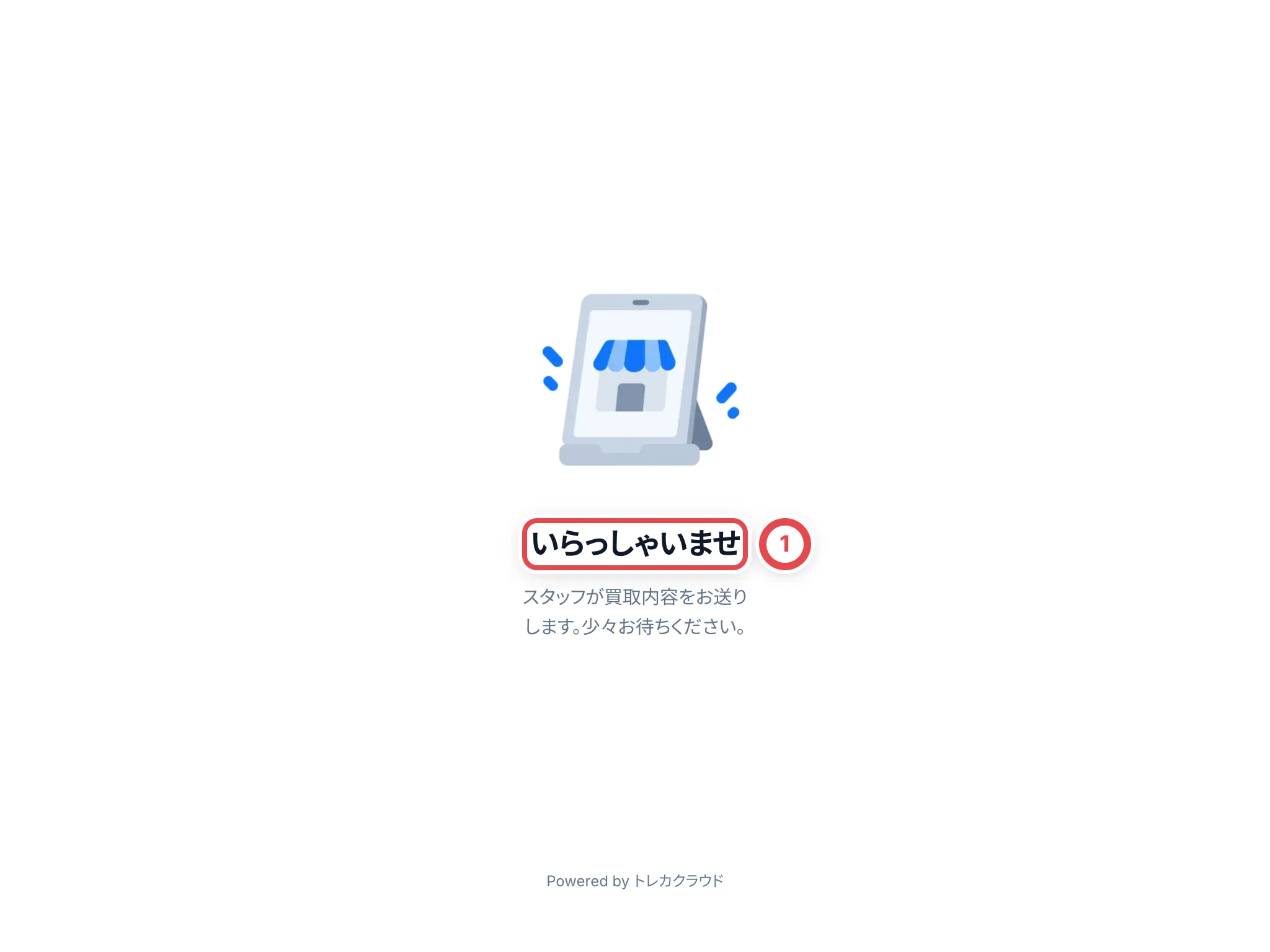
Once registered, the tablet shows 「いらっしゃいませ」 (Welcome) until a deal arrives.
 :::note
The customer screens are Japanese only.
:::
### Staff actions on the standby screen
Open **For staff** and choose **Sign in as staff** to open the sign-in screen. Tablet registration is separate from the staff account; signing in alone does not register a tablet.
Choose **Disconnect this tablet** and confirm to invalidate this browser’s connection. To use it again, choose **Register again** in settings and open its new QR code or registration link on this tablet. If a customer is reviewing a quote, finish that review from the deal before disconnecting.
## 3. Show the final quote on the tablet from a deal
Saving the appraisal revision opens the final quote PDF without a separate receipt confirmation. Check the items, quantities and amounts, then use **Show to the customer** to choose a destination. Saving does not record customer acceptance.
When you save the final appraisal on a counter deal, **Show to the customer** appears in **Next step** on the deal page. Click it to open **Show to the customer**. **Where to show it** lists your tablets that are In use and the **Customer's phone**.
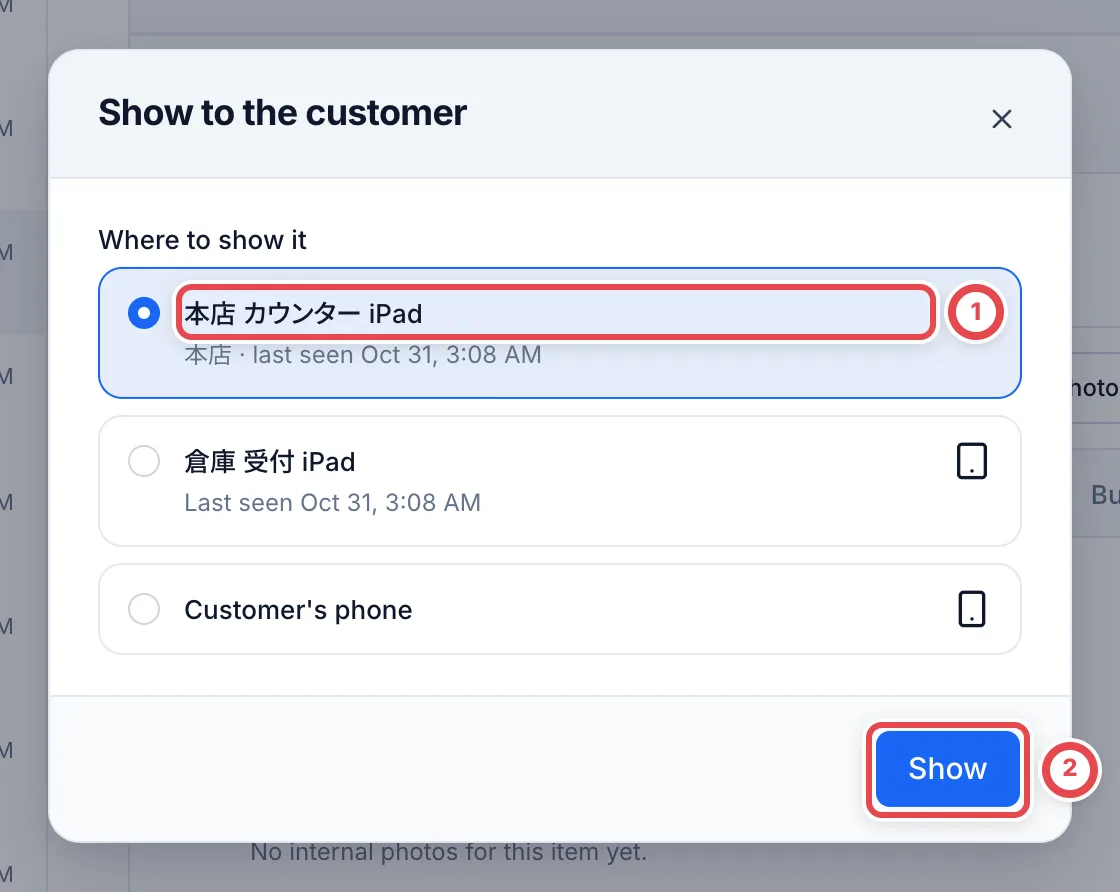 Choose a tablet at ①, then click **Show** at ②. **It appears on the tablet right away, and the final quote is recorded as presented.** The tablet shows the total amount and 「内容を確認する」 (Review the details). Hand the tablet to the customer.
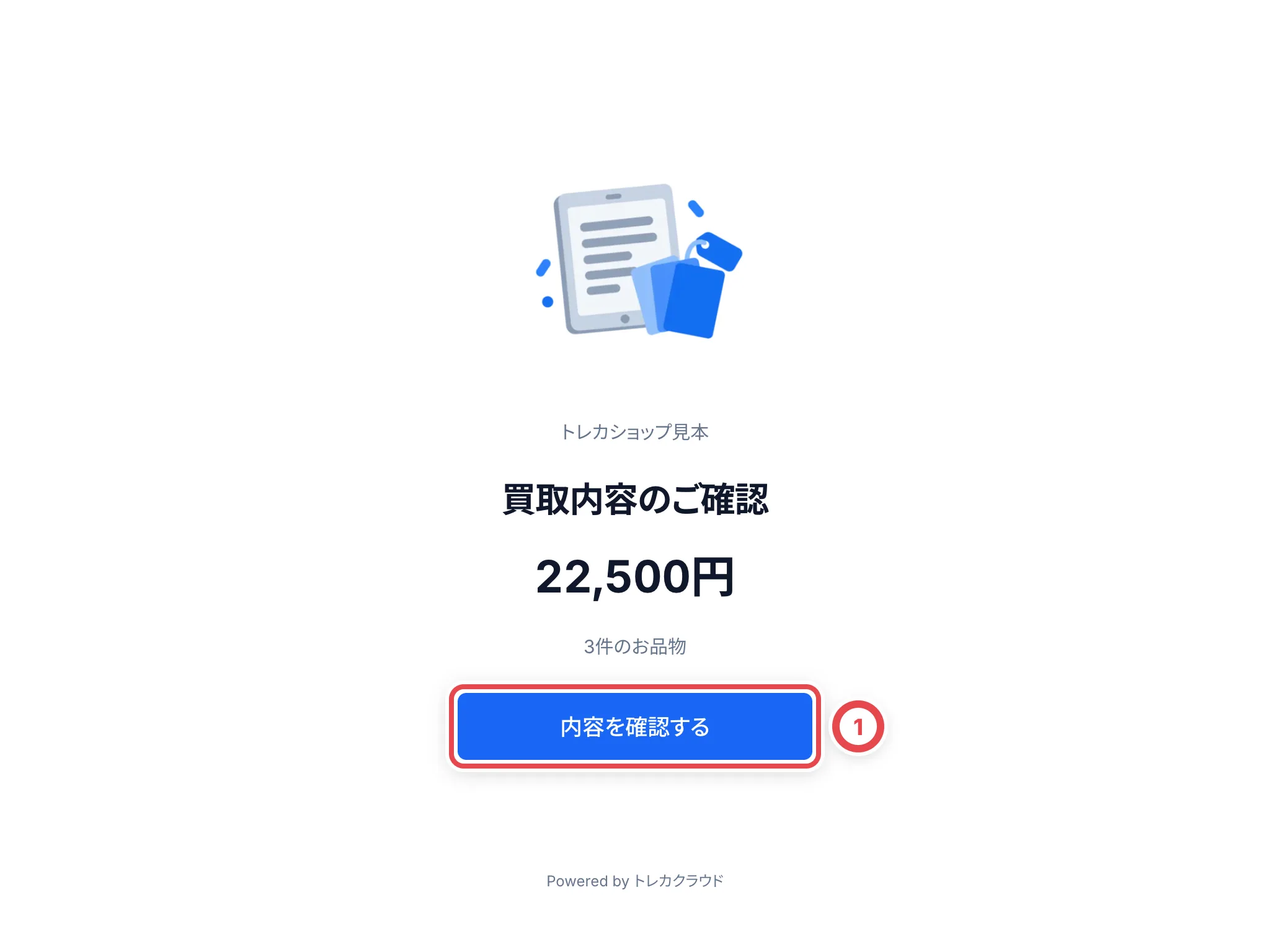 The customer then reviews the purchase, enters their details, and agrees and signs. With customer photography enabled, an ID photography screen appears before agreement. For what is on each screen and how to follow progress on the staff side, see step 5 of [Start a counter purchase](/en/guides/purchase/counter). After the customer submits, the tablet goes back to the waiting screen after 12 seconds.
- What is shown on the tablet expires after 30 minutes. If it expires, show it again from the deal page
- A tablet can show one deal at a time. You can't send to it while another customer is reviewing
## 4. Register again or stop it (if needed)
### Change the name or site
Click **Edit** in the list to change the tablet's name and site. Click **Save changes** and it is saved right away. The tablet stays connected.
### Register again
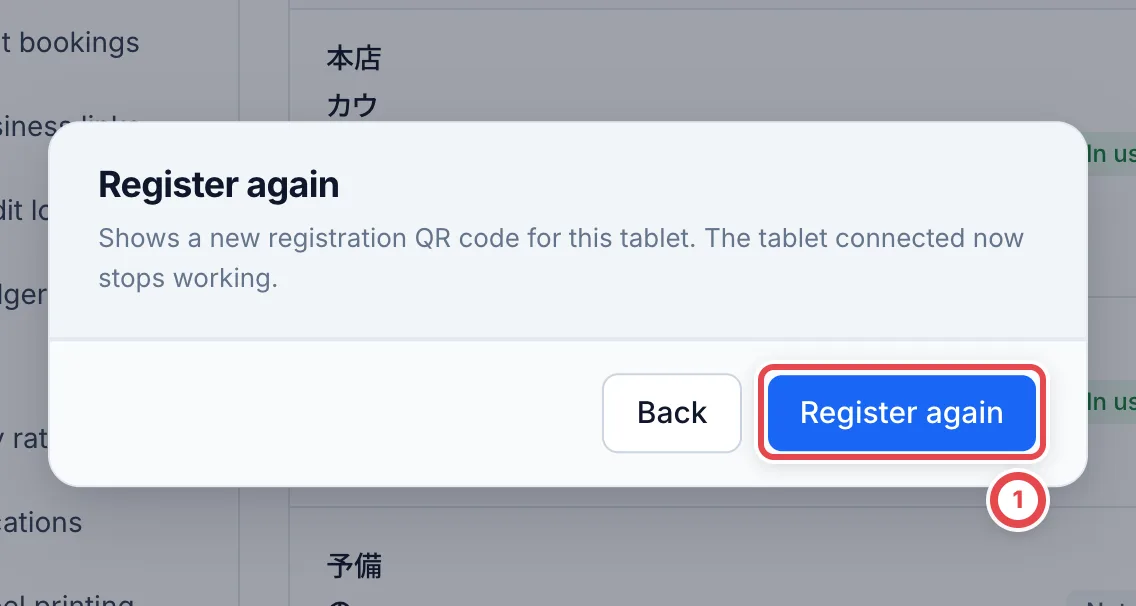
If you lose a tablet, replace it, or the QR code expires, click **Register again** in the list.
:::warning
Clicking **Register again** at ① disconnects the current tablet and cancels anything showing on it.
:::
Scan the new QR code with the tablet you want to use.
 ### Stop using a tablet
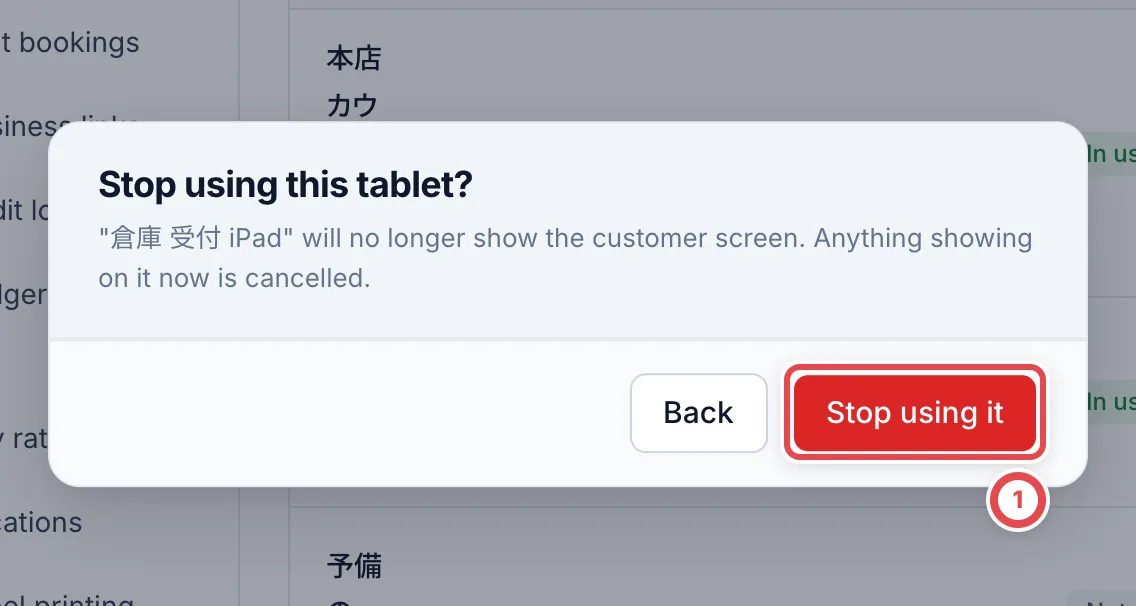
For a tablet you no longer use, click **Stop** in the list.
:::warning
You cannot undo **Stop using it** at ① in the confirmation.
:::
The customer screen can't be shown on that tablet any more, and anything showing on it is cancelled. **You can't undo stopping a tablet.** To use it again, register it as a new tablet. A stopped tablet stays in the list as **Stopped**.
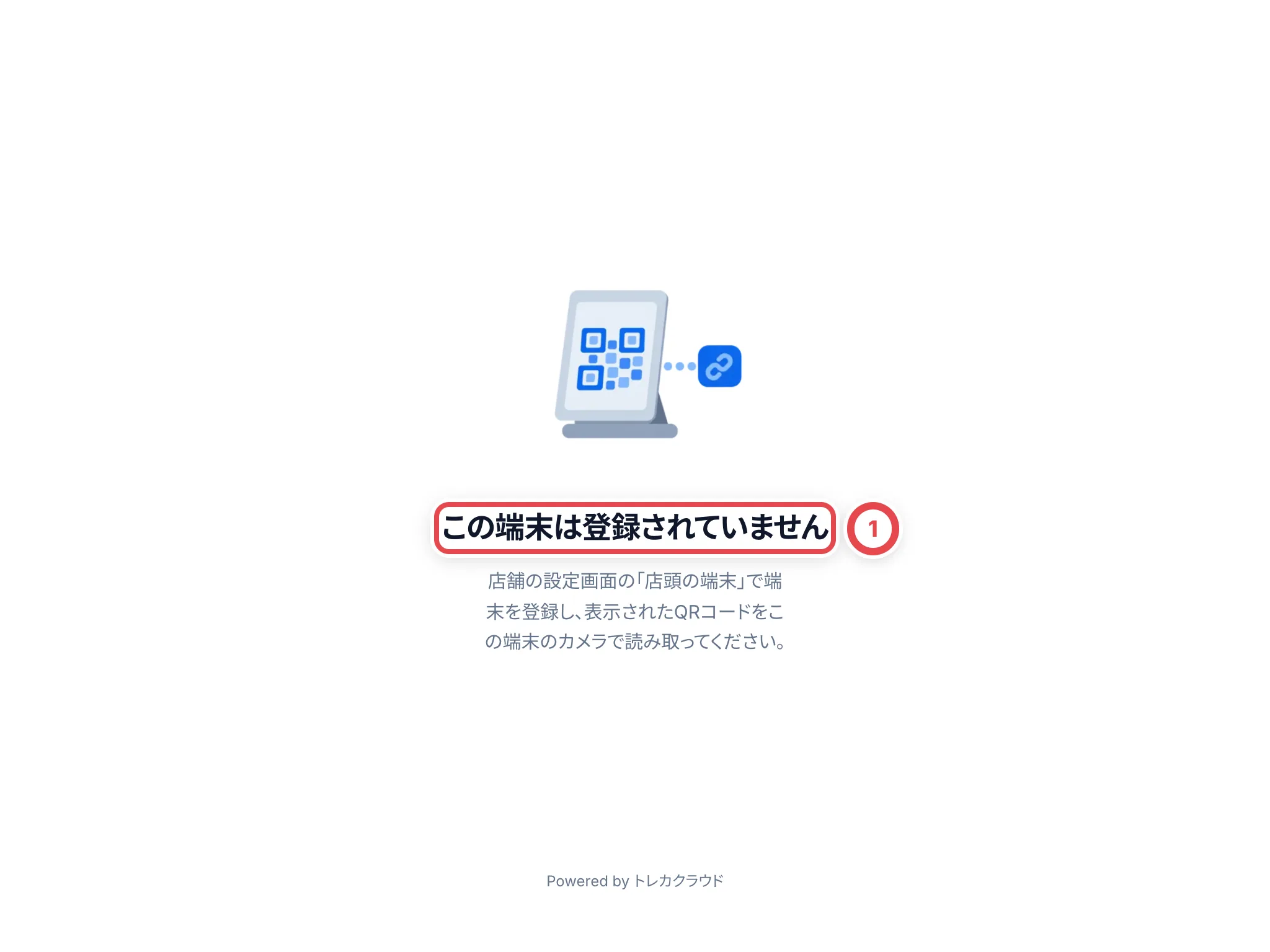
 If you open the page on a tablet that isn't registered, or on one you stopped, it shows 「この端末は登録されていません」 (This tablet is not registered).
 ## If something goes wrong
| What is happening | What to check and how to fix it |
| ------------------------------------------------------------------------------------------------------------------------------------------------- | ------------------------------------------------------------------------------------------------------------------------------- |
| There's no **Register a tablet** button | You don't have permission to manage settings. Ask an owner or admin. |
| The tablet shows 「登録用のQRコードの期限が切れています」 (The registration QR code has expired) | 10 minutes have passed since it was shown. Click **Register again** in the list and scan the new code right away. |
| The status is **Not registered** | 10 minutes passed without the QR code being scanned. Click **Register again** to show a new one. |
| The tablet doesn't appear under **Where to show it** in a deal | Only tablets that are **In use** are listed. Check the status in the list, and register again if needed. |
| You see 「この端末では別のお客様が確認中です。終わってから送ってください」 (Another customer is reviewing on this tablet. Send after they finish) | Another customer is reviewing on that tablet. Wait until they finish, or show it on another tablet or the **Customer's phone**. |
| The tablet shows 「この端末は登録されていません」 (This tablet is not registered) | The tablet was registered again or stopped, so it can't be used. Register it once more and scan the new QR code. |
| The tablet shows 「通信が不安定です。接続が戻るまでお待ちください。」 (The connection is unstable. Please wait until it is back) | Check the tablet's internet connection. |