---
title: Record the final appraisal card by card
---
The final appraisal records each physical card separately, including multiple copies of the same card. Its certification number, appraisal amount and purchase eligibility are together on one row labelled **Card 1**, **Card 2**, and so on.
| Task | Where to start or continue |
| ---------------------------------------------- | ------------------------------------------------------------------------------------------------------ |
| Cards have arrived by mail | Start with the arrival check in [Shipping and final appraisal](/en/guides/purchase/shipping-and-final) |
| You saved the first in-store appraisal | Open **Items** in [In-store purchases](/en/guides/purchase/counter) |
| An invoice-based business purchase | First check the invoice and received goods in [Business deals](/en/guides/purchase/corporate-deals) |
| Correct amounts or quantities after settlement | Use [Post-settlement corrections](/en/guides/purchase/amount-and-quantity-corrections) |
## 1. Open the final appraisal editor
Open the deal's final appraisal items. The inputs open when you create the first final appraisal. To change a saved appraisal, choose **Edit appraisal**.
Click the product heading to expand or collapse that card. **Review inputs and close** folds it; save the records with the overall **Save** action in step 4.
Match the name, card number, grading service, grade and individual card index to the physical card. Put identical copies in a consistent order before entering their details.
If a box, pack or deck has a **Check condition** action, first record its actual condition and quantity. Unchecked goods remain in the condition-check view before the price editor opens.
## 2. Enter this card's number, amount and note
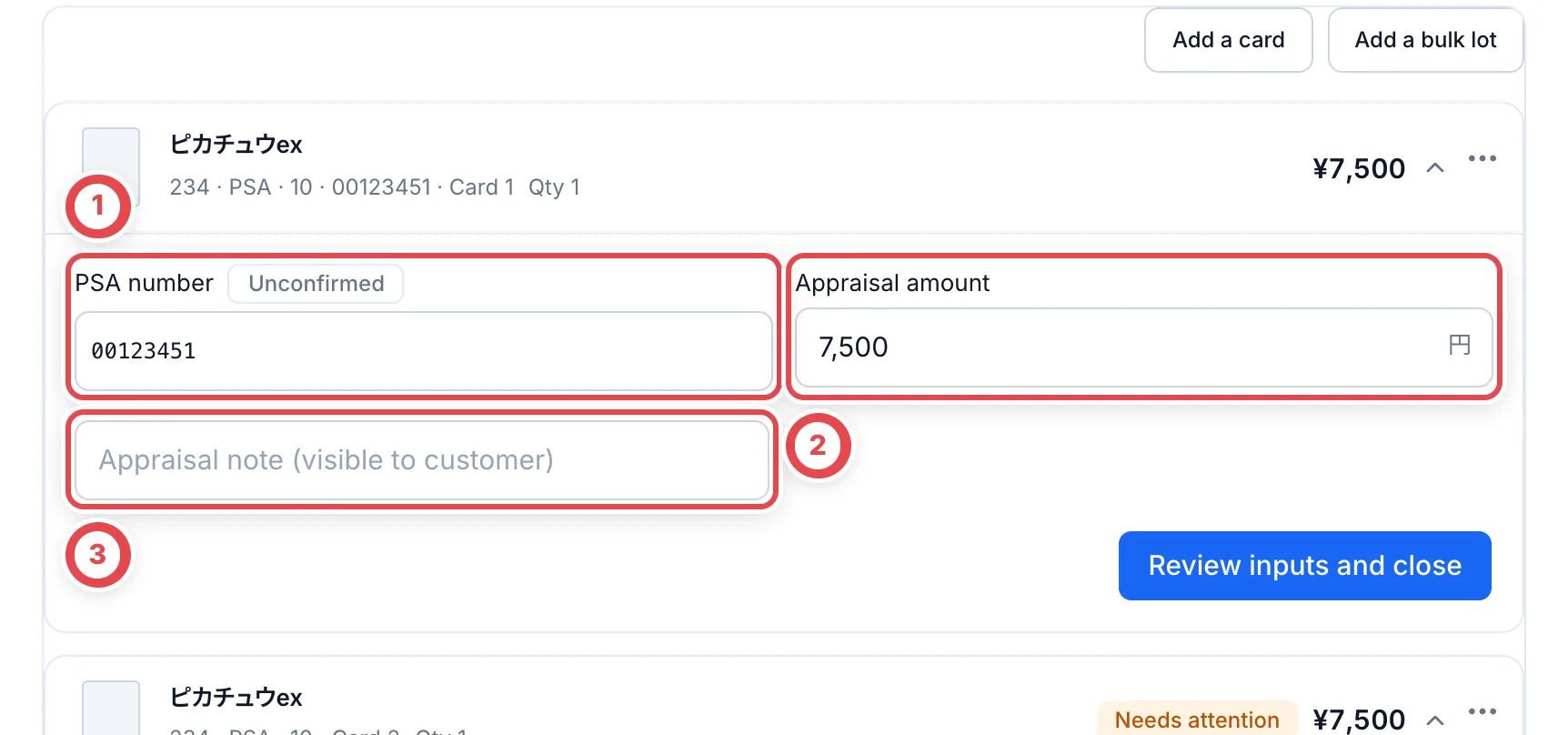
1. For a graded card, compare **PSA number** or **Certification number** at ① with its physical label. **Unconfirmed** means the number came from a declaration or inspection. Re-enter the checked number and save it. Do not copy one number across all copies
2. At ② **Appraisal amount**, enter the amount in yen for this one card. Identical cards may have different amounts when their condition differs
3. Enter any explanation, such as a reduction, at ③ **Appraisal note (visible to customer)**. It also appears on the customer's quote
 Keep leading zeroes in certification numbers. The same number cannot be saved on multiple cards in this appraisal.
A zero-yen appraisal, a card you cannot purchase, and a missing card are different records. Mark cards you will not buy using the next step. Correct the arrival record for cards that did not arrive.
## 3. Record purchase eligibility and internal notes
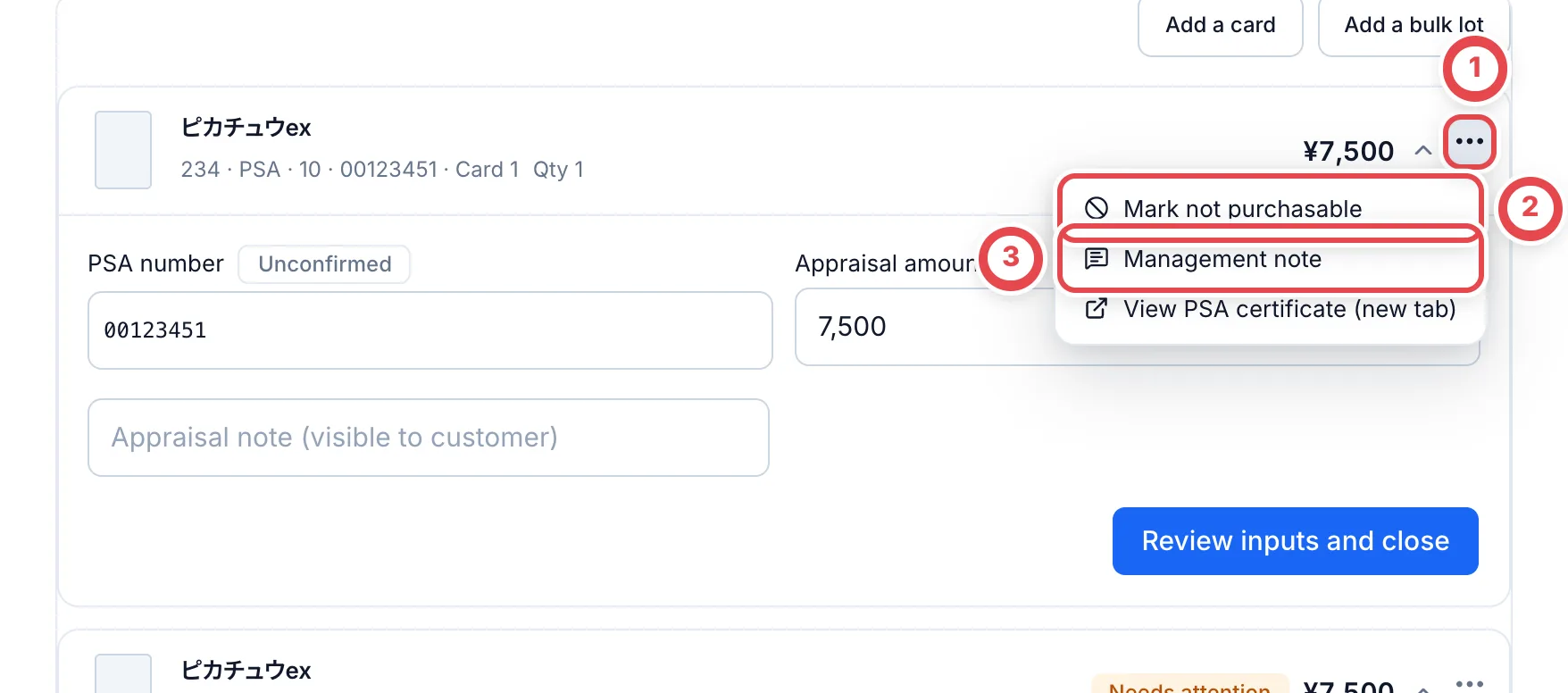
For a card you cannot buy, open its three-dot menu at ① and choose ② **Mark not purchasable**. The **Management note** at ③ is an internal record, separate from the customer-visible appraisal note.
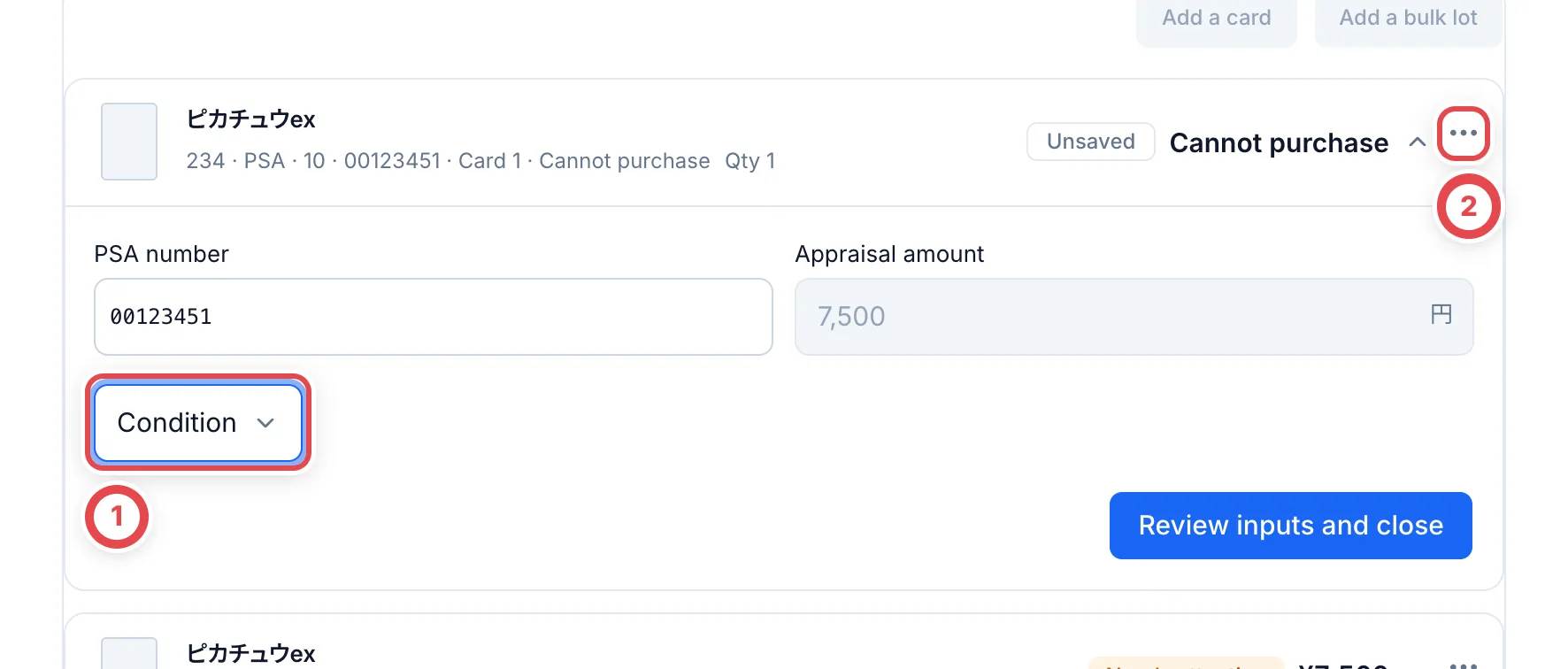
 Choose **Condition**, **Ineligible product** or **Other** in **Reason** at ①. For **Other**, enter a detailed reason too. The price field is disabled for a rejected card. The change takes effect when you click **Save**.
To undo the choice, use **Restore eligibility** from the same menu at ②. Restoring a card whose rejection was already saved also requires a **Reason for restoring**.
 When a PSA number is entered, **View PSA certificate (new tab)** opens its certificate information. Compare it with the physical card.
## 4. Check every card and save
For more than 50 cards, use **Next** and **Previous** to check every page. Unsaved edits remain while you move between pages; **Save** saves them together.
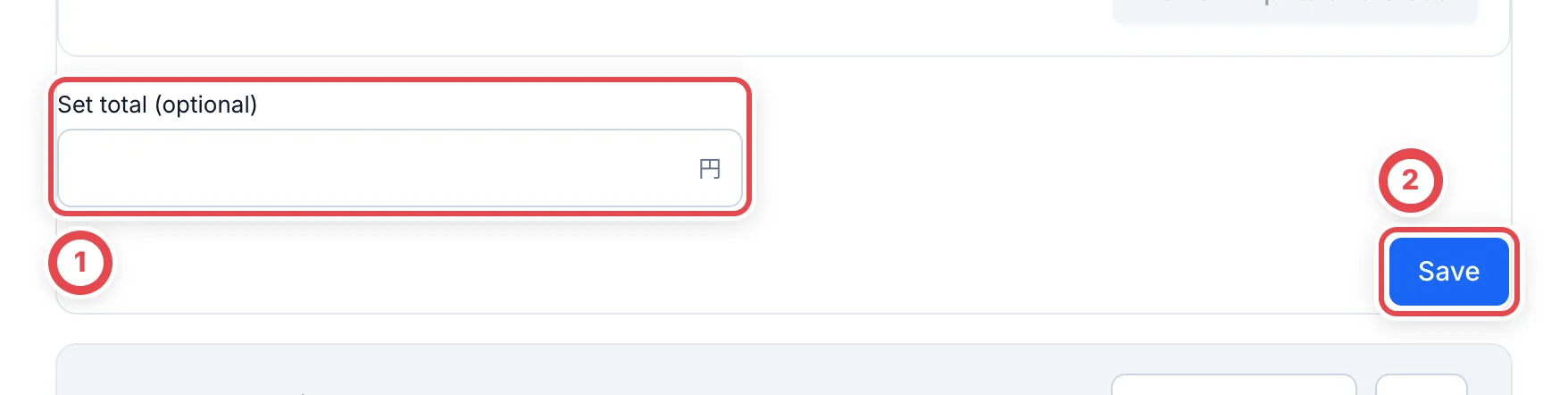
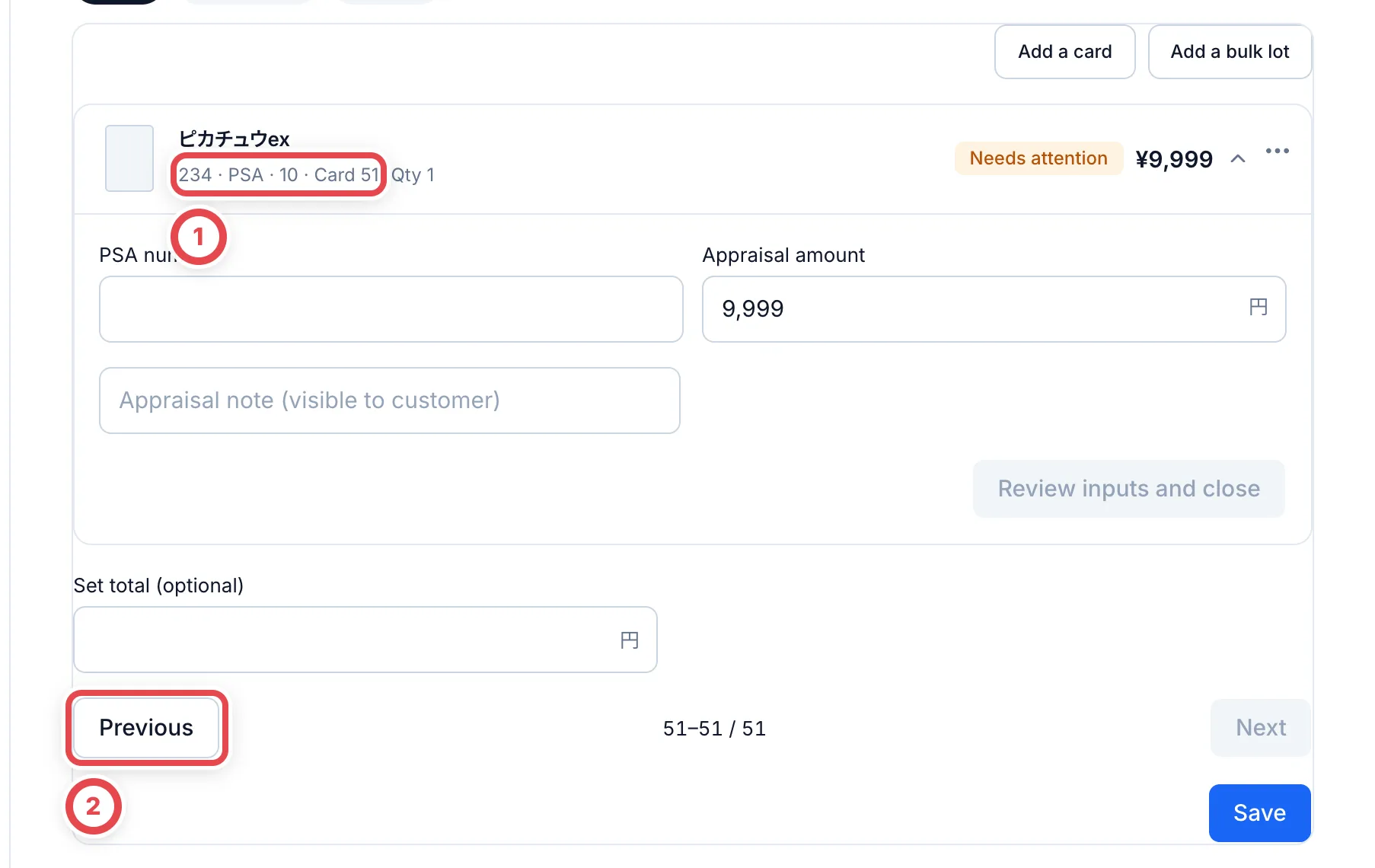 Only enter ① **Set total (optional)** when you want a package total instead of the sum of individual prices. Clear it to return to the normal sum. See [Set prices](/en/guides/purchase/set-price).
When all cards are checked, click ② **Save**. Numbers, amounts, eligibility and reasons are saved together. Saving alone does not send a message to the customer or execute a payment.
 ## 5. Check the saved result and continue
Check the saved card count, amounts and rejection reasons, then open the final quote PDF to review what the customer will see. Rejected cards are excluded from the purchase total.
- For an in-store purchase, continue to [Show the quote on the customer's screen](/en/guides/purchase/counter)
- For an online purchase, complete any required [second review](/en/guides/purchase/research-and-reviews), then [present the final quote](/en/guides/purchase/shipping-and-final)
- For an online purchase of only some cards, confirm the selected cards and allocated amounts against the presented quote. See [Partial set-price acceptance](/en/guides/purchase/set-price#buy-only-some-cards-in-an-online-purchase)
- If the included items change at the counter, [requote](/en/guides/purchase/counter) and get agreement and a signature for the new contents
Rejected and declined physical cards are returned; missing cards are not. Continue with in-store handback or [mail returns](/en/guides/purchase/returns).
Changing a saved appraisal may require a new second review. Follow **Next step** for the current revision. If the final quote has already been presented, use the requote workflow rather than editing the presented version.
## Troubleshooting
| What's happening | What to do |
| --------------------------------------------------- | ------------------------------------------------------------------------------------------------------------------------------------------------- |
| A number remains **Unconfirmed** | Check the physical card, re-enter the number and save. Displaying the inherited number does not confirm it |
| The same certification number is on multiple cards | Find the duplicates and enter each physical card's own number |
| Restoring eligibility will not save | Enter both the reason for restoring and this card's appraisal amount |
| A card that did not arrive is included | Check the arrival and missing-item records rather than setting only a zero price. A **Missing** card cannot be changed to received in this editor |
| **Add a card** or **Add a bulk lot** is disabled | Save your current final-appraisal edits first. After adding, check the new items' amounts and condition |
| Research must be applied or withdrawn before saving | Apply the research answer or withdraw the unnecessary request, then reopen the final appraisal |
| An inspection must be completed before saving | Finish the ongoing inspection, then return |
| The case or individual cards have changed | Keep a copy of your input, reopen the page and compare it with the latest rows before saving |
| The edit action is missing | Check purchase write permission, the deal status, review and presentation status. Use corrections after settlement |