---
title: Change to a set price
---
Use a **set price** to decide the amount you offer for the whole quote while keeping each card's appraisal. For example, a quote with a regular total of ¥207,000 can be saved with a set total of ¥200,000. You do not need to change the individual amounts or quantities.
| What you want to do | Where to go |
| -------------------------------------------------------------- | ---------------------------------------------------------------------------------------------- |
| Set the total while entering an appraisal | [Change to set price and save](#set-a-price-in-the-quote-editor) |
| Change or remove a saved set price | [Edit the appraisal and save the change](#edit-a-saved-set-price-or-restore-the-regular-total) |
| Send selected appraisal requests to second review at one total | [Turn on Show set price](#set-a-price-when-requesting-second-review) |
To appraise a bundle as one line, such as 300 normal cards for ¥100, use a [bulk lot](/en/guides/purchase/bulk-and-set-price#bulk-lots).
:::warning
For partial acceptance of an individual final appraisal in an online purchase, check the selected cards and their allocated amounts in the acceptance screen. The set total is allocated across all eligible cards in proportion to their individual appraisals; the selected shares become the purchase amount. It is not redistributed over the selected subset. At the counter, agree on the included items before customer review and signature; requote and ask for confirmation again when they change. A preliminary set-price quote cannot be partially accepted: select the intended items and requote. Present a new quote if you agree on a different total with the customer.
:::
## Set a total in the individual final appraisal
When the final editor shows **Card 1**, **Card 2**, and so on, enter the package total at ① **Set total (optional)** below the cards, then click ② **Save**. Edit the same field to change it; clear it and save to return to the regular sum.
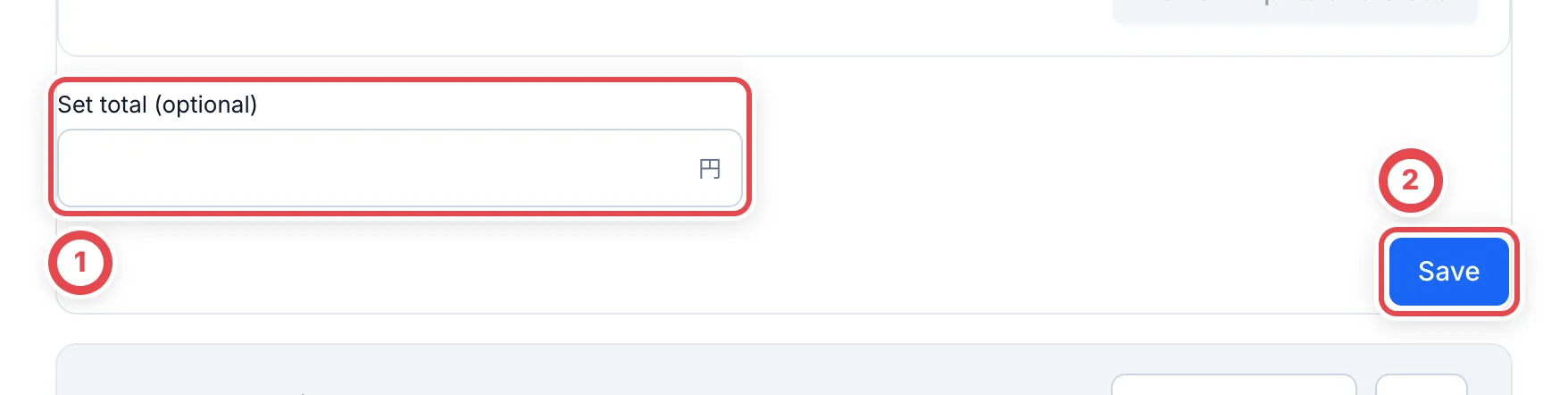 See [Final appraisal](/en/guides/purchase/final-appraisal) for individual amounts and eligibility. For preliminary appraisals and other editors showing **Change to set price**, use the following steps.
## Buy only some cards in an online purchase
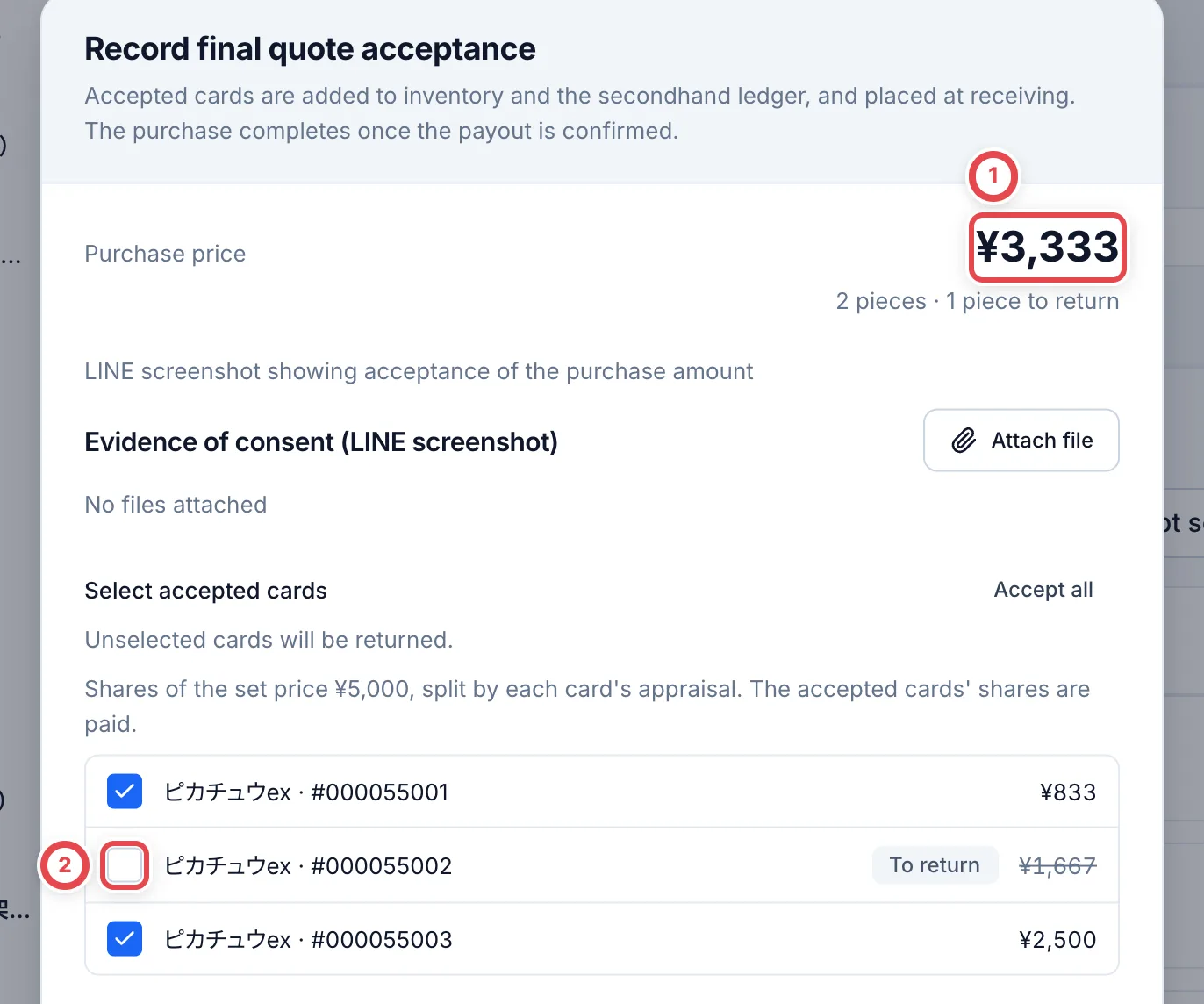
Open **Accept some** for the final quote, then deselect the units the customer is not selling at ②. Check the purchase amount at ① and the share shown beside each card.
For individual appraisals of ¥1,000, ¥2,000 and ¥3,000 with a ¥5,000 set total, the shares are ¥833, ¥1,667 and ¥2,500. Buying the first and third cards costs ¥3,333. The amount is not automatically adjusted back to ¥5,000 after selection.
 Continue with [Payouts](/en/guides/purchase/payouts) and [Returns](/en/guides/purchase/returns). Recording acceptance and inventory does not execute a bank transfer.
## Set a price in the quote editor
### 1. Check the regular total and click Change to set price
Enter each card's amount and quantity in an editor showing **Change to set price**. To change a saved appraisal, open **Edit appraisal** from its appraisal details.
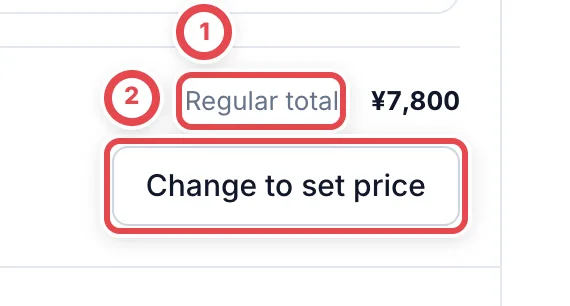
Scroll below the lines, check **Regular total** at ①, then click **Change to set price** at ②. This does not save yet.
 ### 2. Enter the set total and save
Enter the amount to offer for the whole quote in **Set total** at ③. The screenshot shows a regular total of ¥7,800 and a set total of ¥7,000.
Check the amount and click **Save as set price** at ④. The set total and your other edits to the appraisal lines are saved together as a revision. Individual appraisal amounts remain recorded.
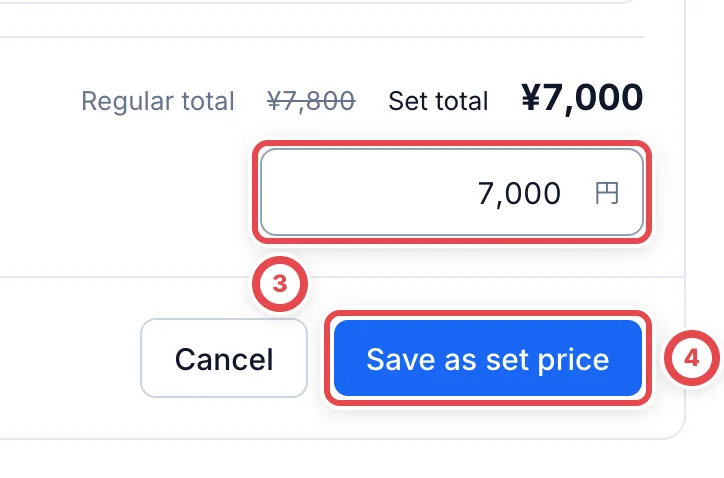 Clicking **Cancel** while entering the set total discards that set-price change and returns to the appraisal editor.
Saving does not complete presentation to the customer or record their acceptance. Follow **Next step** to check and present the quote. Online purchases may require a second review first, depending on the amount. Continue with [Store purchases](/en/guides/purchase/counter#3-check-the-quote-pdf), or [Appraisals and quotes](/en/guides/purchase/appraisal) for online purchases.
## Edit a saved set price or restore the regular total
Open **Edit appraisal** for the appraisal, then go to the total below its lines.
| What you want to do | Steps | After saving |
| ---------------------- | -------------------------------------------------------------------- | -------------------------------------------------- |
| Change the set total | **Edit set price** → enter **Set total** → **Save as set price** | The new set total is saved |
| Stop using a set price | **Remove set price** → check the regular total → **Save revision N** | The sum of the individual appraisals is used again |
**Clicking Remove set price does not save the change.** It does not delete the card lines. Click the save button with the revision number shown on screen to commit the change.
## Set a price when requesting second review
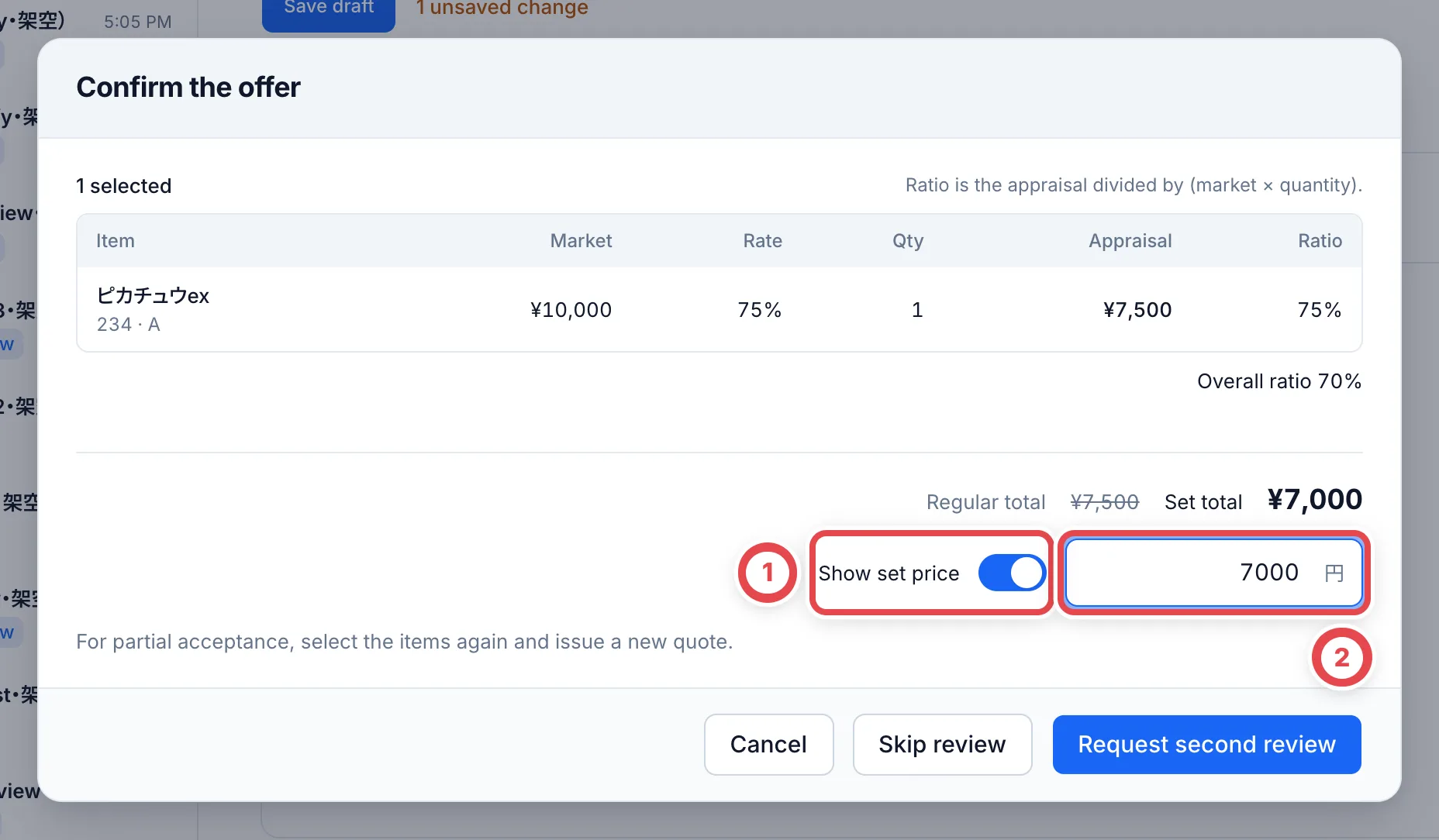
For online purchases, select the cards on the customer's **Appraisal requests** tab and click **Go on with selected**. If every card has a reference price, this opens the confirmation.
Turn on **Show set price** at ① and enter the total offer in **Set total** at ②. Check the selected cards and amount, then click **Go to second appraisal** to send them for review at that total.
If you have permission to waive the review, select **Skip review** on the same screen, enter a reason and confirm. No review request notification is sent. Presenting the quote to the customer is a separate step.
 For approval steps, see [Research requests and quote reviews](/en/guides/purchase/research-and-reviews).
## Troubleshooting
| What you see | What to check or do |
| ---------------------------------------------- | -------------------------------------------------------------------------------------------------------------------------------------------------- |
| You cannot find Change to set price | Open the appraisal editor and scroll below the lines. If a set price is already configured, the button reads **Edit set price** |
| Save as set price is disabled | Enter a whole number of at least ¥1. Check that there are card lines, there are no input errors and calculation has finished |
| You want to enter zero to remove the set price | Zero is not accepted. In the individual final editor, clear **Set total (optional)** and save. In other editors, use **Remove set price** and save |
| You want to buy only some cards | Check the selected cards and their allocated amounts in the acceptance screen. Requote if agreeing on a different total |
| You changed line amounts or quantities | The set total is separate from individual appraisal amounts. Check both the regular total and set total before saving |