

Correct shop product information and valuations
Use the three-dot menu on a product’s stock page to correct its name, number or valuation for your shop. Product IDs and original values are retained. Check the product carefully: shop information applies across that product’s inventory.
| Task | Action | Result |
|---|---|---|
| Correct a product’s name, number or attributes | Correct product information | Updates this shop’s information; the shared catalogue and other shops are unchanged |
| Adopt a price checked by the shop | Change valuation | Adopts a manual value for the selected grade / packaging |
| Return to automatically obtained prices | Release manual price within Change valuation | Stops adopting the manual value |
| Add a product not in the list | Register product on Inventory | Registers the product without increasing stock |
| Correct the identity of selected units only | Correct selected units | Relinks those units |
Who can use these actions
Shop product correction permission is required to correct or register products. Manual valuation management permission is required for manual prices. You also need access to the inventory and product. Owners and administrators have these permissions by default. Ask an administrator to check your current permissions if an action is missing.
Correct product information
1. Open the product menu
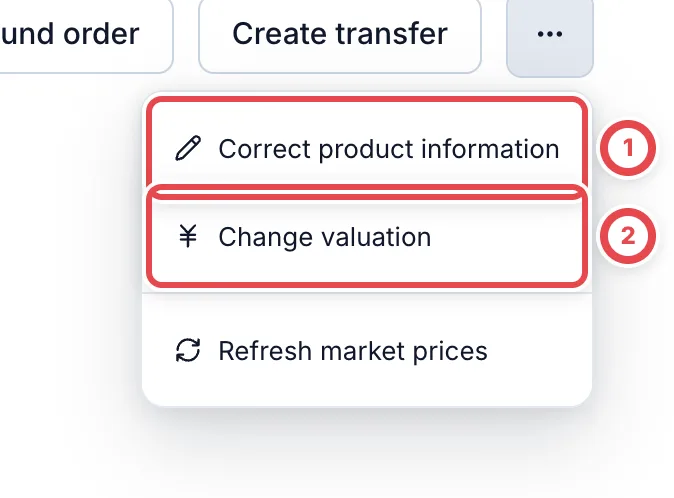
Open the product from Inventory. Click … (More product actions) beside its name, then Correct product information at ①. The valuation action at ② is used later.
2. Enter the correct information
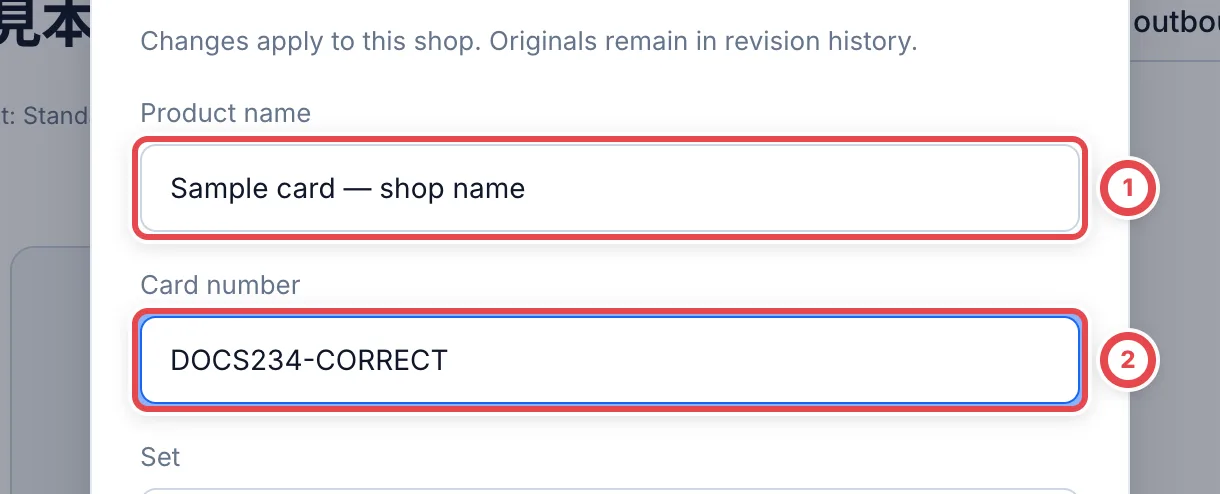
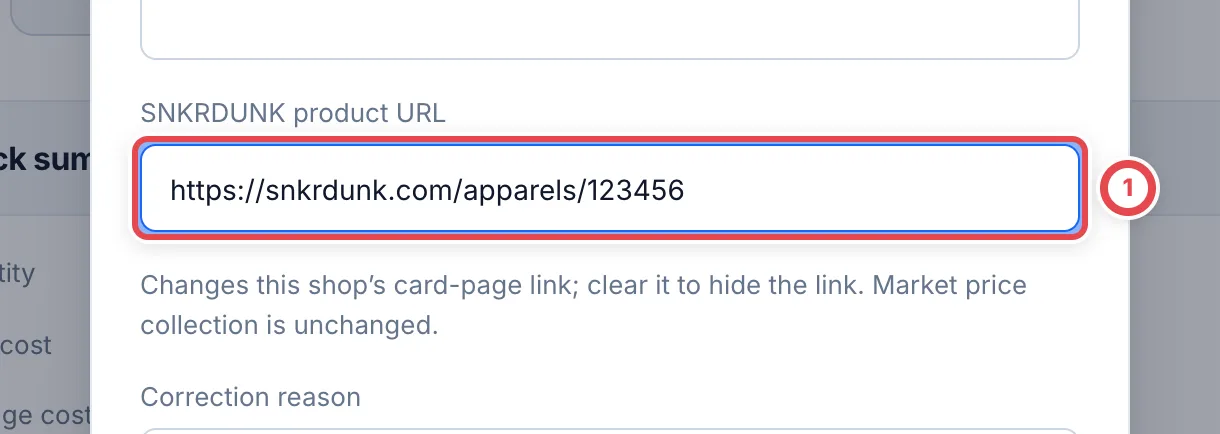
Match the physical item and correct the Product name at ① and Card number at ②. The form also offers set, series, rarity, variant, finish, language and image URL. For cards, SNKRDUNK product URL changes the link on this shop’s inventory, appraisal and card detail pages. Enter a product page in the form https://snkrdunk.com/apparels/product-number; clear it to hide the link. This does not change where market prices are collected. If only certain units belong to a different product, use unit relinking instead.
3. Choose a correction reason
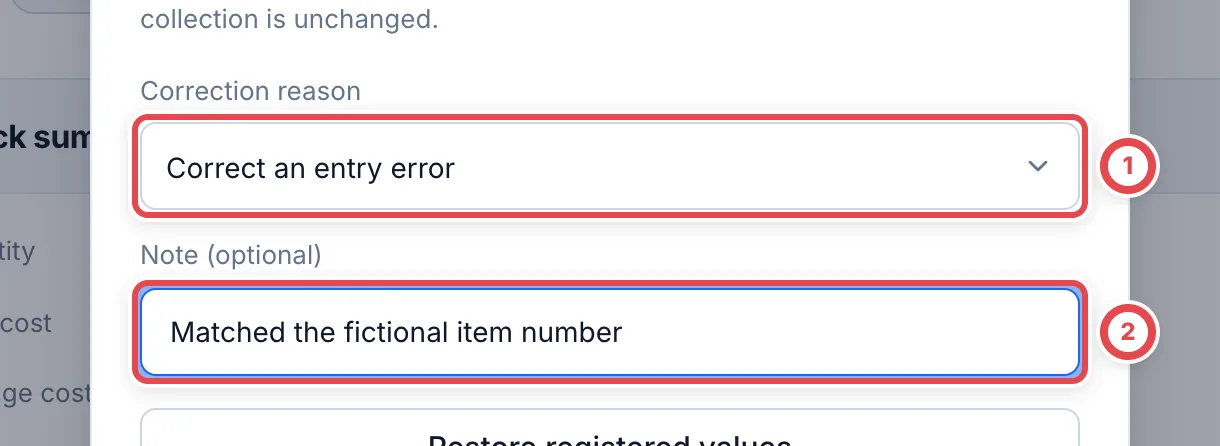
At ①, select Correct an entry error, Match the physical stock, Restore previous values, or Other. Use Note (optional) at ② for context such as the source you checked. Other requires details. Click Review changes.
4. Review and save
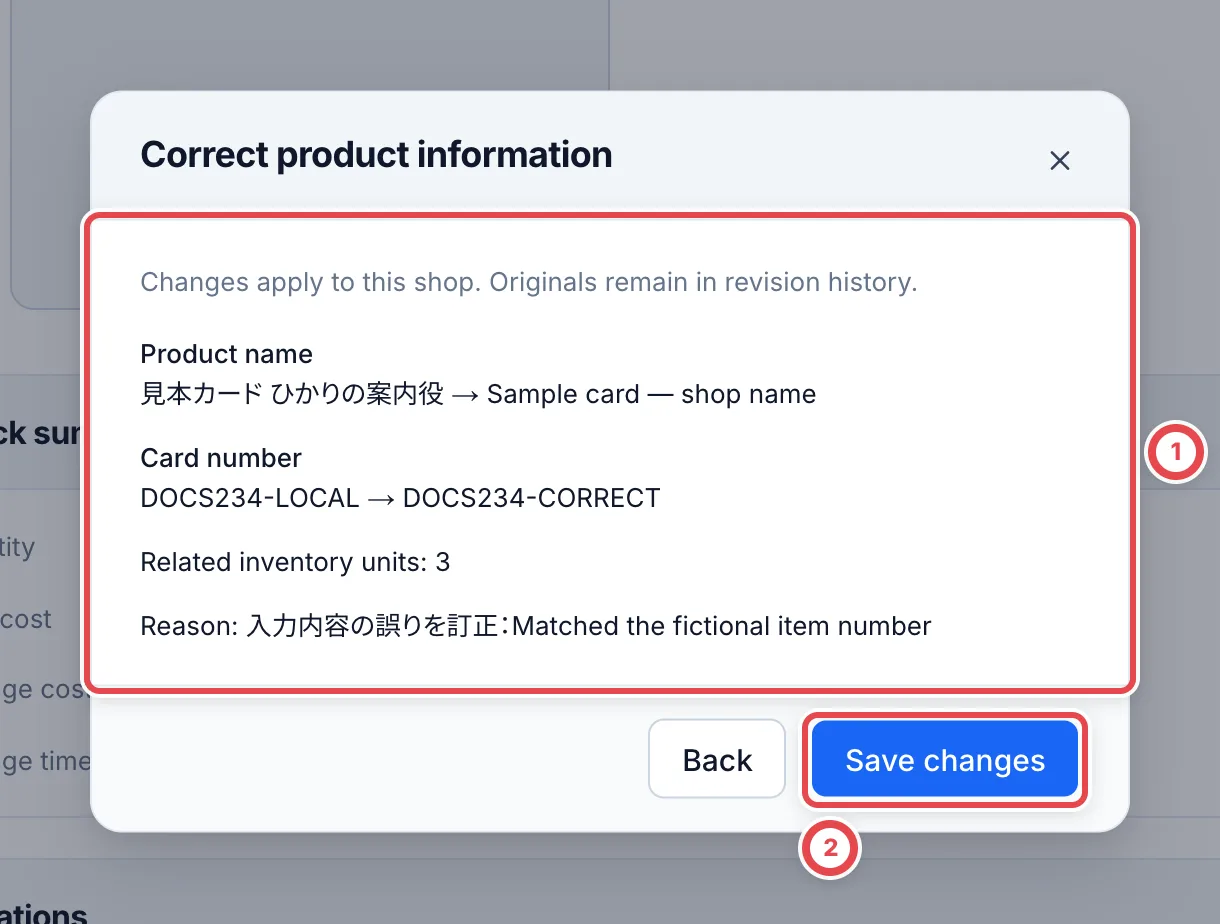
Check the before/after values at ① and the number of related inventory units. Use Back if anything is wrong.
Click Save changes at ②. Reopen the product and check its name, number and revision history.
To release a shop correction, reopen Correct product information and select Correction reason first. Click Release product corrections for a shared product or Restore registered values for a shop-created product. Review the before/after values and click Save changes to record a new revision. Shared products return to the current shared catalogue; shop-created products return to their initial registration values.
Change a manual valuation
1. Select the grade and enter a price
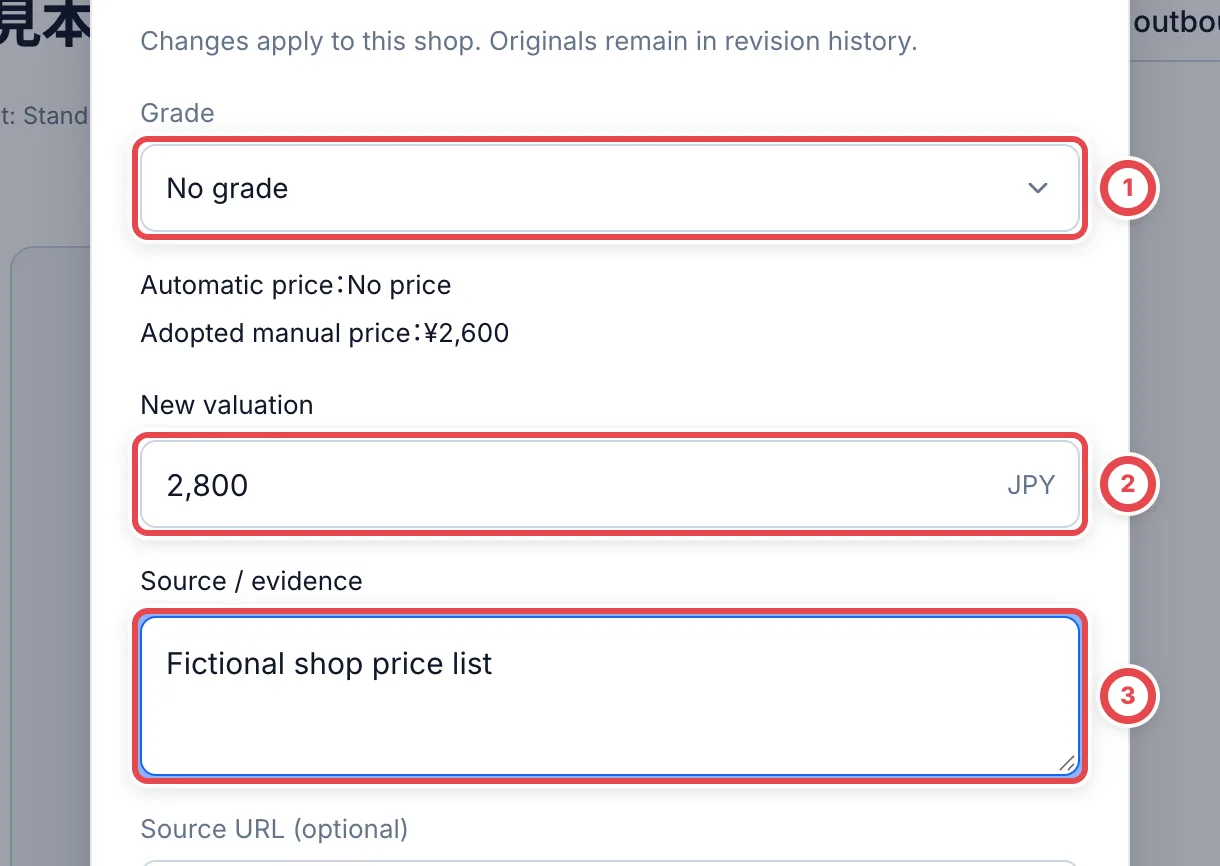
Choose Change valuation from the product menu. Check Grade at ① and the packaging condition for boxes, packs or decks where offered. Enter the yen value at ②. Zero and an unset price are different. Record Source / evidence at ③ and a source URL if needed. Price evidence and the correction reason are separate information.
2. Choose a reason and save
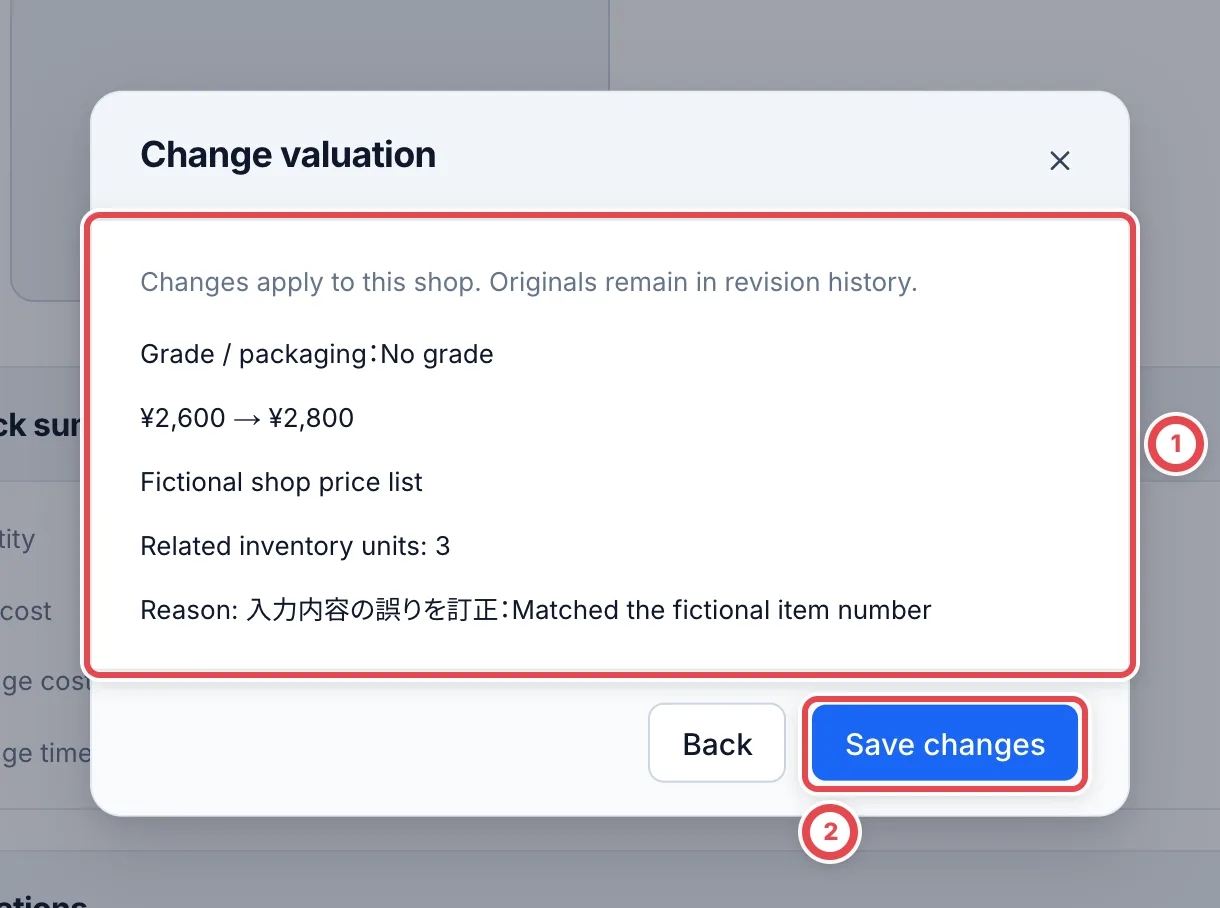
Select Correction reason, then Review changes. Check the price at ① and the applicable grade / packaging, then click Save changes at ②. Reopen the product and check its valuation and history.
An adopted manual price takes precedence. Refresh market prices alone does not release it.
3. Return to automatic prices
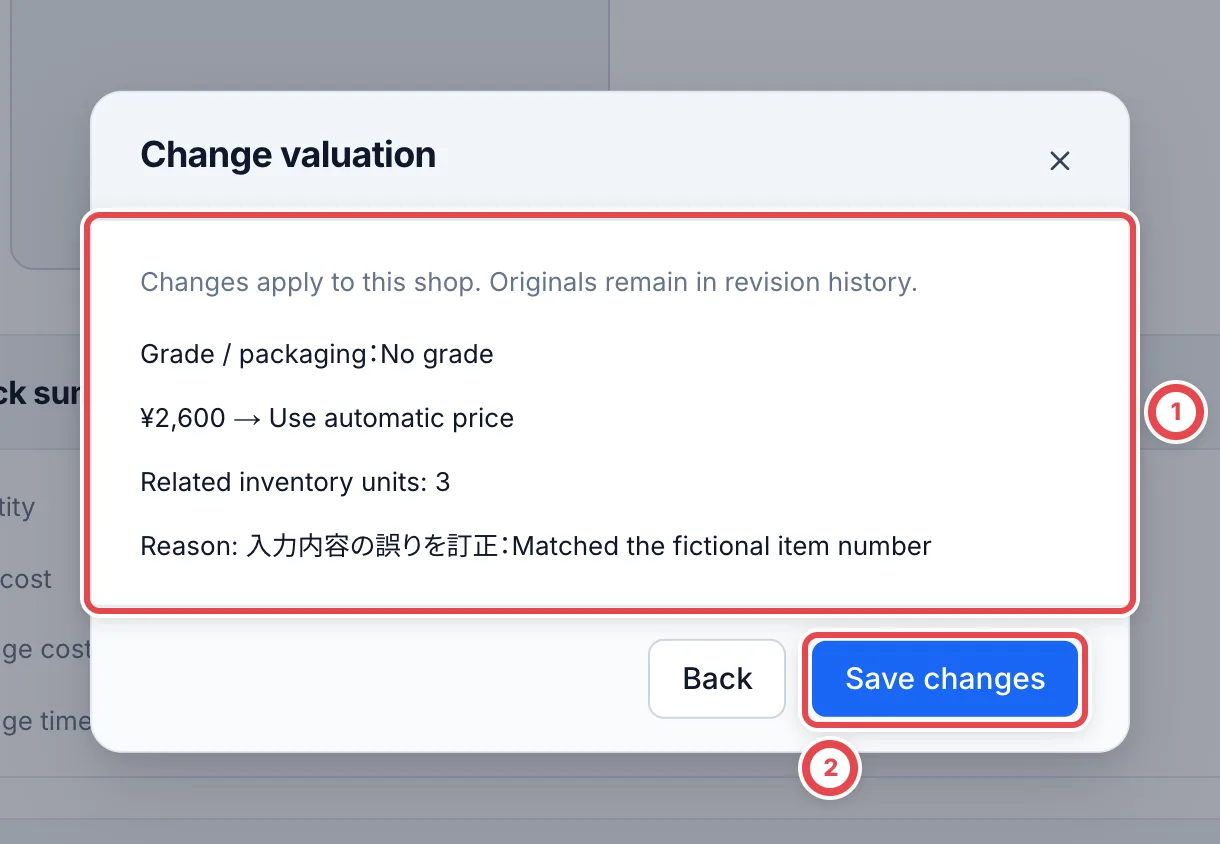
In Change valuation, select the same grade / packaging and a correction reason. Click Release manual price. Confirm Use automatic price at ①, then Save changes at ②. If no automatic price exists, the valuation becomes unset.
Refresh market prices
On a card’s detail or stock detail page, open the three-dot menu at the top right and choose Refresh market prices. Like Fetch from SNKRDUNK in an online appraisal, it fetches the card’s market price again from SNKRDUNK sales.
- Choose the grade under Grade. Its current fetch status and the last calculated price appear.
- Choose Fetch from SNKRDUNK. It moves through Request collection, Wait in queue, Collect trades and Review result. While it waits in the queue, the button reads Check collection.
- When the fetch is done, the sales used and the calculated price appear. The sales fetched are added to Fetch history in the market section.
The Buy prices by grade change when the market is next aggregated, not right after a refresh. Until then, the market section shows how many records were fetched and the latest price.
Only published domestic cards can be fetched. The action appears for people who can both create or edit purchases and view cards. While a manual price is adopted, it is still used for valuation after a refresh.
Register an unlisted shop product
1. Enter the product and registration reason
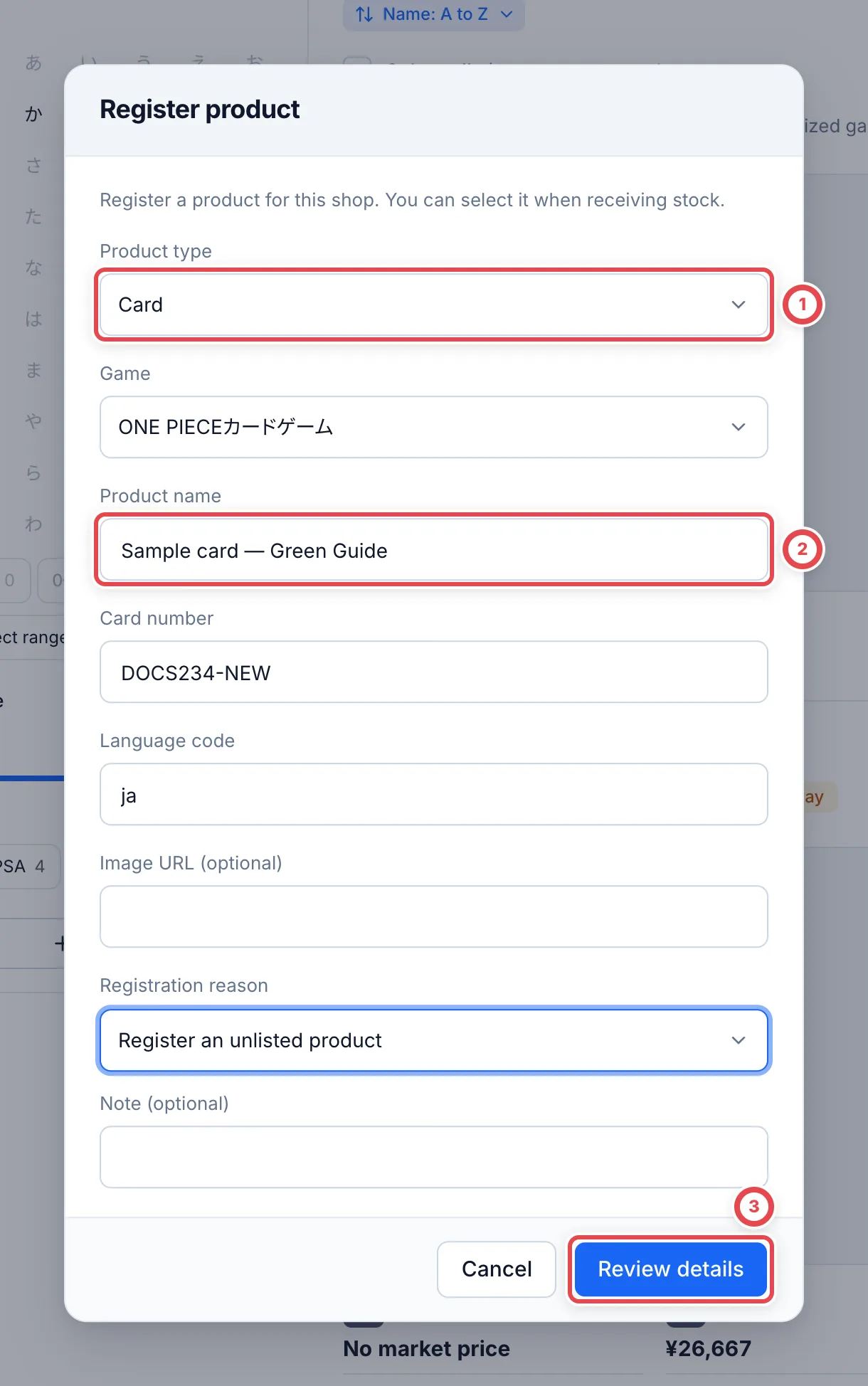
Open Register product on Inventory. Select the product type at ① and its game. Enter the product name at ②, number and other details. Select Registration reason, then Review details at ③.
2. Register the product, then receive stock
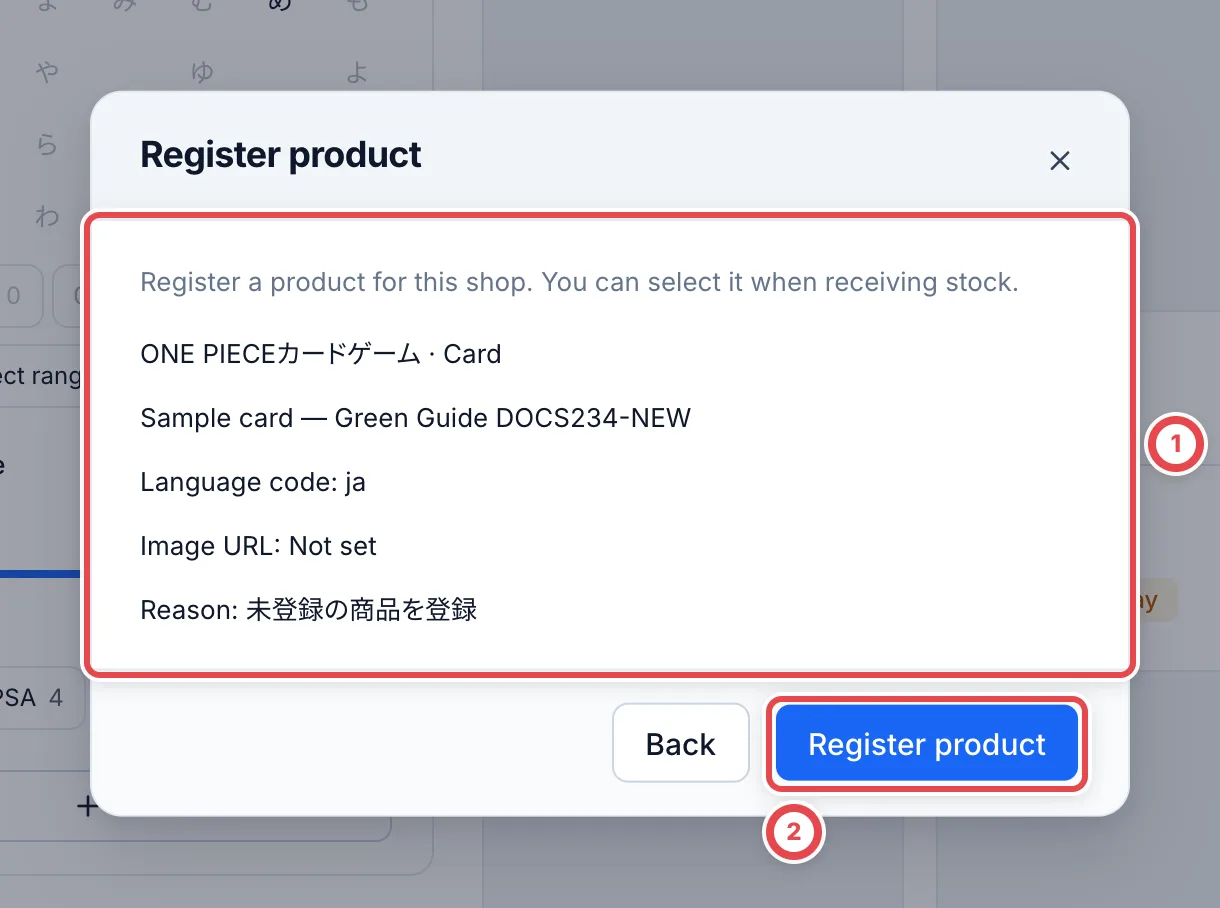
Check the product and number at ①, then Register product at ②. Registration opens the product detail in Market prices. Check its name and number.
To receive the physical item, select Inventory at the top of the sidebar, then Receipts → Receipt slips → Receive stock. Open Search for a card, search for the registered name or number, and select the product.
Troubleshooting
| What you see | What to check |
|---|---|
| Review is disabled | Check that values changed, required fields and a reason are supplied, and Other has details |
| Only some units need correction | Use unit corrections |
| Refreshing prices does not change the valuation | Check whether a manual value is adopted for the selected conditions; release it to use automatic prices |
| The record changed | Reopen the latest product and review the correction again |
| Save outcome is uncertain | Reopen the product and revision history before repeating a correction |