

Find and check market prices
Market prices at the bottom of the sidebar opens a new tab, keeping your appraisal work open while you look up cards, boxes, packs and decks.
1. Search by name or number
Enter a card name, number or product name in ① Search cards, then press Enter. The initial list shows Japanese Pokémon cards with market prices. Change the filters below to find other games, regions or products without prices.
Use Grid view / Table view to change the display. The sort menu offers Recently updated, Price: high to low / low to high, Name and Newest release. Relevance is also available with a search term. A new search, filter or sort starts from the first page; the footer shows the displayed range and total.
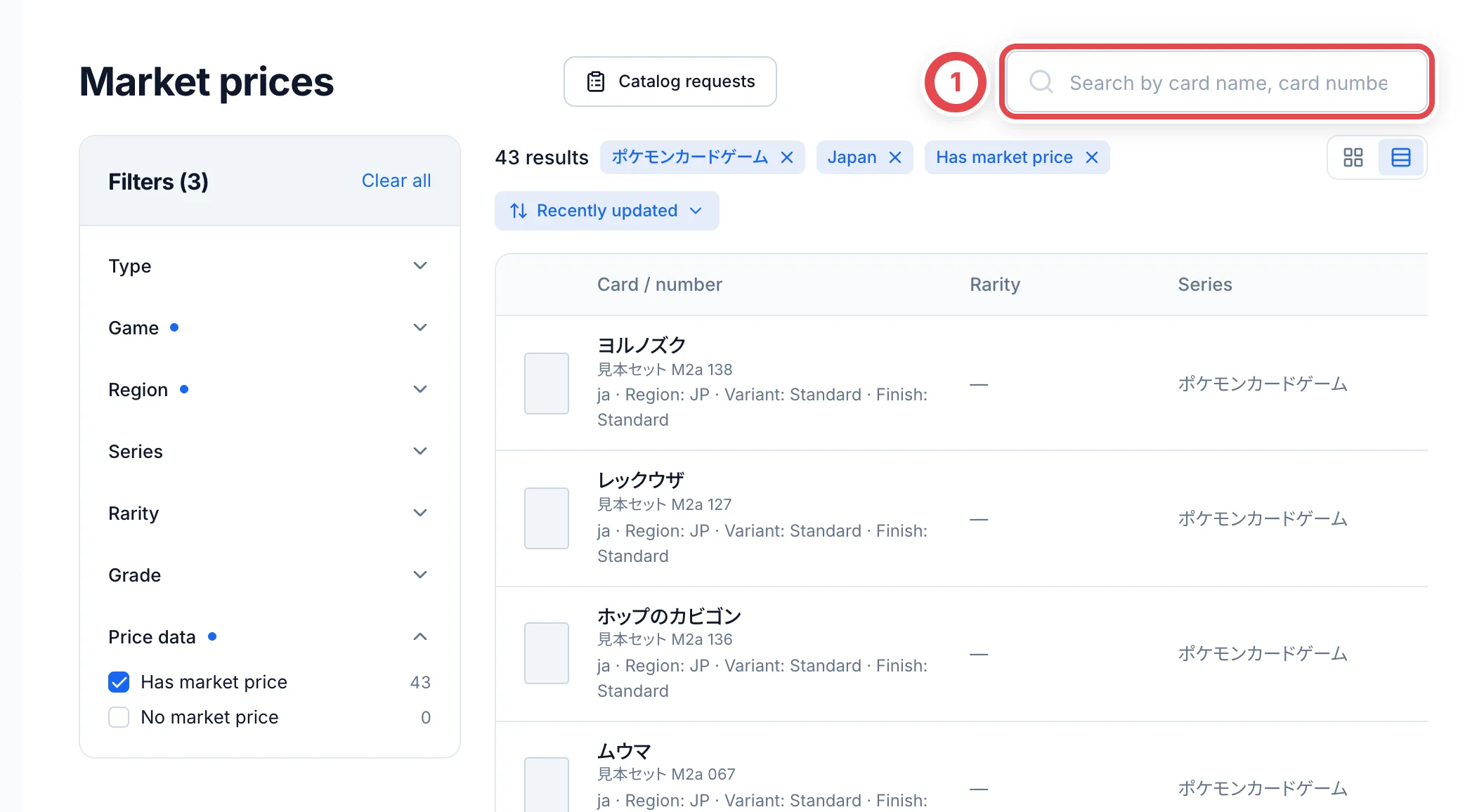
When exact matches are scarce, the screen may say that similar results are also shown. Match the number, set, region and grade to the physical item rather than relying on its name alone.
2. Change filters
On an iPad or another narrower staff window, open ① Filters. On wide screens, the filters sit to the left of the results.
Choose Type, Game, Region, Series, Rarity, Grade and Price data. A Price range control appears when a range is available. Check the counts and active filter chips above the list. Use a chip’s × to remove one condition, or ② Clear all to remove them together. Clearing a price range removes both its minimum and maximum.
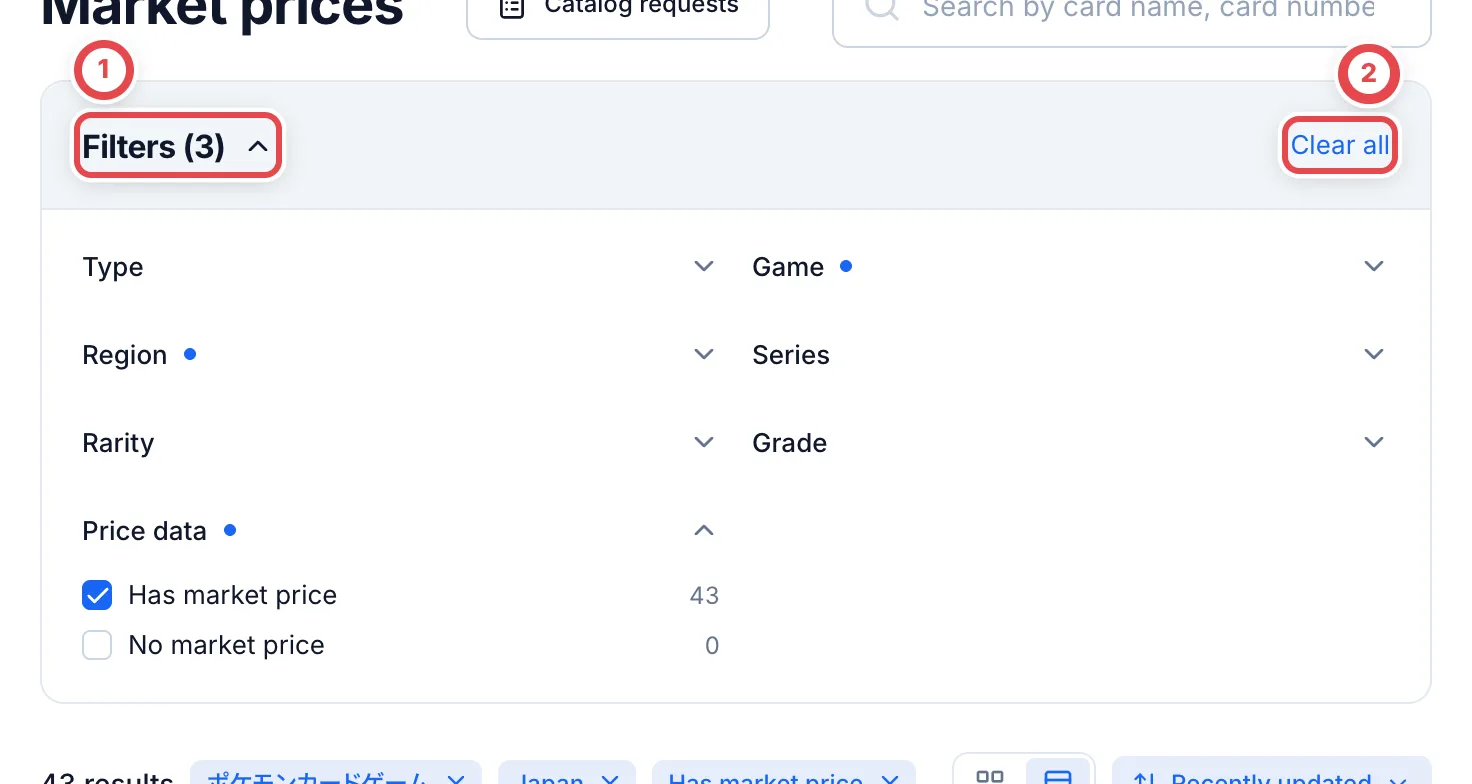
Choose No market price under Price data to find unpriced cards. Clear all is different from reopening the market without a query: reopening starts with the initial conditions again.
3. Check the grade and collection status
Open a product name and check its name, number, set, language and printing. In ① Buy prices by grade, check the grading company and grade you need.
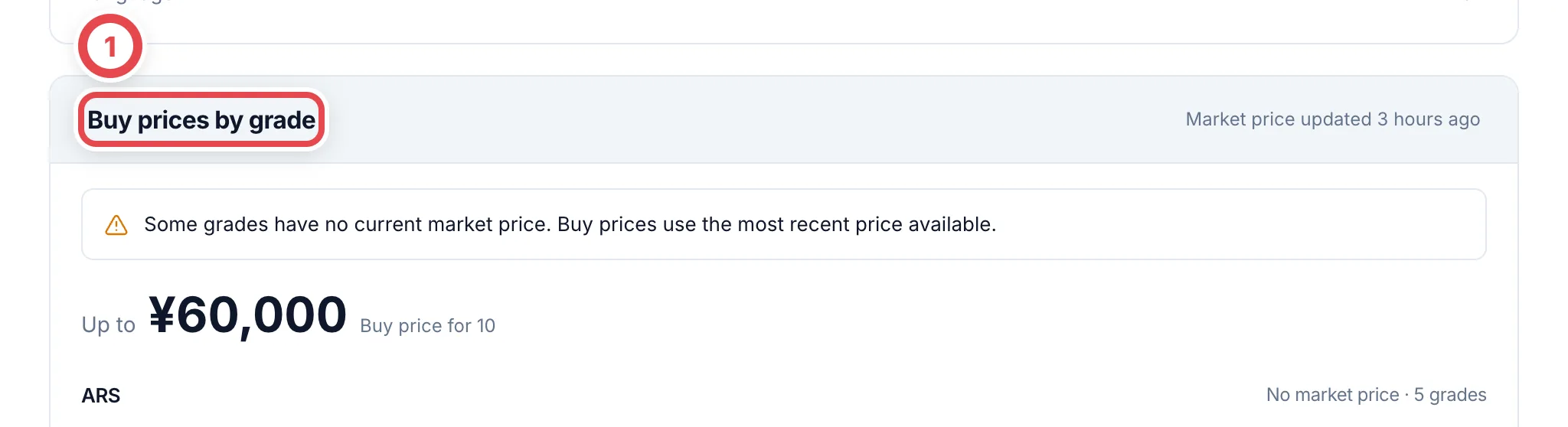
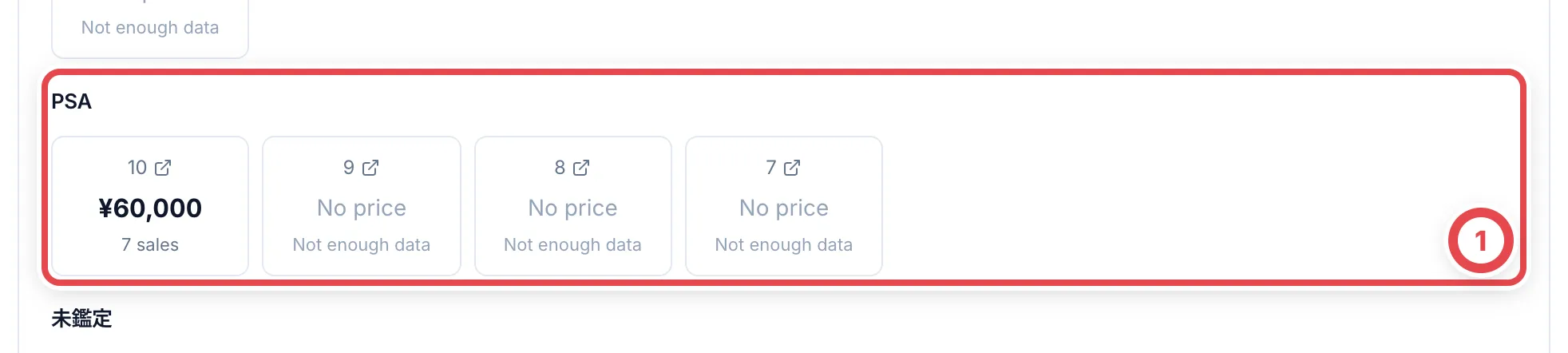
Not aggregated means records exist but are not yet used for automatic appraisals. Not enough data and Not fetched yet do not mean zero yen. If some grades lack a current price, check the notice that the most recent available value is being used. Also review Price history and Fetch history.
Viewing market prices does not change an appraisal. See Appraisals and quotes to apply prices, or Market research when a needed price is missing. Use Product and market corrections for incorrect records.
Troubleshooting
| What you see | What to check or do |
|---|---|
| A known card is missing | Check the initial Game, Region and Price data filters, type and search term; remove unnecessary conditions |
| A box or pack is missing | Check Type and whether another filter leaves zero results |
| The right side of the table is hidden | Scroll horizontally within the table or use Grid view |
| A dash or insufficient data instead of a price | Check collection status and grade; research or enter a verified price rather than using zero |
| A card is missing from the catalog | See Catalog requests. Catalog requests on the market page also lists pending requests |