

Receive returns of sold inventory
Accept returns of stock your shop sold and shipped. To send declined purchase items back to a customer, use Purchase returns.
Inventory editing permission and a shipped sale or oripa order with returnable units are required. Partner-controlled shipments and tenant transfers do not use the same ordinary return action.
1. Choose returned items from the sale
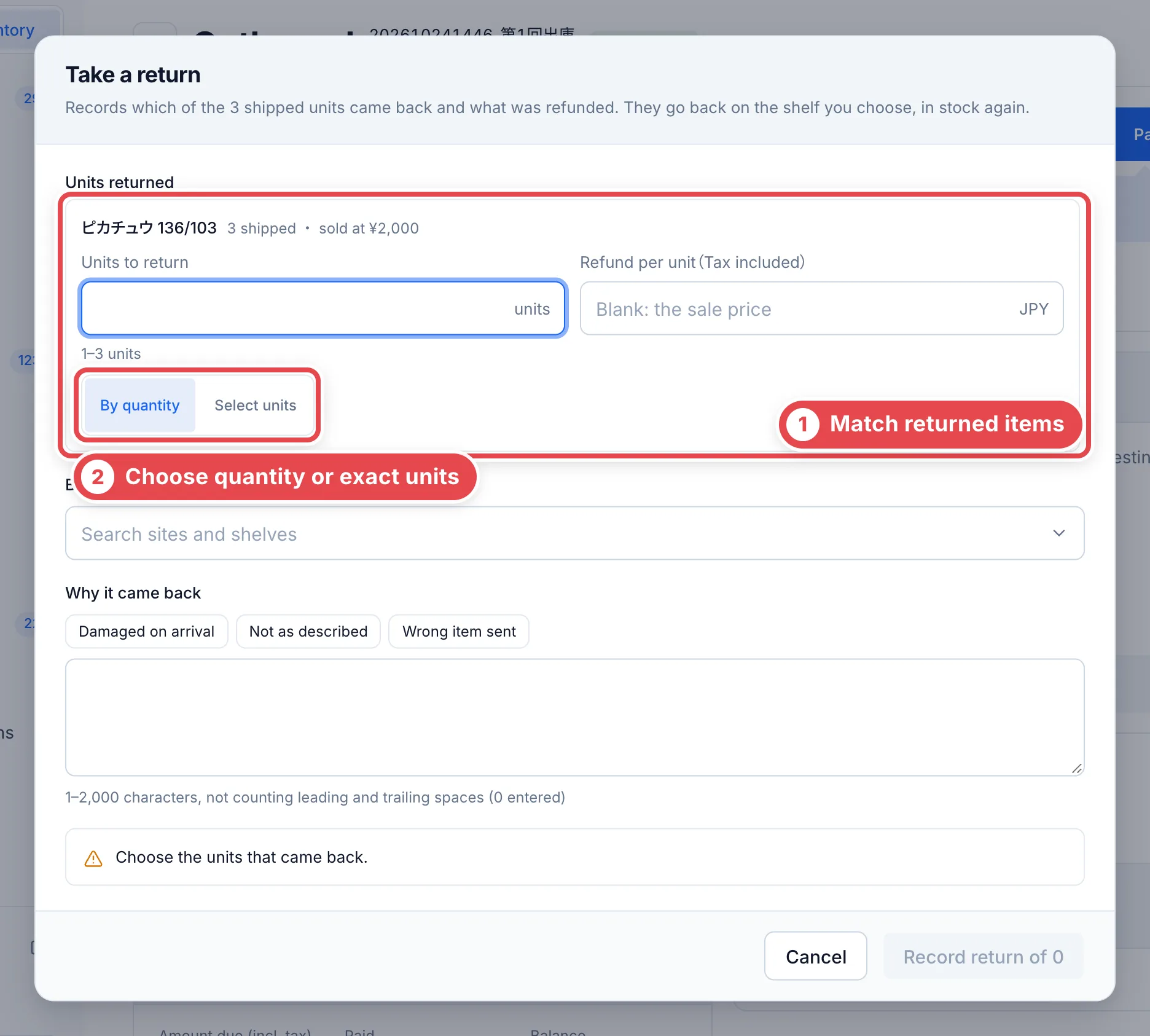
Open the original sale under Outbound, then its receive-return action. Match the physical cards at ① and choose quantity or individual-unit selection at ②. For identical cards, still verify that the selected units are the ones actually returned.
2. Identify unlabeled units from management details
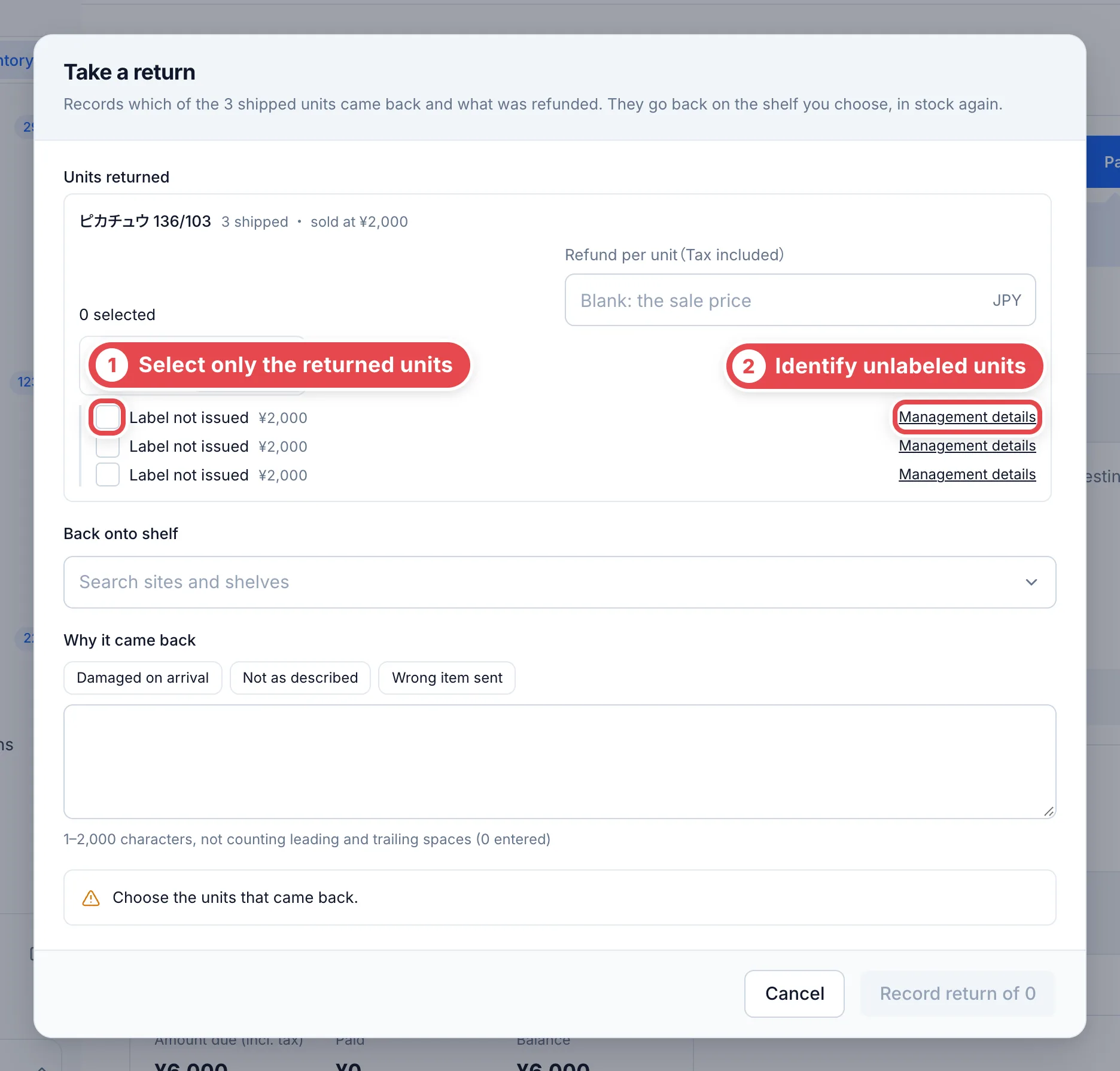
Select units individually at ①. For an unissued label, use Management details at ② to open the unit in another tab and match its asset/certification number, source and condition. Several units can share the same unissued-label wording; that wording alone is not an identifier. Return to the form and select only the correct units.
3. Record refund, shelf and reason
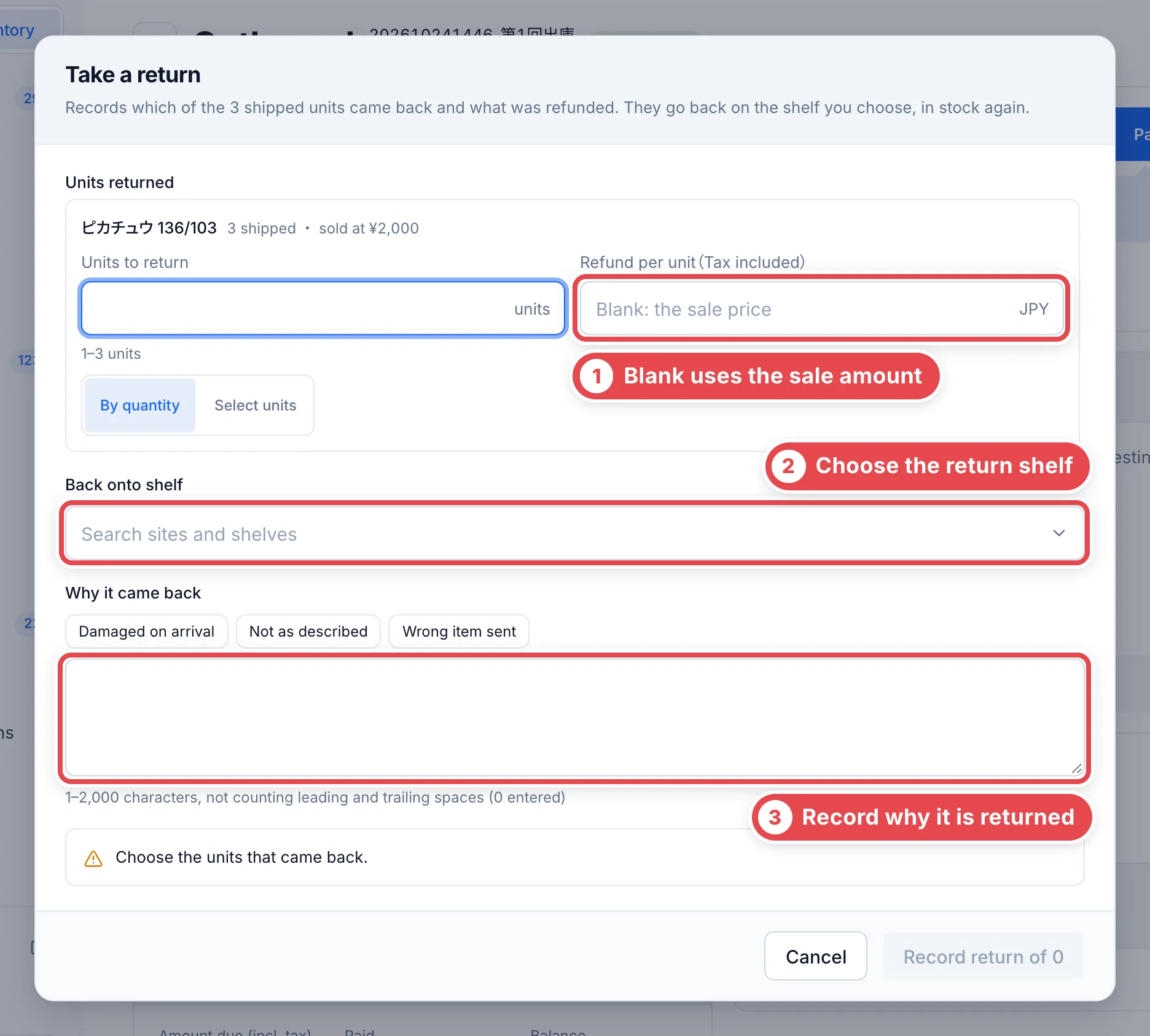
Check the refund at ①. Leaving it blank uses the unit’s sale amount; an explicit zero has a different meaning. It cannot exceed the original sale amount. Select the destination shelf at ② and provide a reason at ③. Review scope and total before confirming the return.
Reload the order and check the return record, units, amount and shelf. Recording a refund amount is separate from actually refunding money through a bank/provider. For an unknown save result, inspect the existing record before submitting again.
Troubleshooting
| What you see | What to check |
|---|---|
| No receive-return action | Check shipped/returnable units, permission and partner/transfer ownership. |
| Unlabeled units look identical | Match management details to the physical unit; avoid selecting by display order. |
| Invalid refund | Check that it is within the sale amount and uses the correct per-unit basis. |
| State changed on save | Reload order/units and check for an already recorded return. |