

Correct receipt, movement and historical records
Use Correct record on the affected record. Normal screens display corrected values while revision history retains originals, the operator, time and correction reason.
| What to correct | Where to open it | Editable information |
|---|---|---|
| A receipt slip’s receiving location | Inventory → Receipts → Receipt slips → the slip | Receiving location |
| A unit’s movement record | The relevant movement in unit history | Destination for eligible movements; reason / note; time where offered |
| A purchase history description | History on the originating purchase | Summary, internal note and time |
| External acquisition information | The unit’s acquisition record | Purchase note and acquisition time |
| Purchase amount, quantity or related costs | The originating purchase case | Purchase amount and quantity corrections |
Inventory records require inventory history correction permission. Purchase history and acquisition records require purchase history correction permission, along with access to read/edit the affected records. Ask an administrator if an action is missing.
1. Choose the corrected field and reason
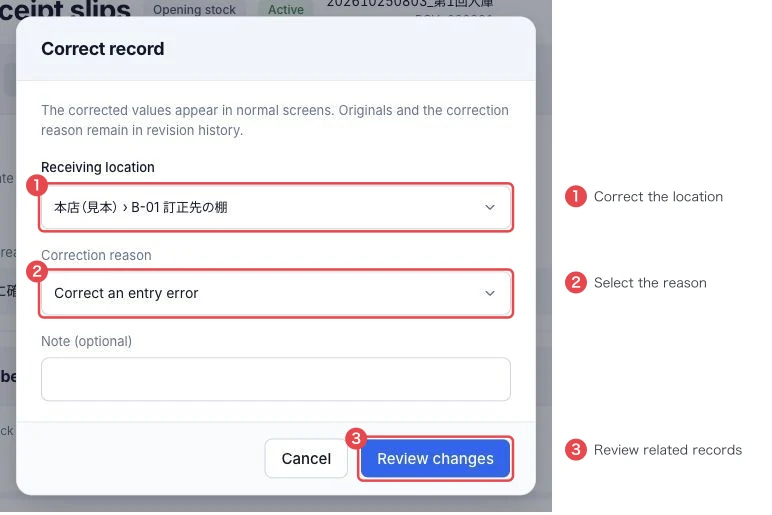
For a receipt slip, open the slip and Correct record. Choose the correct Receiving location at ① and Correction reason at ②. Add Note (optional) when helpful; Other requires details. Click Review changes at ③.
2. Match related history and inventory, then save
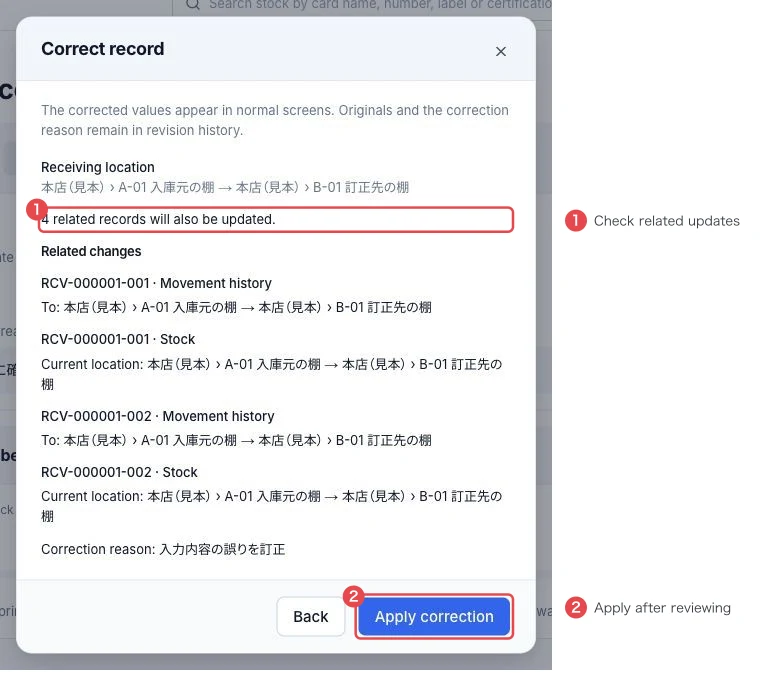
Review before/after values, the related-record count at ① and Related changes. The example has two units, each with its original receipt movement and current location: four related updates. Actual counts depend on the record.
Match the units and shelves, then click Apply correction at ②. Reopen the slip and units and verify locations and history.
3. Review history and load earlier values if needed
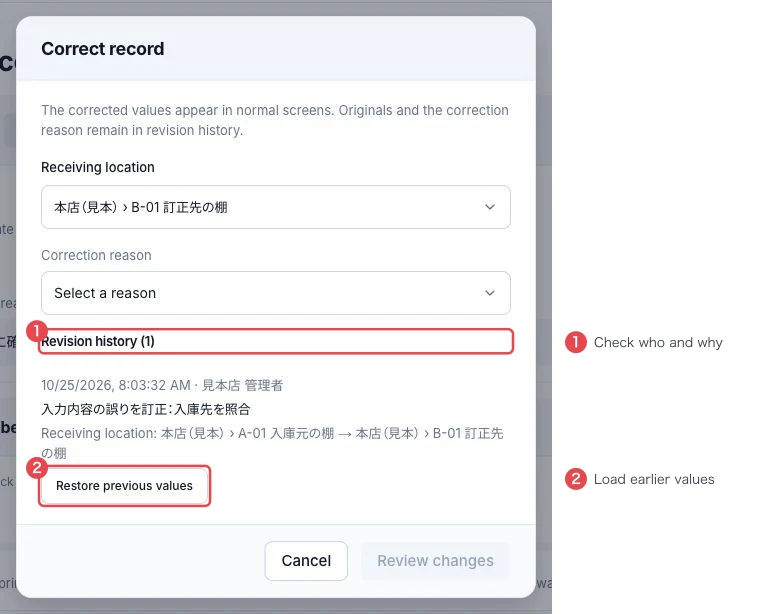
Reopen Correct record. Revision history at ① shows the operator, time, reason and before/after values. Use Restore previous values at ② to load a revision’s earlier values into the form.
Loading values does not save them. Select a reason such as Restore previous values, click Review changes, check the current linked records, then Apply correction. Restoration is another revision; previous revisions remain.
Correct movements, purchase history and acquisition records
Open Correct record on the specific entry and edit only the fields offered. Fields vary by record type. For example, a receipt movement created from a receipt slip does not offer editing of its time.
Receipt reasons and acquisition notes describe the business event; the correction reason explains this edit. Enter the correct business content in the edited fields and use the dedicated correction reason selector. Review changed values and linked records before confirming, then reopen to verify the result.
Troubleshooting
| What you see | What to check |
|---|---|
| Review is disabled | Check that values differ and required fields / correction reason are supplied |
| A shelf is missing | Check that it is active and eligible for this record |
| Loading old values did not restore the record | Loading only fills the form; select a reason, review, then apply |
| Another member changed the record | Close the dialog, reopen the latest record and reconsider the correction |
| Save outcome is uncertain | Read the record and history before saving the same correction again |
| No amount or quantity fields | Use purchase amount and quantity corrections on the originating case |