

Correct selected units from a card’s stock page
To correct a name or number across a product’s stock, use shop product and valuation corrections. For purchase amounts and quantities, use the originating purchase case.
From a card’s stock page, select units and correct their location, grade or card identification. Inventory editing permission is required.
Grade/card corrections here apply to units created by inventory receipts. Purchased units must be corrected through the originating purchase case. Different sources are not interchangeable.
1. Select exact units
Open a card from inventory. Select units at ①. For grouped rows, press the row to open it and inspect labels, states and shelves, then select only the intended units. Check the action bar’s count at ②. Review the scope even after using Select all.
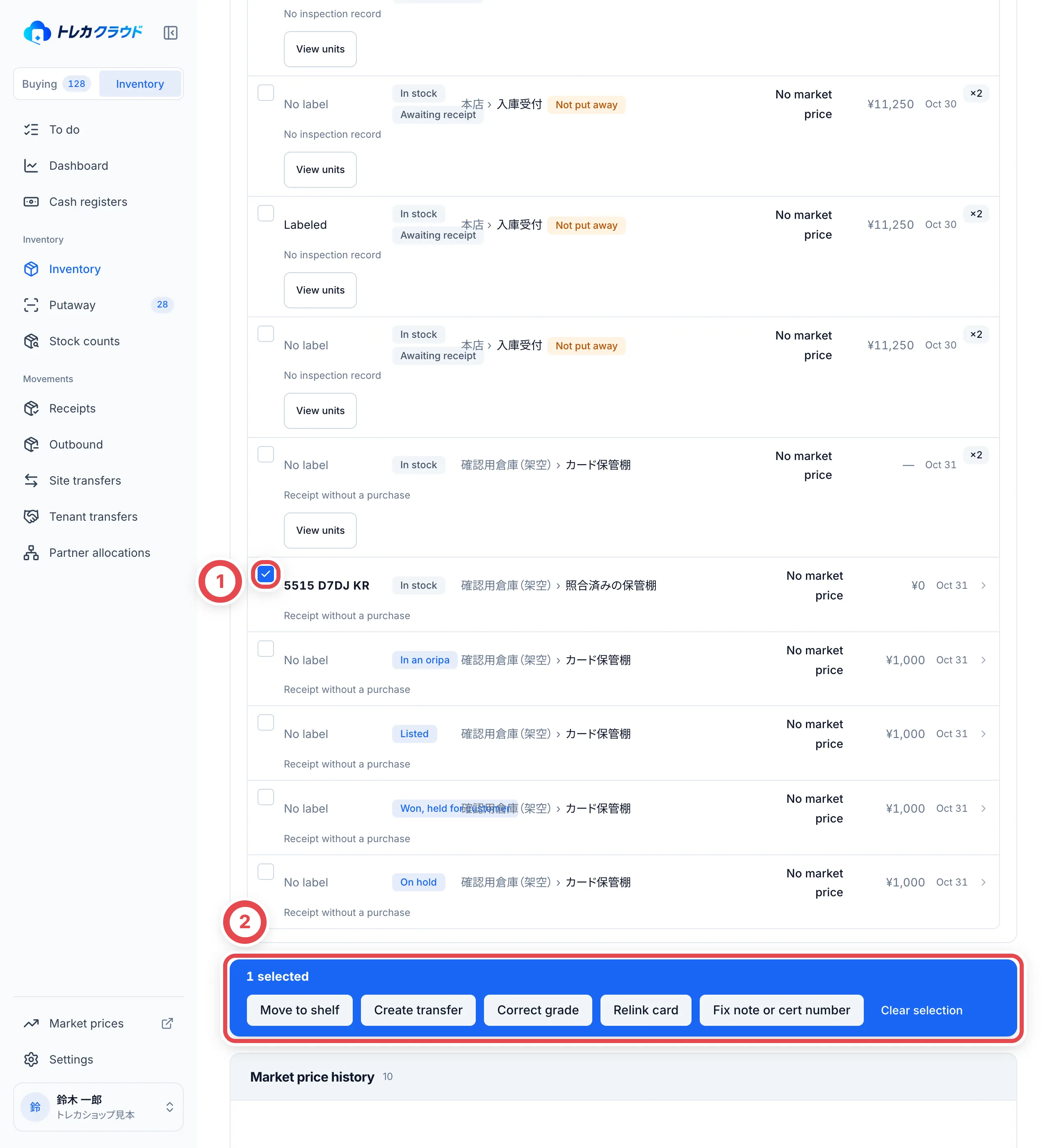
2. Move their location
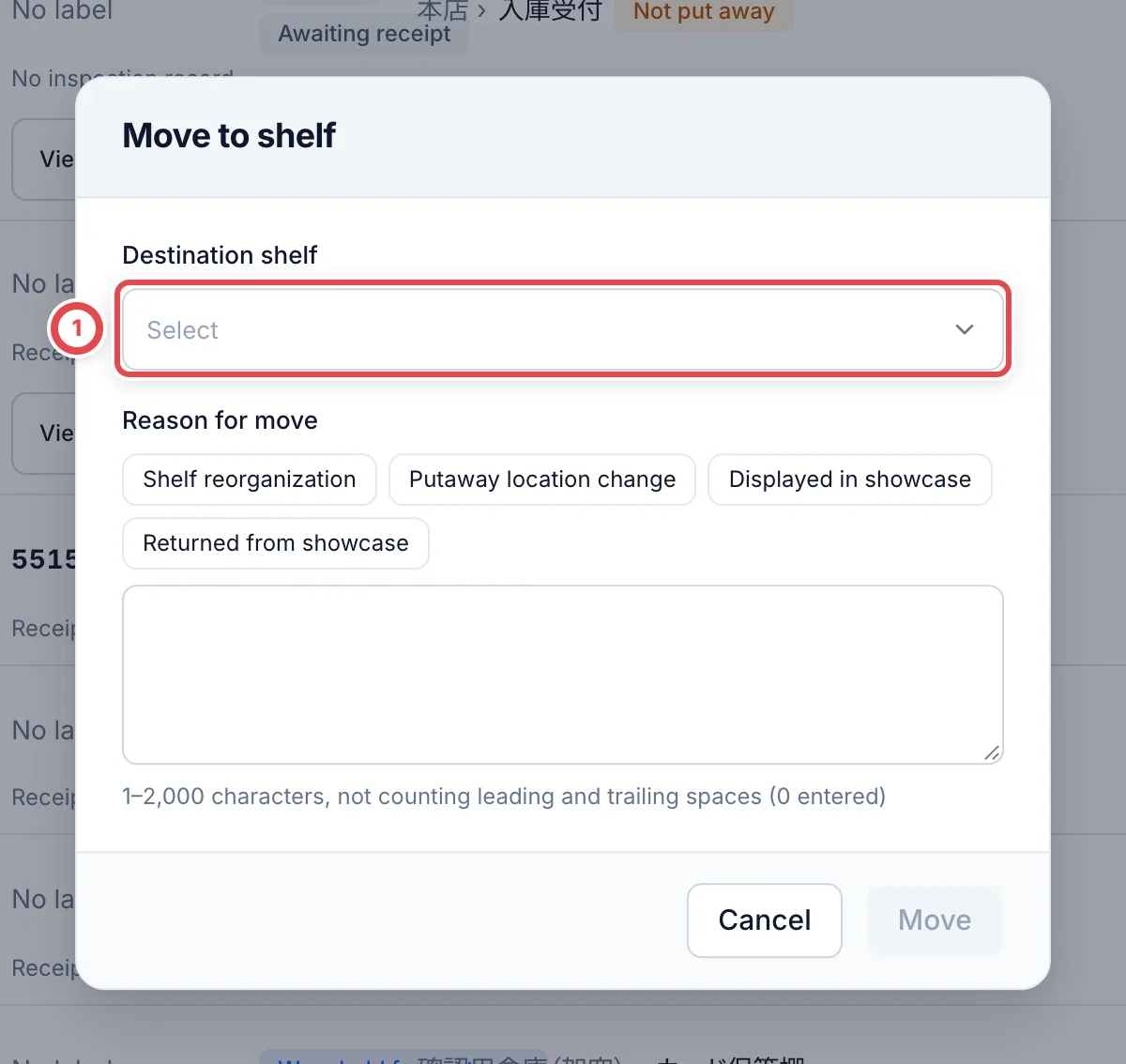
Open the shelf-move action at ① and specify the destination and reason. Verify the current location and count before confirming. A movement to another site uses a site-transfer order and its receipt process. Selecting a destination does not physically move cards. Reload the card/unit and verify location and history.
3. Correct a grade
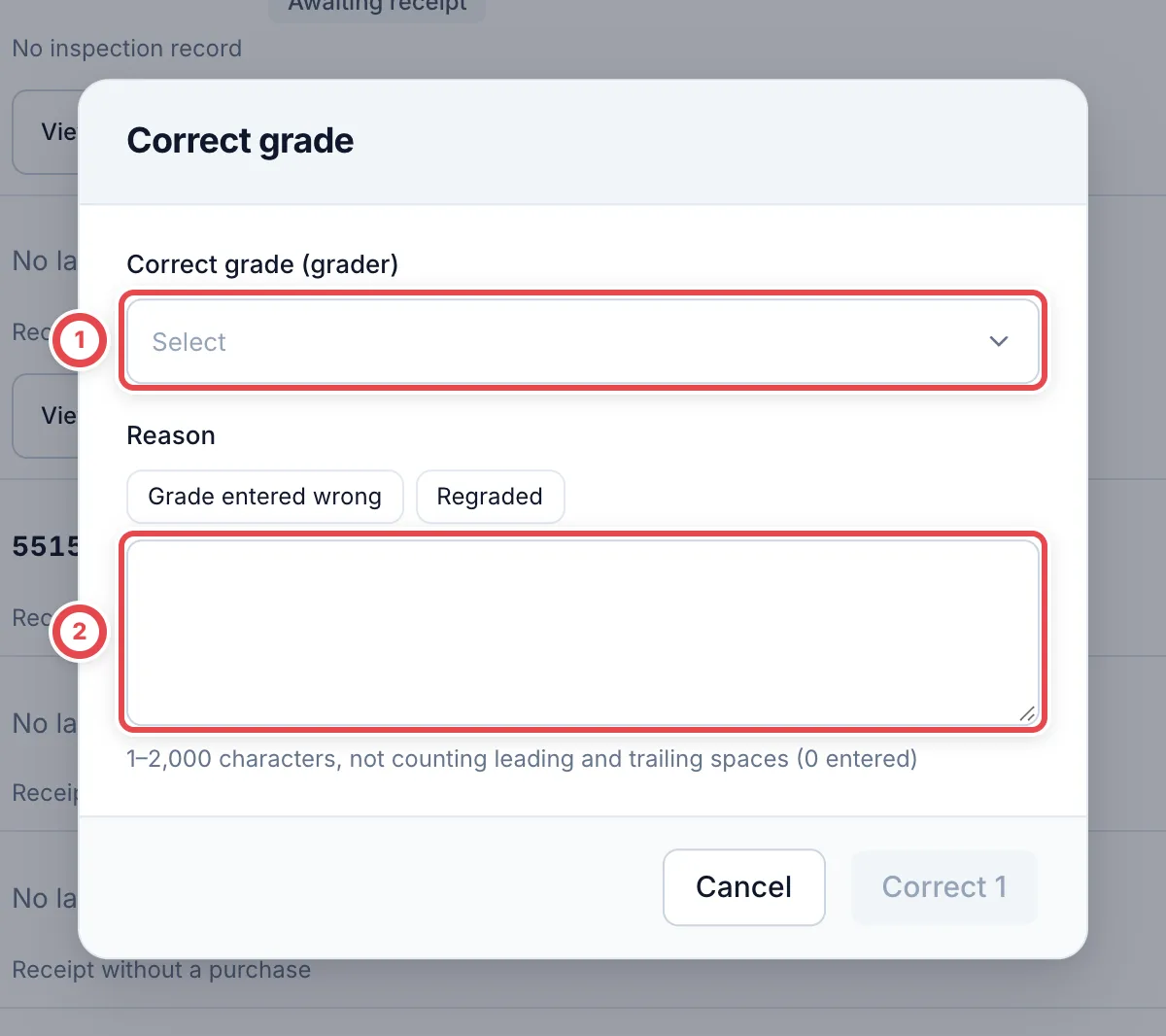
Open the grade-correction action. Select the correct grade and any required certification number at ①. Supply the reason at ② and verify the selected units before saving. Match external grader numbers to the physical slab. Moving back to an internal shop grade does not retain an external certification number.
4. Relink to the correct card
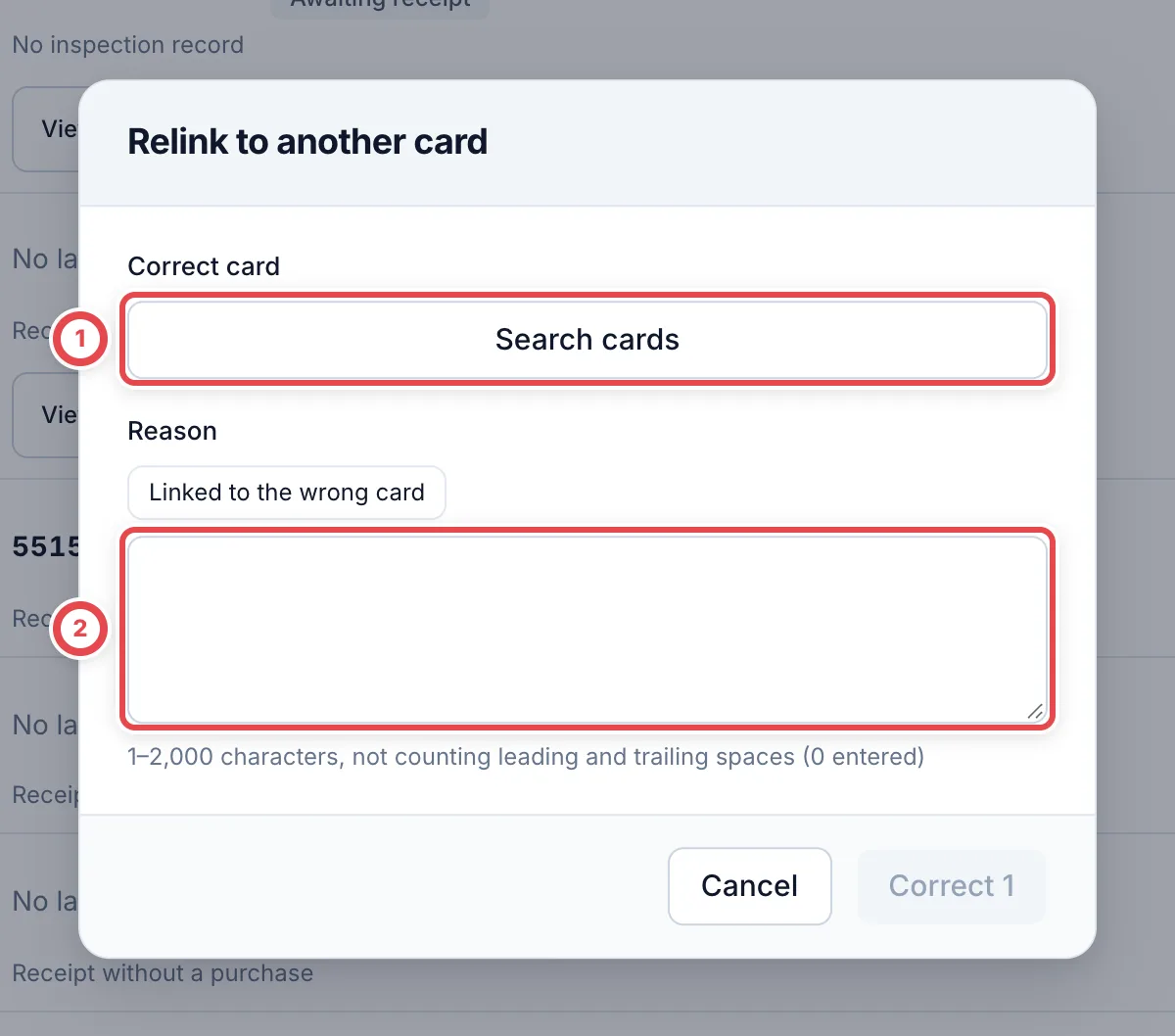
Open the card-relink action. Choose the correct card/printing at ① and add the reason at ②. Confirm that only the selected units will change. Afterwards, inspect the target card’s stock and each unit’s history. If labels need reprinting, use Putaway and QR labels.
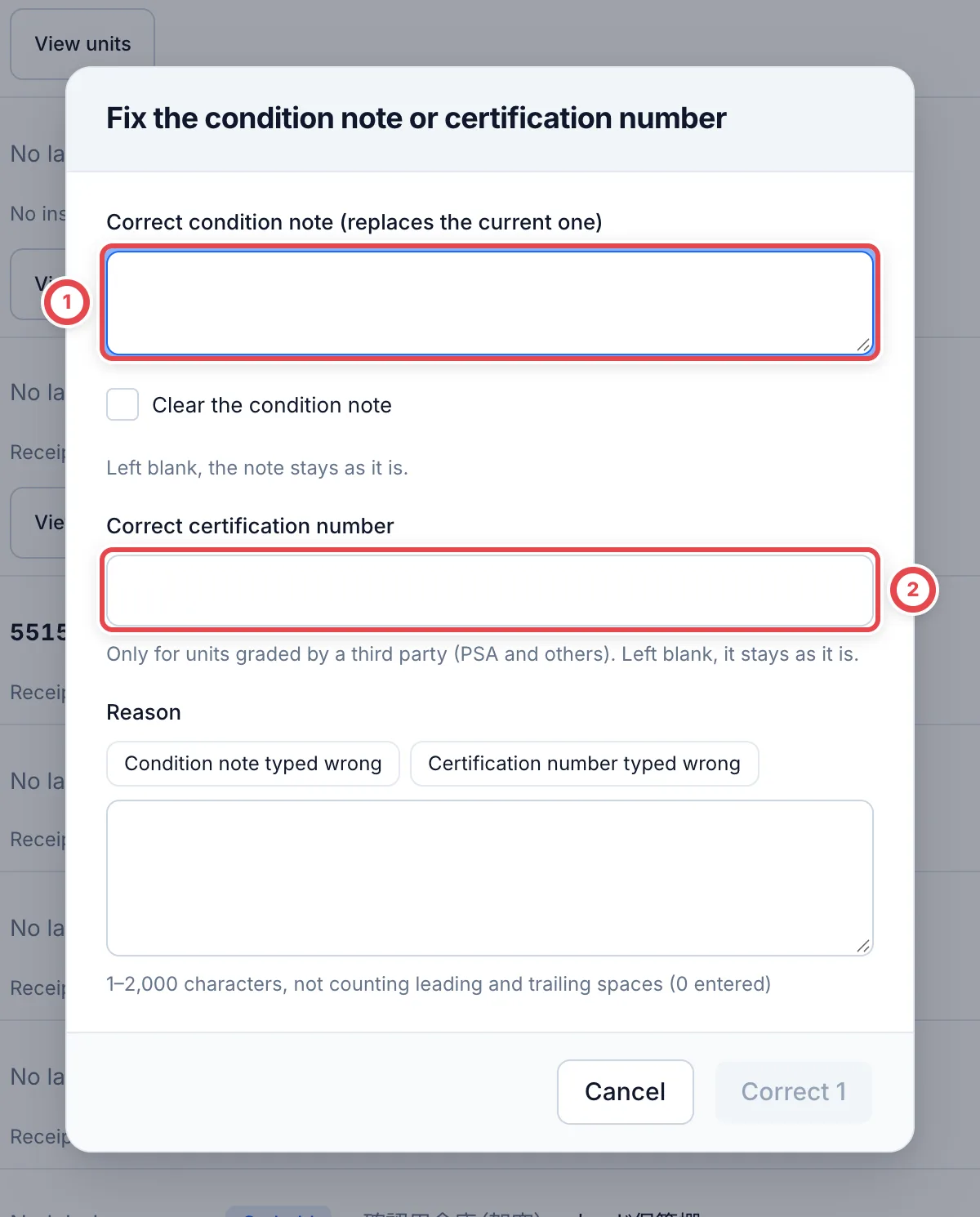
5. Correct the condition note or certification number
Open Fix note or cert number. The note at ① replaces the current condition note; leaving it blank keeps the current note. Select Clear the condition note to remove it. The limit is 1,000 characters.
The certification field at ② appears when exactly one unit is selected. Only third-party graded units, such as PSA, can have their certification number corrected. Leaving it blank keeps the current number. Match the physical slab, check the reason and selected unit, then save. Reopen the unit to verify the stored note and number.
Troubleshooting
| What you see | What to check |
|---|---|
| Source cannot be corrected here | Inspect the originating purchase case for purchased units. |
| No grade choices | Check access to the grade catalogue. |
| State changed | Reload current units and select the intended scope again. |
| Selection count changed | Units relinked to another card or no longer in scope can leave the current selection. |