

Referral fee reports
Referral fee reports pull the settled purchases of customers you tagged with a referral tag in Liny, calculate the referral fee owed to the referrer, and put it in a CSV. Creating a report doesn’t send money to the referrer or contact them. The shop makes the payment itself.
What you need
- A working connection to Liny under Settings › LINE (without a working connection you can’t create a report, but you can still download saved ones)
- Permission to view customers and deals, and permission to view integrations
- A referral tag already attached in Liny to each referred customer
The steps
| Step | What you do |
|---|---|
| 1 | Load the referral tags and choose one |
| 2 | Choose the dates and rounding, then create report |
| 3 | Check the result and download the CSV |
1. Load the referral tags and choose one
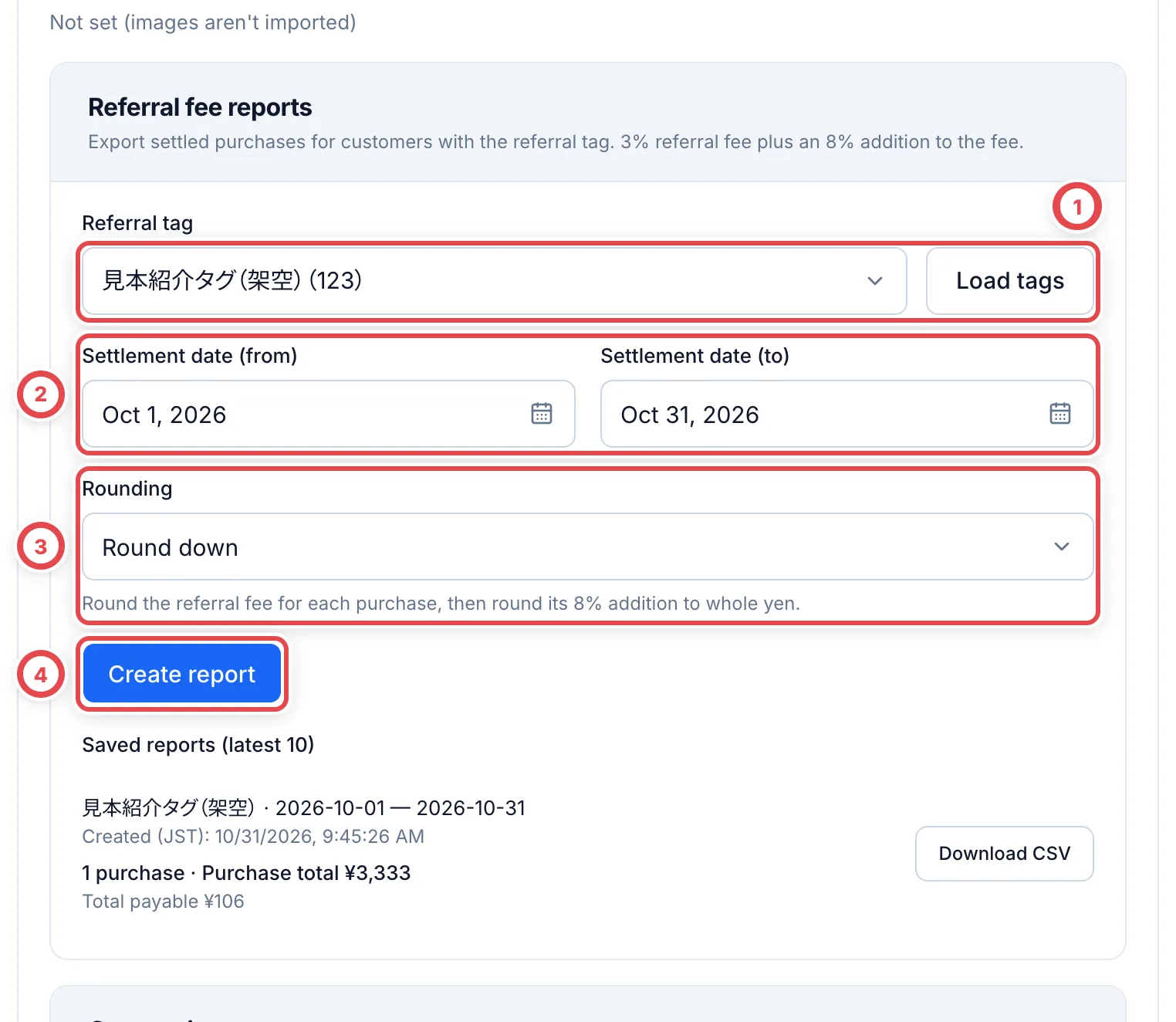
Open the Purchases list and choose Referral fee report… from Export next to the search box (it used to be under Settings › LINE). If you have more than one Liny account, choose the account first. Click Load tags at ①, and your Liny tags appear in the Referral tag field (you can’t choose one until you’ve loaded them). Choose the tag you use for referrals: the tag you put on friends who came from the referrer in Liny.
The list shows only the first 1,000 tags. You can’t choose a tag that isn’t in the list.
2. Choose the dates and rounding, then create report
At ②, enter the period in Settlement date (from) and Settlement date (to) (it starts as the 1st of this month through today). The period is in Japan time and includes both days. At ③, choose a method under Rounding: Round down, Round to nearest yen or Round up.
Once the tag, dates and rounding are set, click Create report at ④. Clicking it saves the report right away (no money moves). It checks each customer with Liny, so it takes a little while.
3. Check the result and download the CSV
When it finishes, you see the number of purchases and the purchase total, then Referral fee (3%), Tax equivalent (8% of the fee) and Total payable. Click Download CSV to save the file.
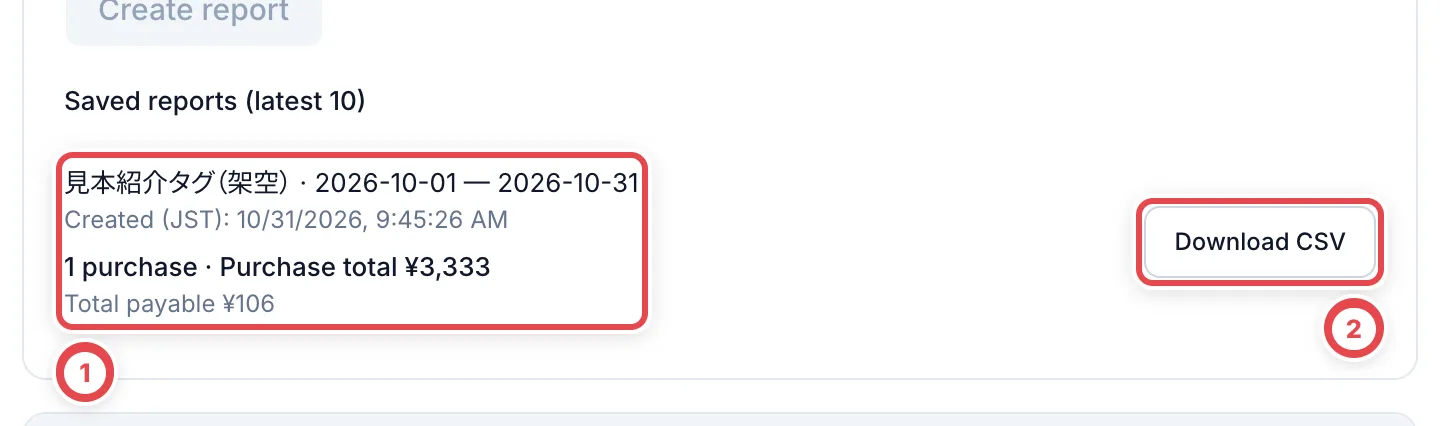
Reports you’ve created are listed under Saved reports (latest 10). Check the tag, the period and the total payable at ①, and click Download CSV at ② to save the file again whenever you need it.
A saved report doesn’t update on its own when tags or purchase amounts change later. If you need the latest figures, create a new report.
Purchases with unverified referral tags are reported as a warning count, but are excluded from both totals and the shared CSV rows. A Liny request failure or UID mismatch produces an error without saving a partial report.
The CSV column names are written in Japanese in the file itself. The columns are: 紹介日時 (referral date and time), 顧客ID (customer ID), 顧客番号 (customer number), 取引番号 (deal number), 買取成立日時 (settlement date and time), 買取金額 (purchase amount), 紹介料率 (referral rate), 紹介手数料 (referral fee), 加算率 (addition rate), 消費税相当額 (tax equivalent) and 支払合計 (total payable). A row of totals (合計) comes last. The referral date and time is when the tag was attached in Liny. Rows where it isn’t known show 日時未確認 (date and time not confirmed).
What’s included and how amounts are calculated
The report covers purchases in yen that settled within the period, judged by the settlement date and time in the secondhand goods ledger. For a purchase whose amount was corrected, the latest corrected amount is used, and cancelled deals aren’t included. First-time and repeat purchases aren’t treated differently. Customers are selected by their referral tag at report creation. Purchases made before the tag was attached are also included when their ledger settlement date falls in the chosen period; the referral timestamp does not filter the period.
The referral fee is 3% of the purchase amount. An 8% addition (the tax equivalent) is then added on that referral fee. For each deal, the referral fee is rounded to whole yen first, then the tax equivalent is rounded, both using the rounding method you chose. The totals are the sum of the results for each deal.
For example, for a purchase of ¥100,000, the referral fee is ¥3,000, the tax equivalent is ¥240 and the total payable is ¥3,240. The 8% applies to the referral fee, not to the whole purchase amount. You can’t change the rates on this screen.
When something goes wrong
| What’s happening | What to check and how to fix it |
|---|---|
| You can’t click Load tags or Create report | The Liny connection isn’t working. Under Settings › LINE, check the state of the Liny connection and the LINE connection it belongs to. |
| You see “N purchases have unverified referral tags and are excluded from the report and total.” | For some deals, Liny couldn’t confirm the customer’s LINE link, or the friend or tag on the Liny side. Fix the link and the tag, then create it again. |
| You see 「5000取引を超えています。成立期間を短くしてください」 (More than 5,000 deals. Shorten the period.) | There are too many deals in the period, whether or not they have the tag. Shorten the period and create the report in parts. |
| You see 「500顧客を超えています。成立期間を短くしてください」 (More than 500 customers. Shorten the period.) | Too many customers had a purchase settle in the period. Shorten the period and create the report in parts. |
| You see 「Linyへの同期を実行中です」 (Syncing with Liny is in progress.) | Wait a little, then click again. |
| You see 「成立買取またはLINEの紐付けが変更されました」 (Settled purchases or LINE links changed.) | Something changed while the report was being created. Create it again. |