

Check partner sales, wins and shipments
Inventory used by an external sales service has states beyond an ordinary shop-created outbound reservation. Distinguish your shop’s orders from orders created for a partner customer’s shipment request.
See Partner apps for connection/visibility setup and Outbound and transfers for ordinary orders.
1. Check a unit’s sales state
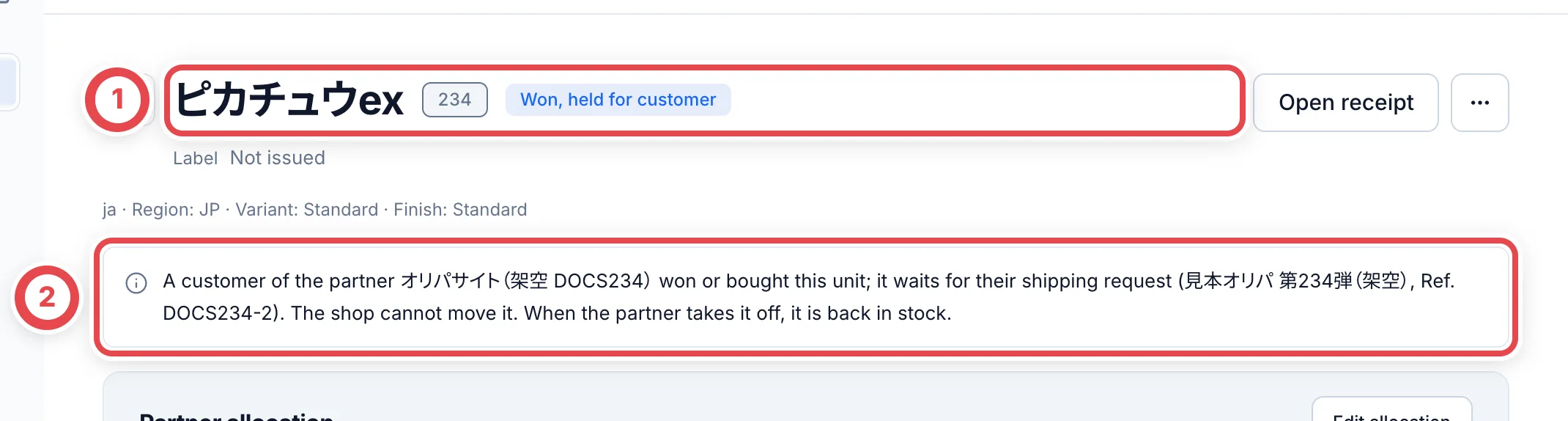
Open the unit and check the state and partner notice at ①.
| State | Meaning |
|---|---|
| In a partner oripa | Used in the partner’s randomized product. |
| Listed | Offered for sale by the partner. |
| Won/purchased, awaiting a shipment request | Acquired by the customer but not yet requested for delivery. |
Match the partner name and reference/allocation information at ②. Do not reuse committed units in another shop sale.
2. Inspect the shipment-request order
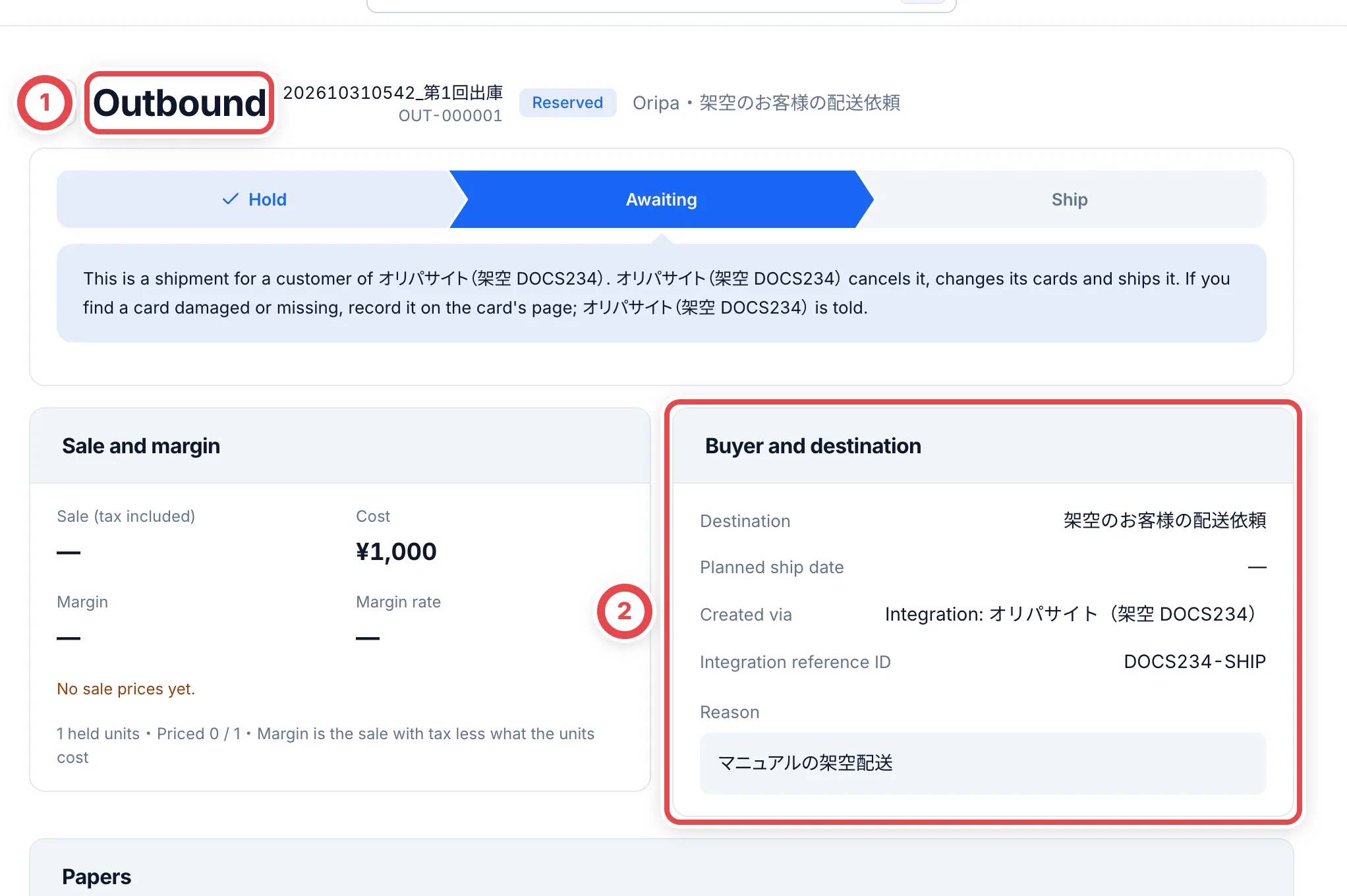
Open the outbound order created for the shipment request. Check the partner shipment at ① and origin/reference at ②. Match the units in the item lines below. Cancellation, unit changes and shipment confirmation are controlled by the partner. Missing shop actions do not necessarily mean insufficient permission.
When picking, match the actual unit to this order. Do not apply the ordinary replacement workflow to a partner-controlled shipment.
3. Handle a missing or damaged unit
Open the unit detail and match the card at ①. Match shelf, label and certification numbers. Record the actual loss or condition issue from the actions menu at ②. The partner receives state changes; do not silently substitute another unit or cancel the shipment from the shop.
For a release or order change, identify the partner and reference and have the partner perform the change. Reload the unit and shipment afterwards.
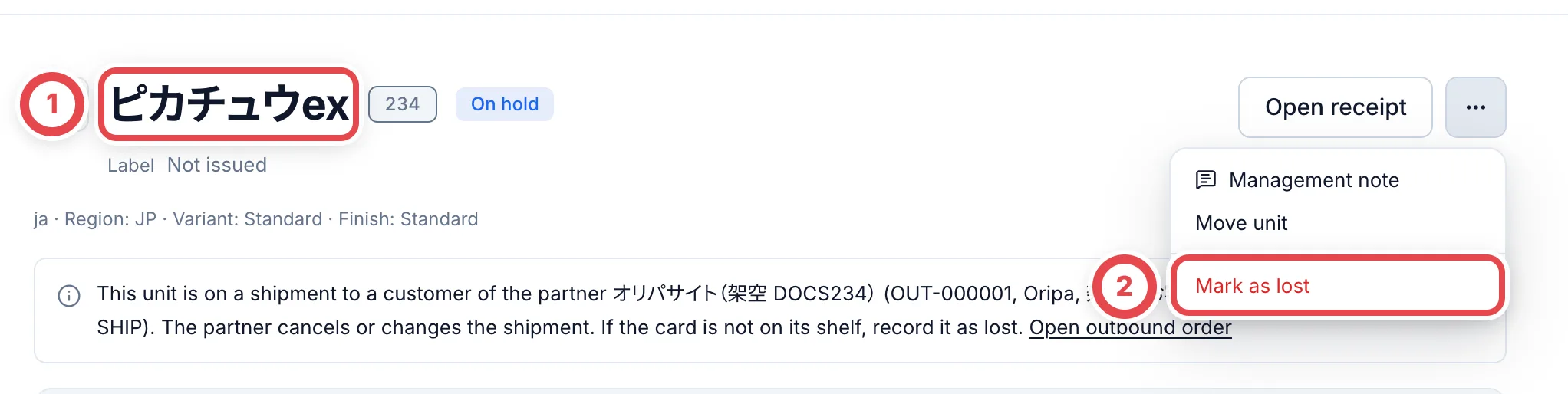
If the item is found after a loss, use Mark as found on its unit page and record the destination shelf and reason. A live partner sale, allocation or shipment restores its committed state. Reopen the unit and match its state and partner reference before treating it as freely available stock.
Troubleshooting
| What you see | What to check |
|---|---|
| Move/outbound actions missing | Check partner sale, allocation and shipment state. |
| Cannot cancel or replace | The partner controls its customer’s shipment. |
| Holds remain after disconnecting | Disconnecting access is separate from releasing a commitment/hold/shipment. |
| Won card missing from its shelf | Inspect the exact unit’s location/history and record the actual loss or condition issue. |