

Identity verification methods
To register document images received by the shop for an online purchase, allow Document review by staff in the shop’s settings. Allowing a method does not mark any customer as verified. Staff must separately compare the documents with the customer details and record the check on the deal.
Choose the right procedure
| What you want to do | Procedure |
|---|---|
| Register document images received by the shop for an online deal | Allow Document review by staff here, then follow Register document images received by the shop |
| Approve documents the customer submitted through a form | Follow Customer submission and shop approval |
| Record a check of the original ID at the counter | Follow In-store ID checks. In-person checks are available by default |
| Have the customer photograph ID on the counter screen | Follow Customer photography and original-ID checks. Choose this mode under Settings → Payments |
Before changing settings
- The person making the change needs permission to manage settings. Standard owners and admins have this permission. For custom roles, check Members and roles.
- Permission to review or record identity documents is separate from permission to change the shop’s verification methods. If Change is missing, ask a member who can manage settings.
- Check the shop shown in the account menu. The change applies to that shop.
1. Open Identity verification
Open Settings in the sidebar, then choose Identity verification at ① in the settings list. The page shows the current methods, validity and reuse settings. Click Change at ② to edit the methods.
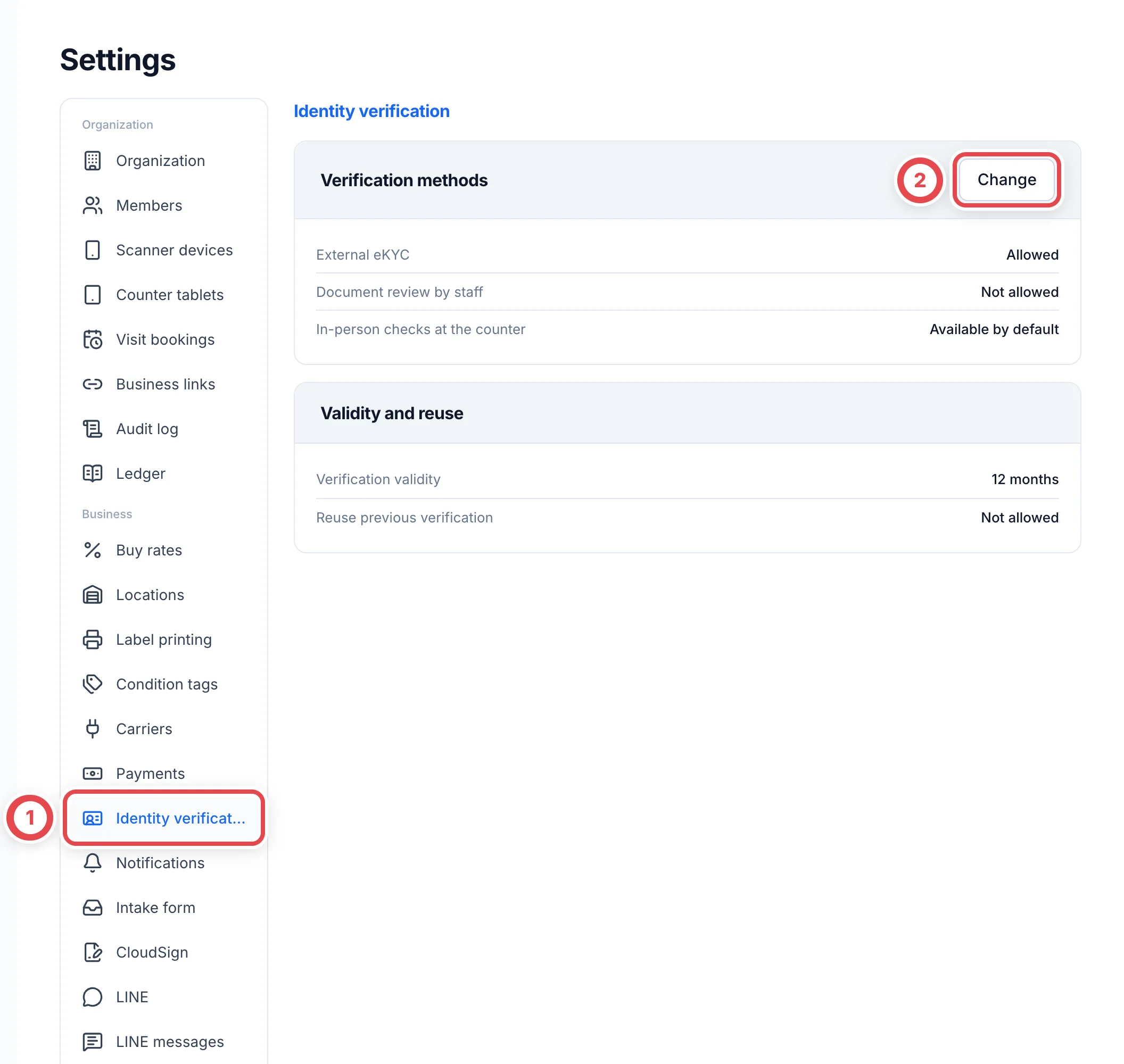
Where In-person checks at the counter is shown, it reads Available by default. This is separate from the editable online methods. You do not need to change online document-review settings to use in-person checks.
2. Allow staff document review and save
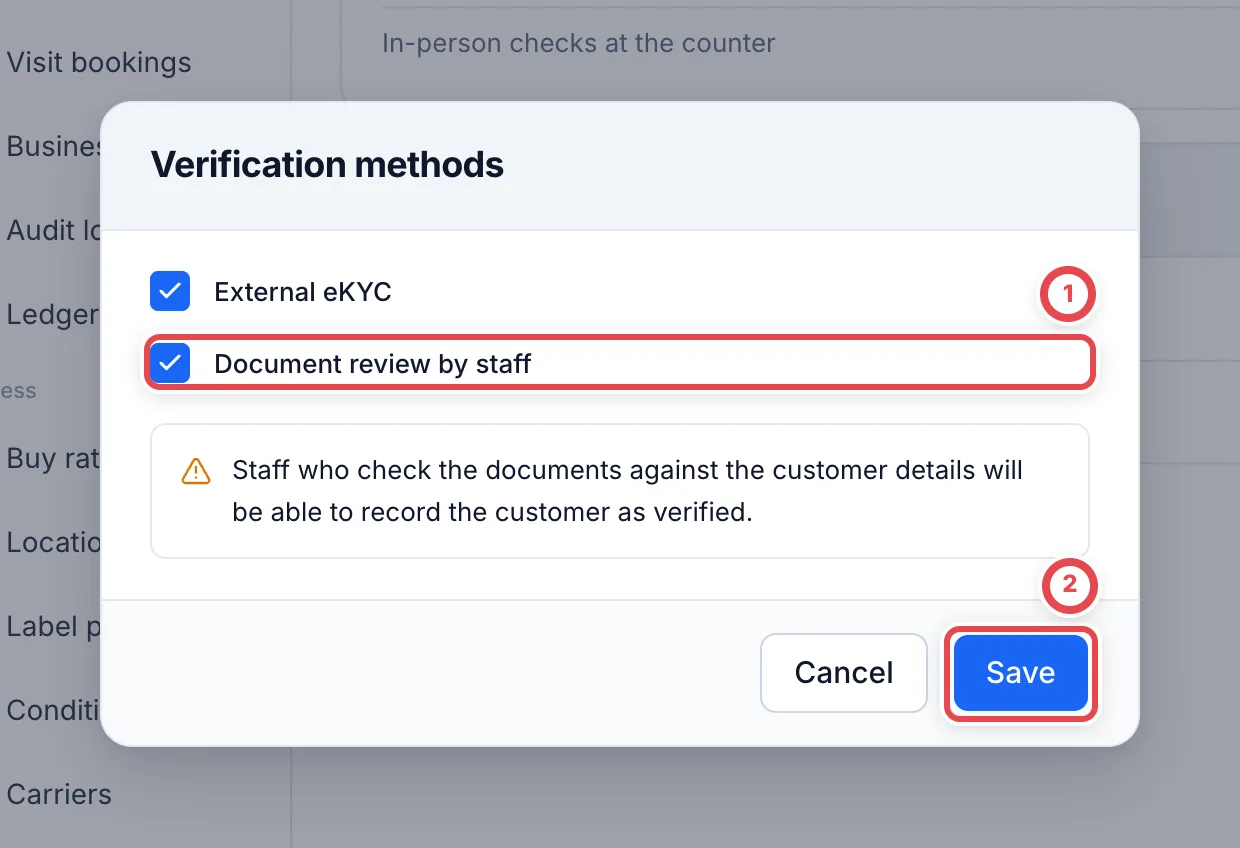
Select Document review by staff at ①. When you enable it, the dialog explains that staff who compare documents with the customer details will be able to record the customer as verified.
Click Save at ②. Use Cancel to leave without saving. Save is not shown when nothing has changed.
3. Check the saved setting and return to the deal
Back on the page, confirm that Document review by staff reads Allowed. Reopen the page if needed to check that the setting persists.
Return to the online deal’s Shipping tab and reopen Add ID document under Record identity verification. Follow Register document images received by the shop. The staff member recording the check must compare the documents with the customer’s name, date of birth, occupation and address first.
Changing the methods does not rewrite previous verification records. The existing validity and reuse settings are also preserved.
Validity and reuse
Verification validity and Reuse previous verification display the values already saved. The current screen does not let you change these values. The example shows 12 months of validity with reuse not allowed; your shop’s settings may differ.
If validity reads Not set, saving the methods again may still leave online document registration blocked. Contact Toreca Cloud support with the shop name and the displayed error and ask them to check the settings. You do not need to attach identity-document images or numbers to the enquiry.
Troubleshooting
| Message or situation | What to check and do next |
|---|---|
| An error says document checks are not allowed for this shop | Open Settings → Identity verification → Change, allow Document review by staff, save, then reopen document registration on the deal |
| Change is missing | Ask a member who can manage settings. Permission to record identity checks alone does not allow changing settings |
| Select at least one verification method. | Select a method the shop uses. Do not leave only external eKYC selected; keep staff document review selected if your shop uses it |
| The verification settings have changed. Reopen this screen before saving. | Another member may have updated the settings. Cancel, reload the page and review the latest values before editing |
| An error says verification validity in months is not set | Check the validity row and contact support. Saving the methods again does not fill in a missing validity period |
| The method is allowed but the customer is still unverified | A settings change does not record a check. Register the documents or approve the submitted documents on the deal |
| You want to record an in-person check | Follow In-store ID checks rather than changing methods here |