

Manage sealed products on single-lot shelves
The same product can have different receipt sources and costs. Mixing them makes it difficult to match physical stock to its cost. A Single-lot shelf holds boxes, packs or decks from one receipt lot.
| What you want | Method | Record kept |
|---|---|---|
| Match physical stock to its receipt lot | Configure a single-lot shelf, then receive or put away that lot | Each unit’s source, cost and location |
| Count identical stock from that lot | Use Count by quantity during a stock count | Target units and counted quantity |
| Protect checked locations from scan corrections | Use Scan movement lock | Whole-shelf or selected-unit protection |
A single-lot shelf and a scan movement lock are separate settings. Enabling a single-lot shelf does not lock scan corrections.
What you need first
- Manage settings permission to configure the shelf, and inventory write permission to receive, move or count stock.
- Physically separate stock by receipt source, product, cost, currency, packaging, condition and grade. Two receipts are different lots even if their costs match.
- Single cards cannot use these shelves. Use boxes, packs or decks.
1. Choose an empty shelf or one containing only one lot
Open Settings → Sites and locations and find the site and shelf. If stock is mixed, separate it physically and record its location changes before enabling the setting.
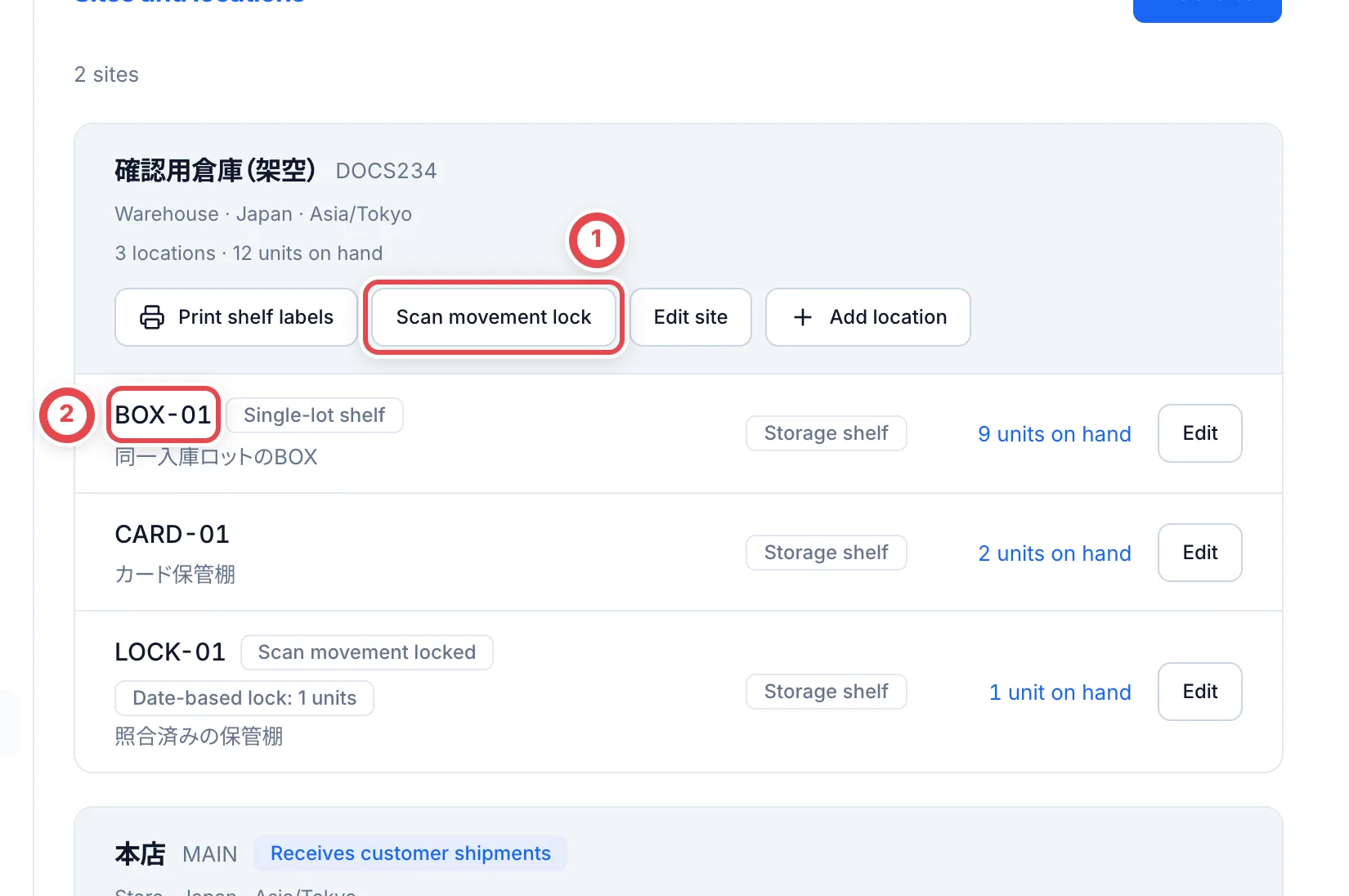
Held, listed and allocated units physically on the shelf are included when checking for mixed lots. Do not check only the ordinary stock.
2. Enable Single-lot shelf and save
Click the shelf’s Edit button. Check its name and shelf code at ①, enable Single-lot shelf at ②, and save with ③. Reopen the settings to confirm they were saved.
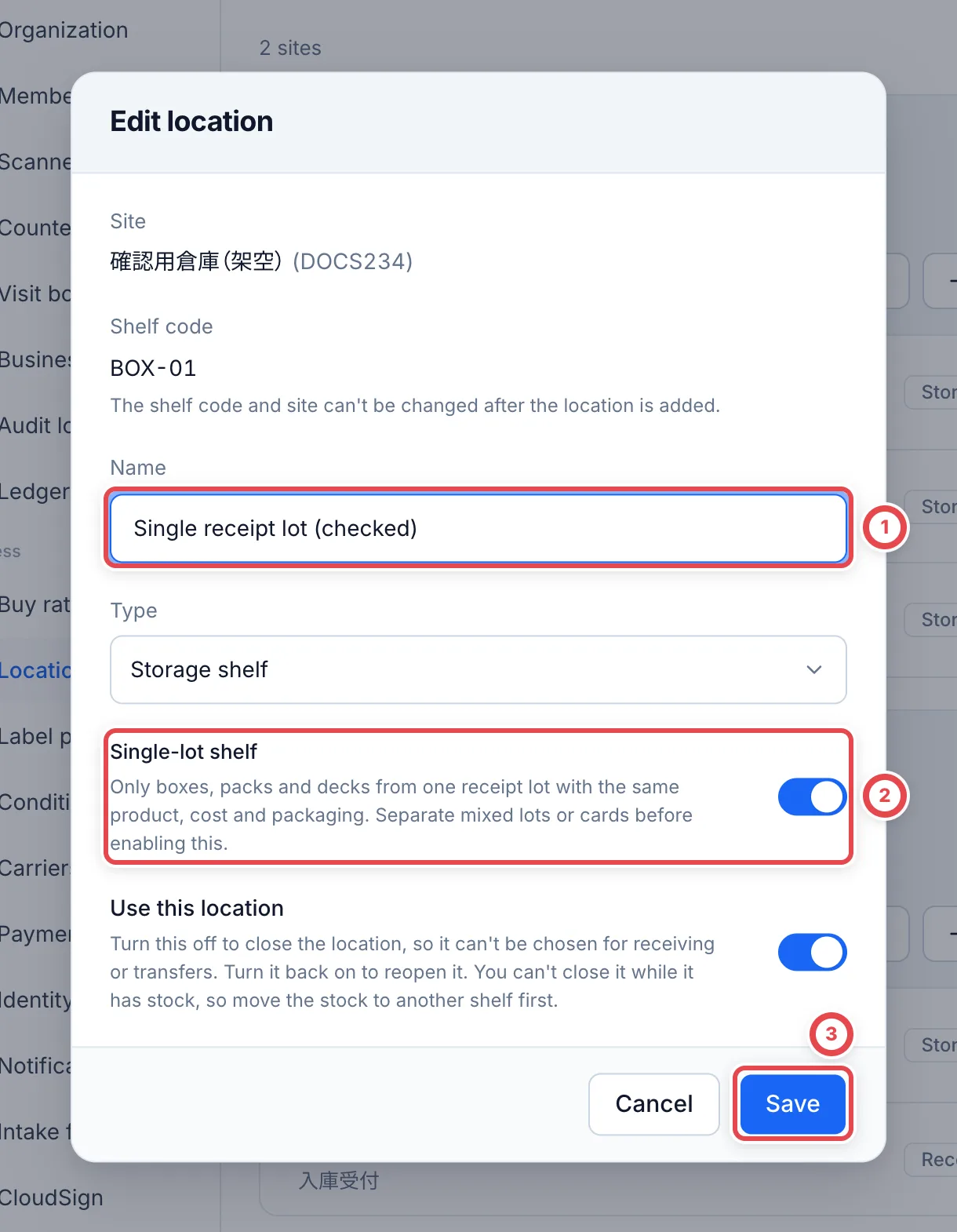
You cannot save while different lots or single cards are mixed. Separate them first. This setting is not automatically enabled on existing shelves.
3. Receive or put away only that receipt lot
Choose the shelf on a receipt slip, or put stock away using the inventory app. Match the receipt source, cost, currency and packaging as well as the product. A different lot is refused; prepare another shelf.
An empty shelf can receive a new lot. If units from the previous lot are later returned or found, receive them on another shelf. Turning off the single-lot setting allows mixed stock, so keep physical shelf labels consistent too.
4. Count eligible stock by quantity
Open Stock counts → Start stock count, then select the site and shelf. On All, click Count by quantity, count the physical units, and enter the result. See Stock counts for the full steps.
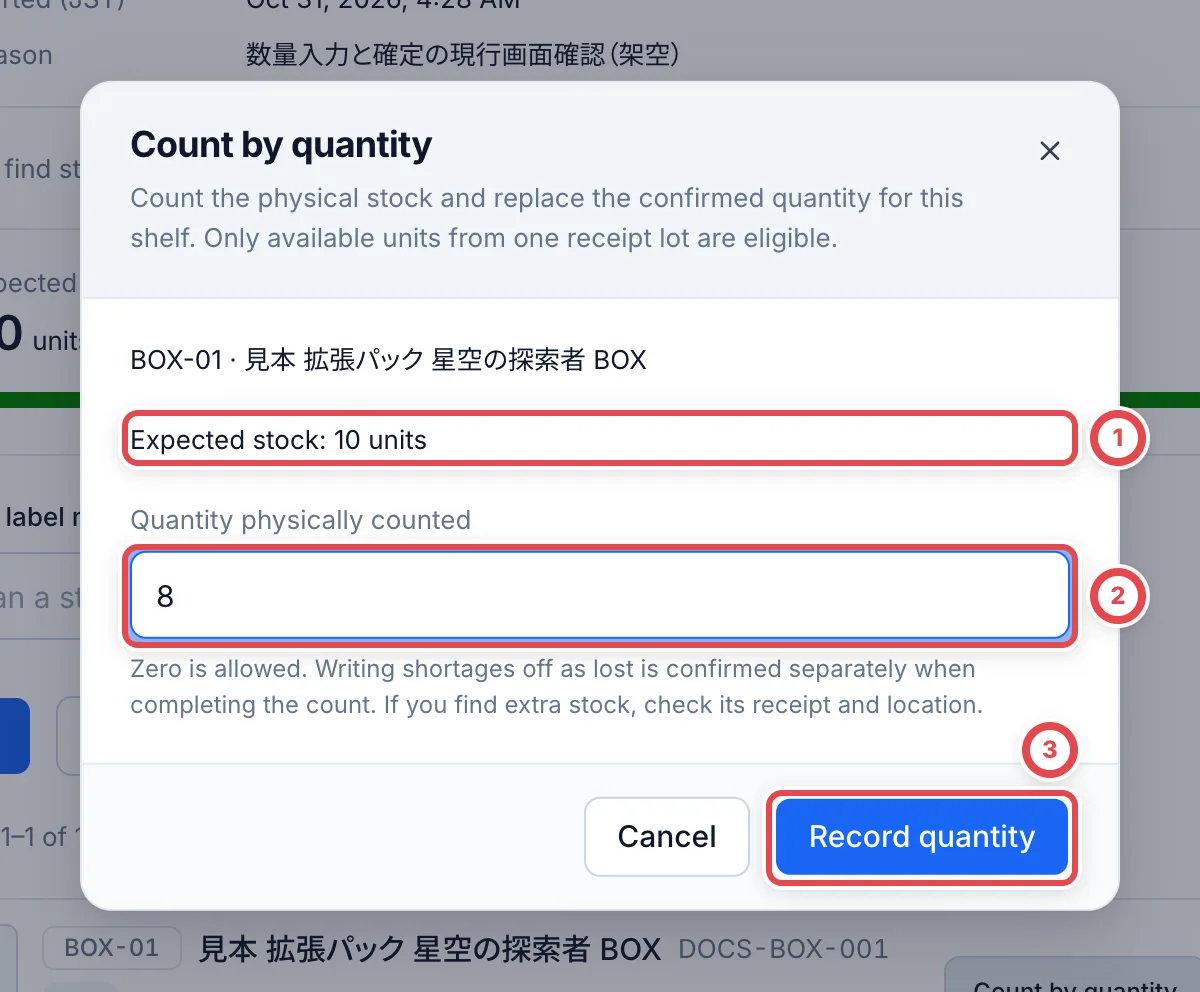
Quantity entry requires known-cost ordinary stock from one lot. Recording the count does not change stock quantity, cost or loss status. Review shortages separately when completing the count.
Troubleshooting
| What’s happening | What to check and how to recover |
|---|---|
| You cannot enable the setting | Separate different lots, cards, costs or packaging in both the physical shelves and the records. |
| A receipt or movement is refused | Choose an empty shelf or the shelf holding the same receipt lot. Matching product names and prices alone are insufficient. |
| Count by quantity is missing | Select All and check known cost, ordinary stock and complete coverage of one receipt lot. Otherwise check units individually. |
| Some stock is held or listed | It is included in lot checks but cannot use quantity entry. Check those units individually. |
| You find more than expected | Check for mixed lots or unrecorded receipts rather than increasing stock through quantity entry. |
| Old stock returns after a new lot occupies the shelf | Receive the previous lot on another shelf. Do not mix it with the new lot. |