
Cash registers and closing
Cash handed to customers for purchases is recorded in the register automatically. You only record shipping costs, top-ups, take-home cash, and similar items by hand.
The cash-management screens appear in Japanese even when the English console is selected. Their labels are shown here in Japanese, with an English gloss in parentheses the first time each one appears in a section.
What you need
- Cash management must be turned on. Only the Toreca Cloud operator can turn it on. If Cash registers doesn’t appear in the sidebar, ask your administrator.
- A register. Only people with cash-management admin permission can add one (see Add a register).
- Someone who can close the register when there is a discrepancy. Closing with a discrepancy needs admin permission.
Terms on this screen
- レジ (Register): a place where cash is kept. Records are kept separately for each register. Register a safe as a register too.
- 記録上の現金 (Recorded cash): the opening cash, plus recorded inflows, minus recorded outflows. It is the cash that should be in the register right now.
- 点検 (Cash count): counting the notes and coins in the register during the session. The session stays open after a count.
- 締め (Closing): counting the cash at the end of the day, checking it against the records, and ending the session.
- 繰越 (Carryover): the cash left in the register for the next session after closing. It is filled in automatically the next time you start the register.
A day’s workflow
| Step | What you do | Register status |
|---|---|---|
| 1 | Open cash management and choose a register | 未開始 (Not started) |
| 2 | Count the cash and start the register | 営業中 (Open) |
| 3 | Check the recorded cash on the open register screen | 営業中 (Open) |
| 4 | Record shipping, top-ups, and similar items by hand | 営業中 (Open) |
| 5 | (If needed) Count the cash during the session | 営業中 (Open) |
| 6 | Count the cash at the end of the day and close the register | 締め済み (Closed) |
| 7 | Copy the daily report and share it with your team | 締め済み (Closed) |
| 8 | Check the closed session in the history | 締め済み (Closed) |
Registers do not close automatically when the date changes. If a previous session is still open, close it before you start the next one.
1. Open cash management and choose a register
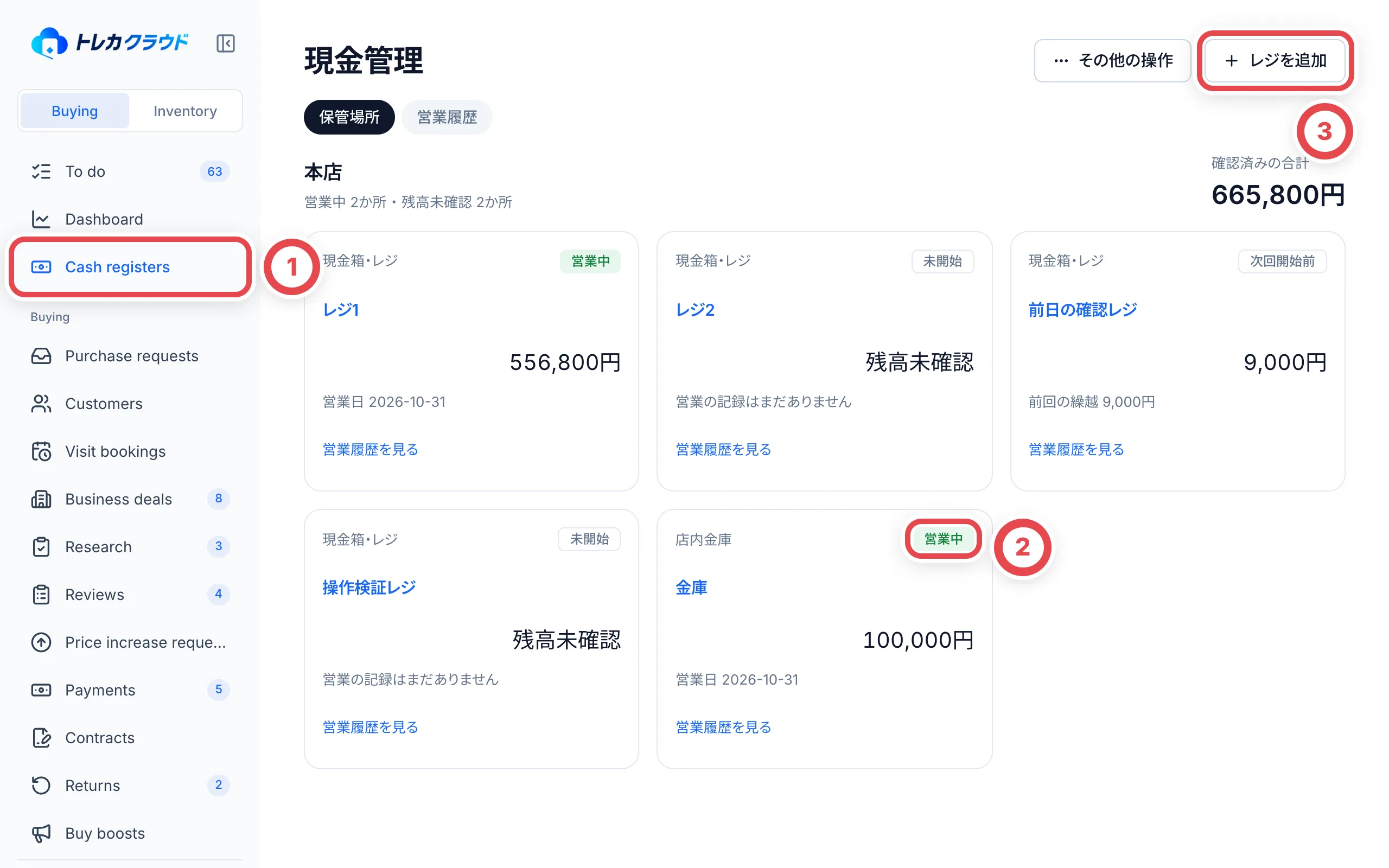
Click ① Cash registers in the sidebar. The registers are listed by shop. ② 営業中 (Open) marks a register that is open right now. A register never opened shows 未開始 (Not started); one closed after a previous session shows 次回開始前 (Before next opening). Click a register name to open its screen.
2. Count the cash and start the register
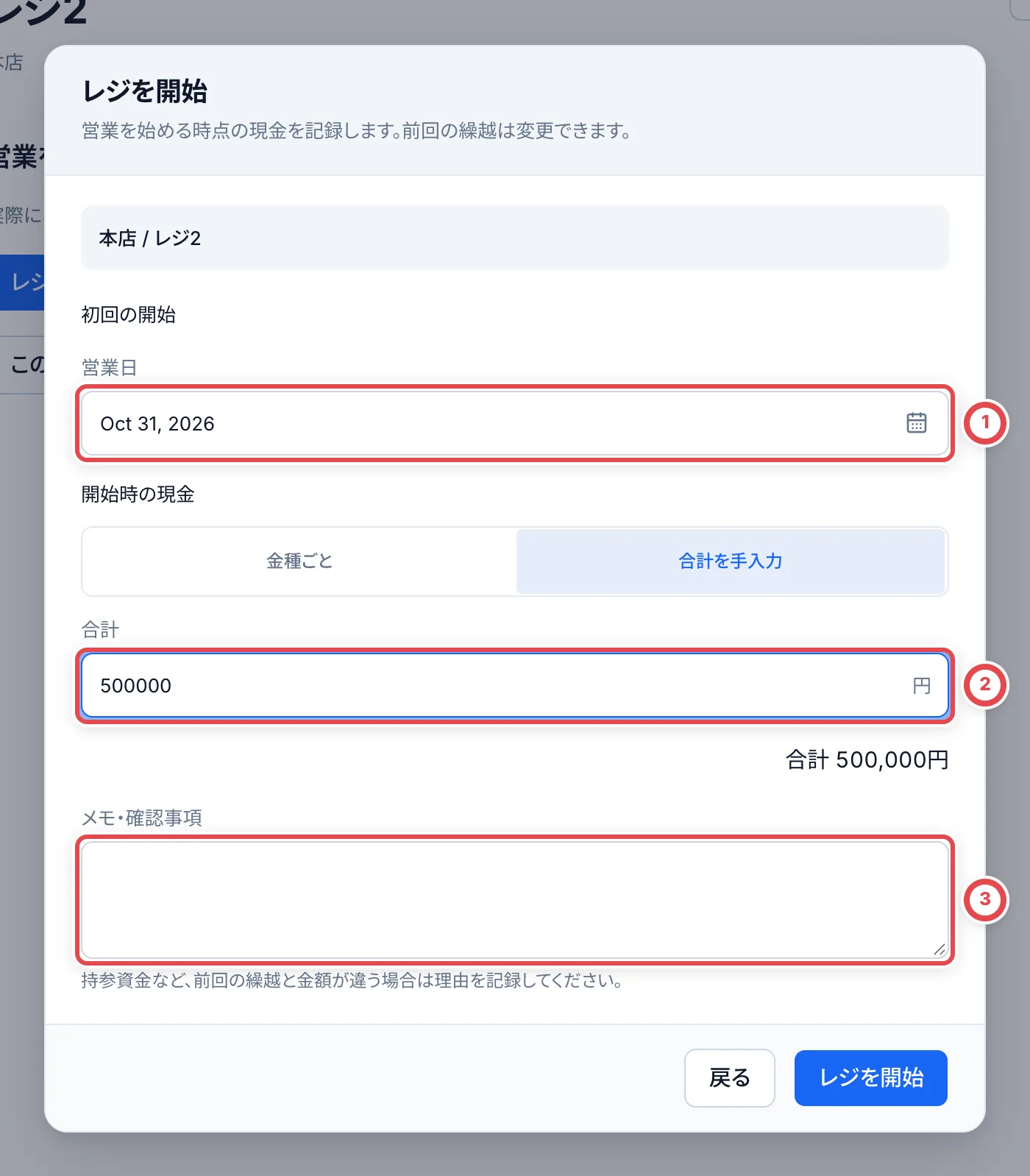
In the register list, click レジを開始 (Start register) on the card of a register that is not started. You can also start it from the page that opens when you click the register name. ① The business date is filled in with today’s date. Count the cash in the register and enter it at ② 開始時の現金 (Opening cash). Empty denominations count as 0. The total appears in the last row of the table.
If the amount differs from last time’s carryover, for example because you added funds you brought in, write the reason in the notes field at ③, labeled 繰越と金額が違う理由 (Why the opening differs from carryover) when the amounts differ. Then click レジを開始 (Start register) to open the register.
3. Check the recorded cash on the open register screen
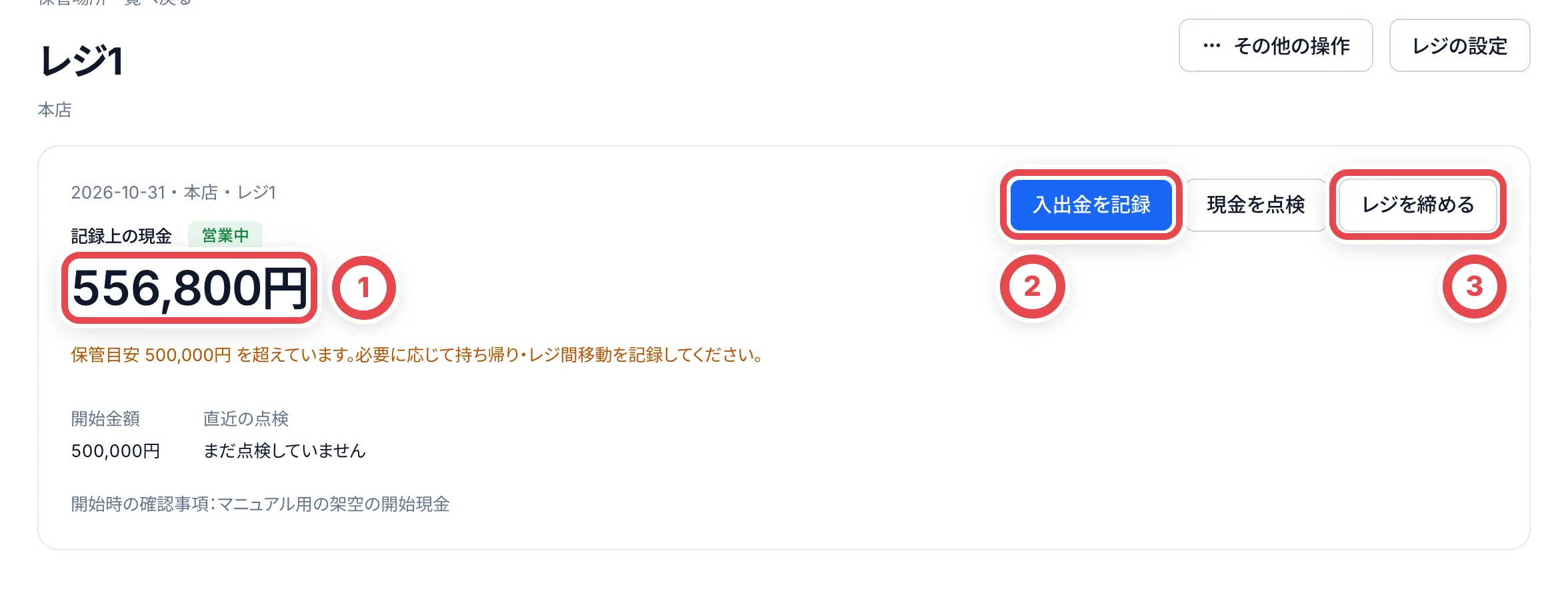
When you open a register that is open, ① the recorded cash appears in large type. If it goes over the storage guideline, a warning appears below it. The storage guideline only triggers the warning. It is not a buying limit.
Click ② 入出金を記録 (Record cash in or out) to record shipping or top-ups. Click ③ レジを締める (Close register) at the end of the day. In the 入出金 (Cash movements) list below, cash handed over for purchases appears automatically, marked 買取から自動 (Automatic from purchase). Do not record cash handed over for a purchase by hand. It would be withdrawn twice.
If a purchase’s total payment includes a shipping subsidy, that amount is already included in the automatic withdrawal. Do not record the same shipping cost again.
4. Record shipping, top-ups, and similar items by hand
Click 入出金を記録 (Record cash in or out). At ①, choose 入金(現金が増える) (Inflow: cash increases) or 出金(現金が減る) (Outflow: cash decreases), and enter the amount. At ②, click one of the suggestions below the field to fill in the category. The suggestions are 送料 (Shipping), 現金補充 (Cash top-up), 持ち帰り (Take-home), 梱包資材 (Packaging materials), 返金 (Refund), and その他 (Other). You can edit the text after you choose one.
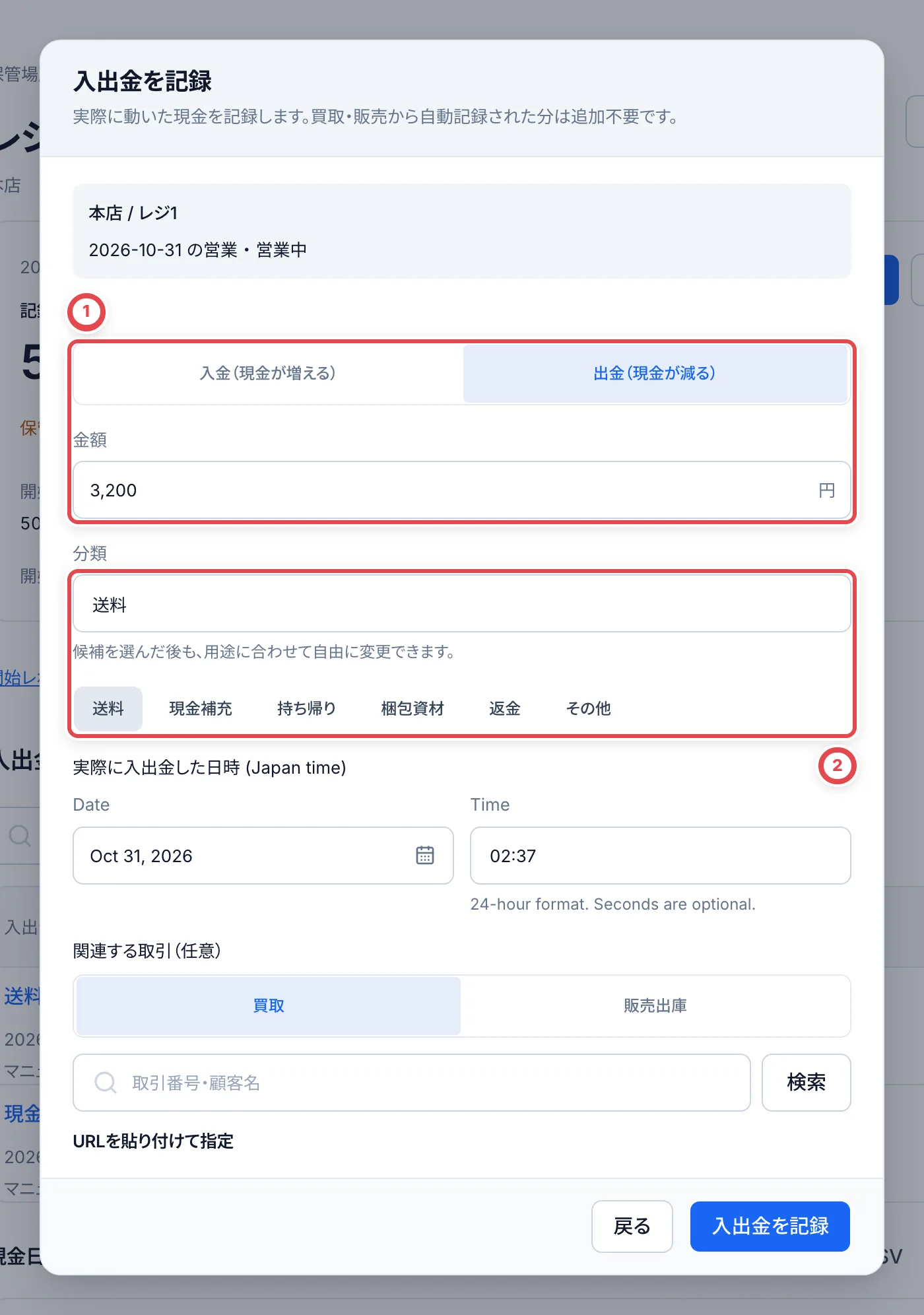
実際に入出金した日時 (Date and time of the movement) is filled in with the current time. If you are recording it later, change it to when the money actually moved. If a purchase or sales issue is related, choose it at 関連する取引 (Related transaction) by transaction number or customer name. You can also paste the URL of the transaction page. Then click 入出金を記録 (Record cash in or out).
To move cash to another register or a safe, use レジ間で現金を移動 (Transfer cash between registers) instead. The outflow from the source and the inflow to the destination are recorded together. The destination register must also be started.
5. If needed, count the cash during the session
To count the cash during the session, click 現金を点検 (Count cash). Enter the number of notes and coins for each denomination, or enter a total amount, and click 点検を保存 (Save count). The recorded cash does not change, and the session stays open. The result of the last count appears under 直近の点検 (Latest count) on the open register screen.
6. Count the cash at the end of the day and close the register
Click レジを締める (Close register). Count the cash before you take any away. At ①, enter the number of notes and coins in the table. Empty denominations count as 0.
On the right, the recorded cash, the counted cash, and the difference appear. At ②, under 締め後に持ち帰る現金 (Cash to take away after closing), enter the amount you are taking outside the store. The next carryover appears below it. Select the checkbox 実際に現金を数え、入力した金額を確認しました (I counted the cash and checked the amounts I entered), then click ③ 締めを確定 (Confirm closing).
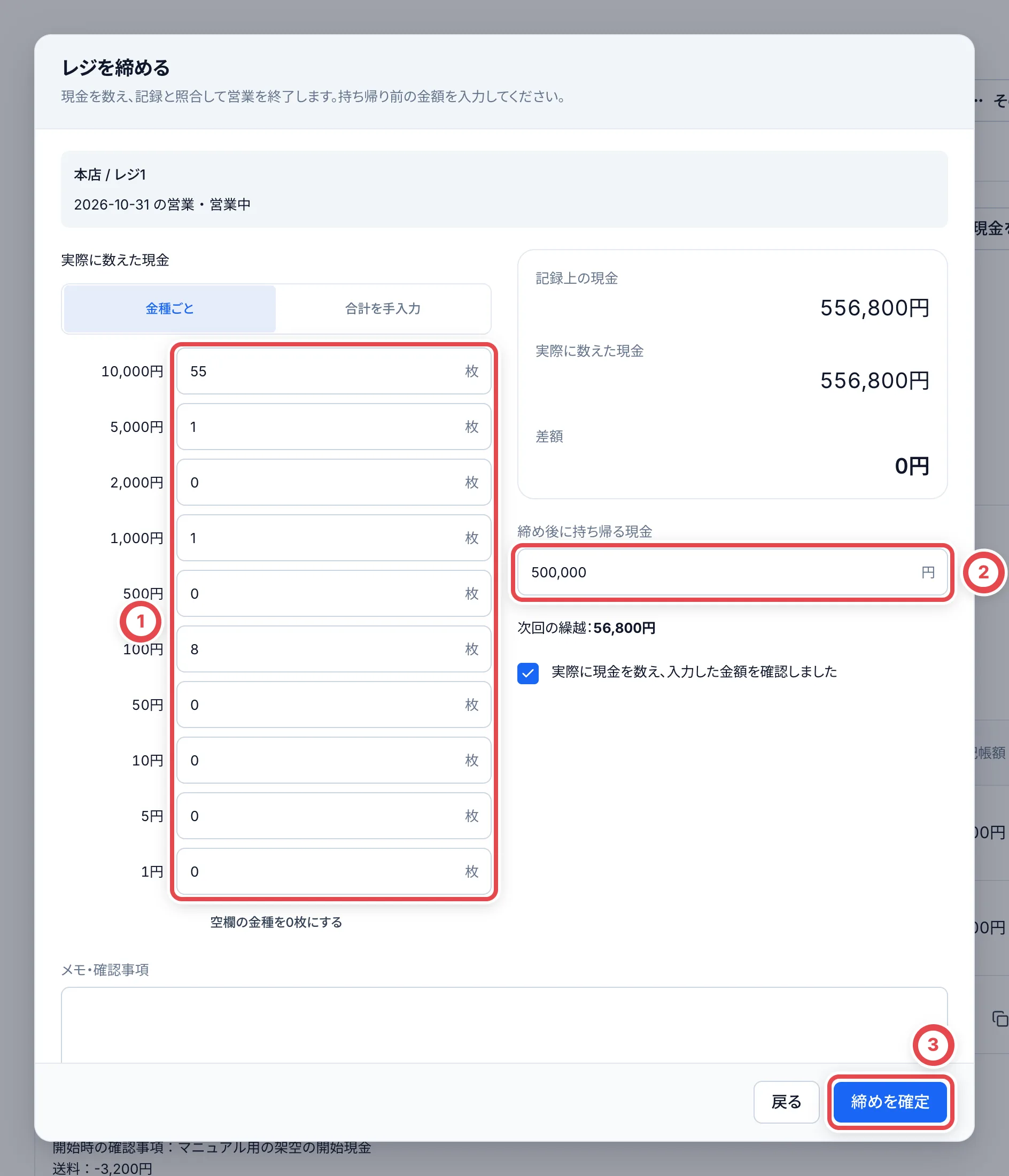
If there is a discrepancy, write the reason in 差額の理由・確認した内容 (Reason for the difference and what you checked). Only people with admin permission can close a register that has a discrepancy. If you don’t have permission, click 点検として保存 (Save as count) to keep your count and ask an administrator to close.
7. Copy the daily report and share it with your team
Scroll down the register screen to 現金日報 (Daily cash report). Click ① 日報をコピー (Copy report) to copy a text summary. It has the opening amount, the totals of cash in and out by category, and the recorded cash. If you copy it after closing, it also includes the counted cash, the difference, the take-home amount, and the carryover. Before closing, it is labeled 締め前の記録 (Record before closing). Paste it into your team’s group chat to share it. Toreca Cloud does not send it for you.
To keep the data in a spreadsheet, export it with ② CSV.
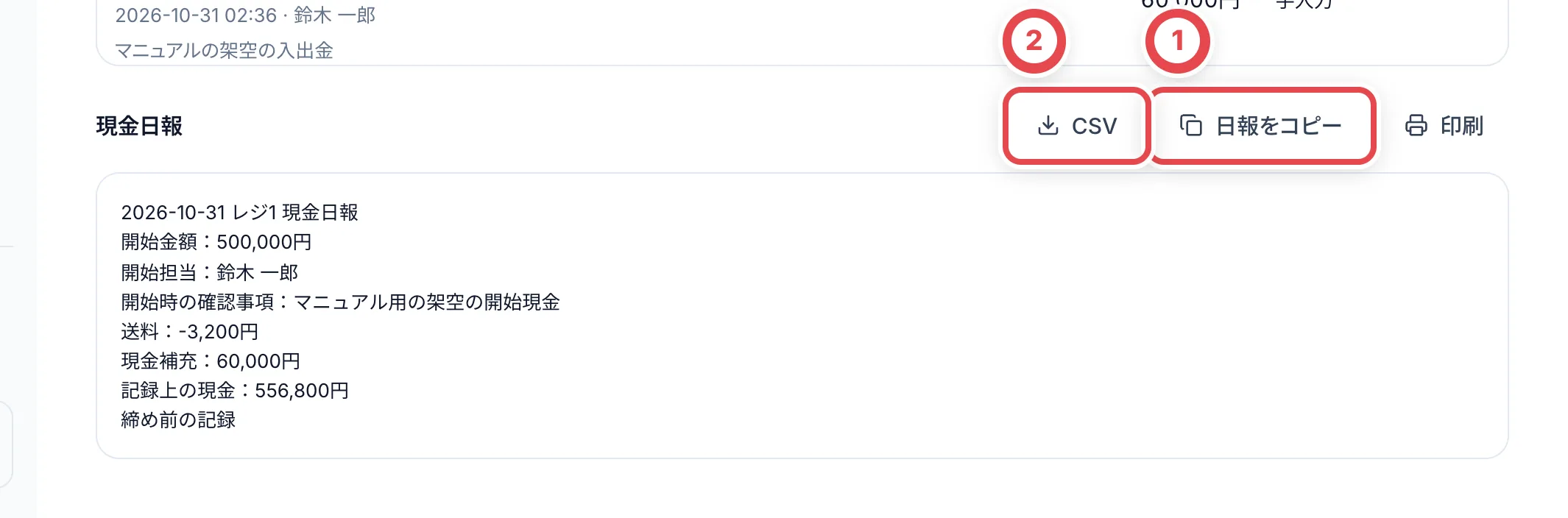
The CSV puts cash movements, correction history, and the closing reconciliation figures in separate columns. Do not add the corrected-amount column or the reconciliation figures to the cash movements. That would count the same money twice.
8. Check the closed session in the history
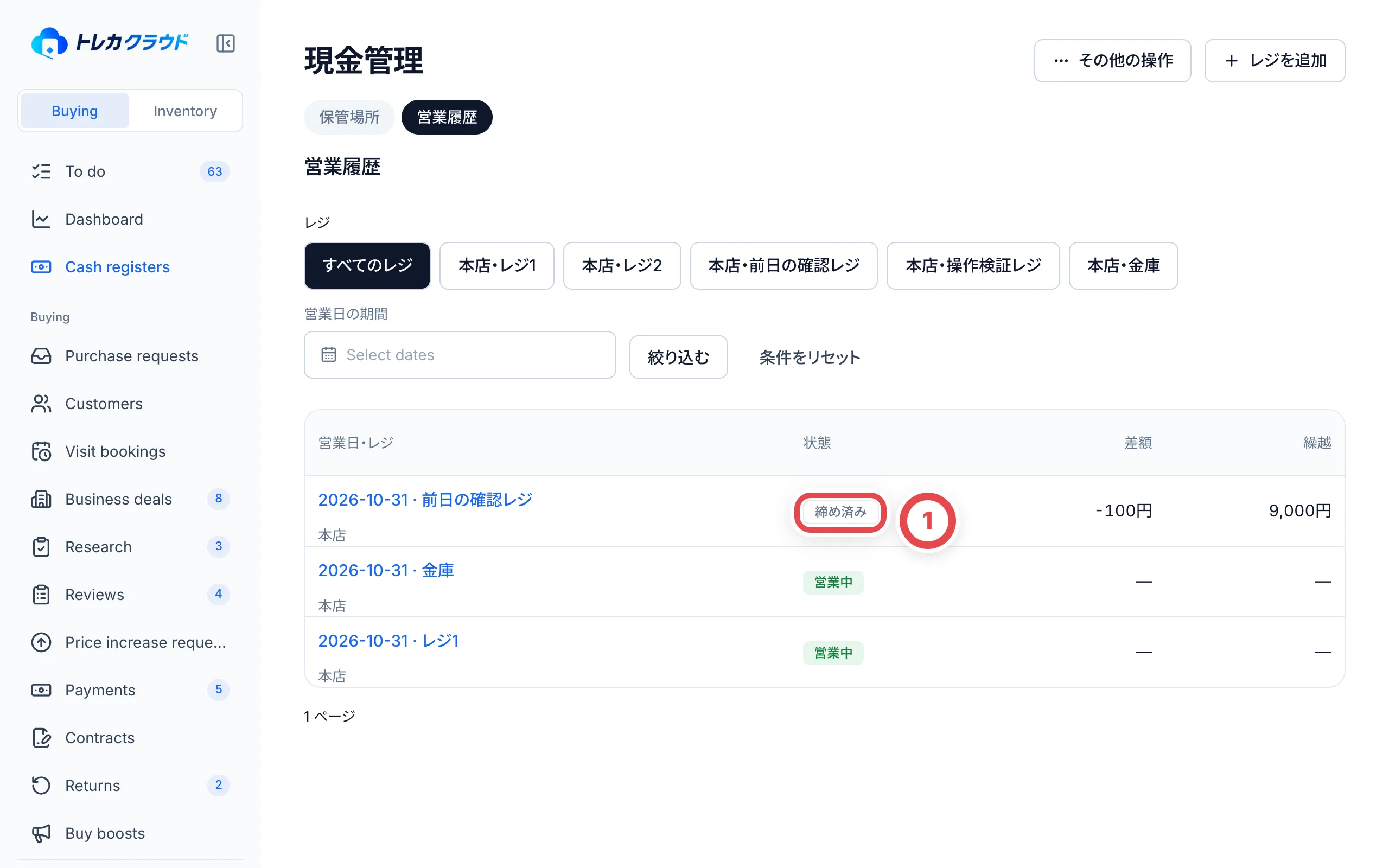
Open the 営業履歴 (Session history) tab in cash management. The records are listed by business date. ① 締め済み (Closed) is a closed session. 営業中 (Open) is a session that has not been closed yet. You can filter by register and by a range of business dates. Click a business date to open that day’s cash movements and closing details. The filters stay as they were when you come back from an opened session.
Add a register
At the top right of the cash-management screen, click レジを追加 (Add register). At ①, choose the shop where the register is, select 現金箱・レジ (Cash drawer/register) or 店内金庫 (In-store safe) under 保管場所 (Container type), and at ② enter the name in 保管場所の名前 (Container name). The storage guideline is optional. It only triggers a warning when exceeded. It is not a buying limit.
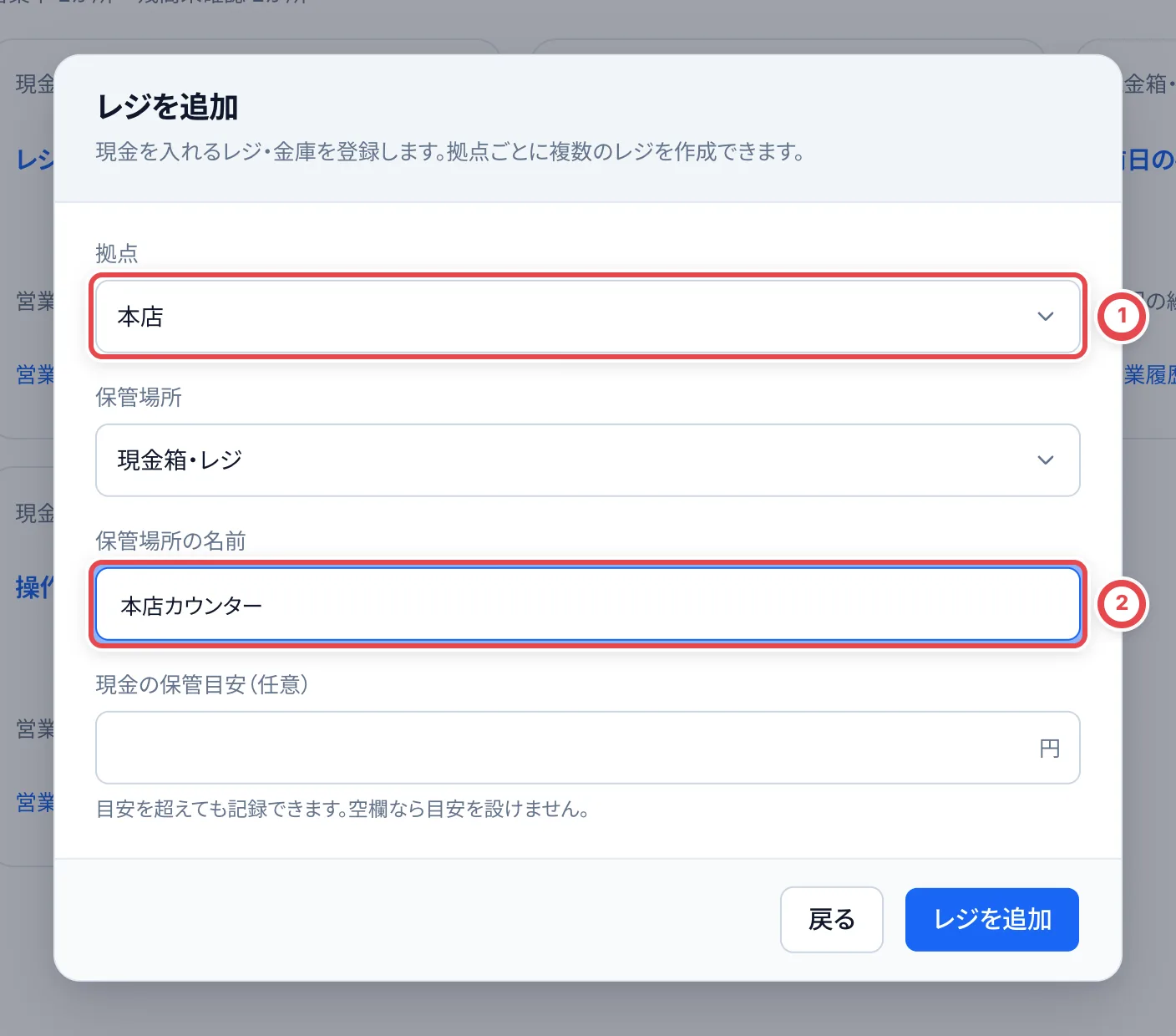
To change the register name or the storage guideline, open the register and click レジの設定 (Register settings).
If you recorded something wrong
- You recorded the wrong amount or category: Click the category name in the list of movements to open its details. Click 記録を訂正 (Correct record) and enter the right details and a reason. Enter 0 to cancel the record. The original record and the correction history remain. You can correct a correction again.
- You forgot to record something: Click 入出金を記録 (Record cash in or out) and record it later, with the time it actually happened and a note. For a movement from before the session started, leave a reason for recording it later.
- You notice a mistake after closing: You can still add a correction history after closing. The confirmed counted cash, the carryover, and the current cash do not change.
- You actually refunded money, or received a refund: Don’t use a correction. Click 入出金を記録 (Record cash in or out) and record the real cash movement separately. Correcting a cash record does not cancel the purchase contract or the stock.
Attach a receipt
In a movement’s details, use 領収書 (Receipt) to attach an image or a PDF (up to 20 MB per file). You can add one even after closing. Attached files stay in the history, and anyone who can view cash management can download them.
If something goes wrong
| What is happening | What to check and how to fix it |
|---|---|
| Cash registers doesn’t appear in the sidebar | Ask your administrator whether cash management is turned on. Only the Toreca Cloud operator can turn it on. |
| レジを追加 (Add register) doesn’t appear | You need cash-management admin permission. Ask an administrator. |
| レジを開始 (Start register) doesn’t appear | A register that is suspended can’t be started. Resume it in レジの設定 (Register settings). |
| A purchase shows 営業中のレジがありません (No register is open) | Start the register, then click 開始したレジを再読み込み (Reload started registers) on the purchase screen. |
| You see 記録上の現金が不足しています (Recorded cash is short) | Check whether a top-up is missing from the records. If the cash has already changed hands, an administrator can record it with a reason for the shortfall. |
| You can’t click 締めを確定 (Confirm closing) because of a difference | Closing with a difference needs admin permission. Click 点検として保存 (Save as count) to keep your count and ask an administrator to close. |
| You see 新しい記録があります (There are new records) | Someone else recorded a movement. Check the amount shown, click 最新の金額を確認した (I checked the latest amount), and continue. |
| You see 記録できませんでした (Couldn’t record) | The request failed. What you entered is kept, so click the button again. |
| You withdrew a shipping cost twice | The shipping subsidy of a purchase is already in the automatic withdrawal. Click 記録を訂正 (Correct record) on the one you entered by hand and set it to 0 to cancel it. |
| You want to turn off cash management or stop using a register | You can’t while any register is still open. Close all registers first. After you turn it off, people with permission can still view past records. |
Containers, stores and staff
Create one register per physical cash drawer or in-store safe, choosing its container type. Share the container among staff. Opening and closing are counted by denomination. The 保管場所 (Containers) list groups the total and containers by store. Store balances combine open-session ledger balances and closed-session carryovers. A container never opened is unknown, not zero. When any balances are unknown, the known subtotal and number of unknown containers are shown separately. Start both containers and use a paired transfer for cash moved to the in-store safe. Closing withdrawals record cash taken outside the store.
Under その他の操作 (More actions), 店舗の割当 assigns all stores or selected stores to a member. Changing this requires member management, cash management and access to all stores. Assigning a store does not grant cash permissions. New members have no cash access until assigned; owners retain access to all stores. Admins reach all stores until they are assigned selected stores, and then only those.
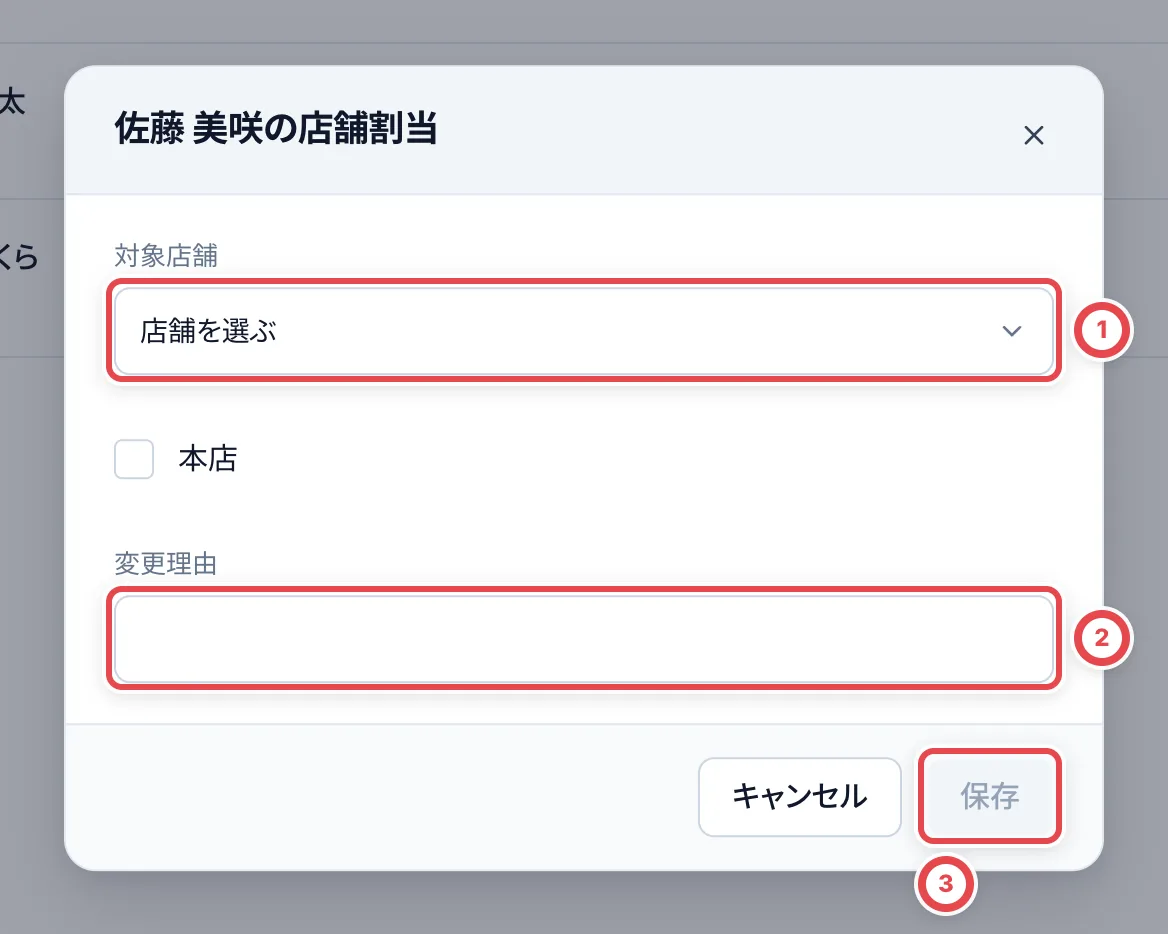
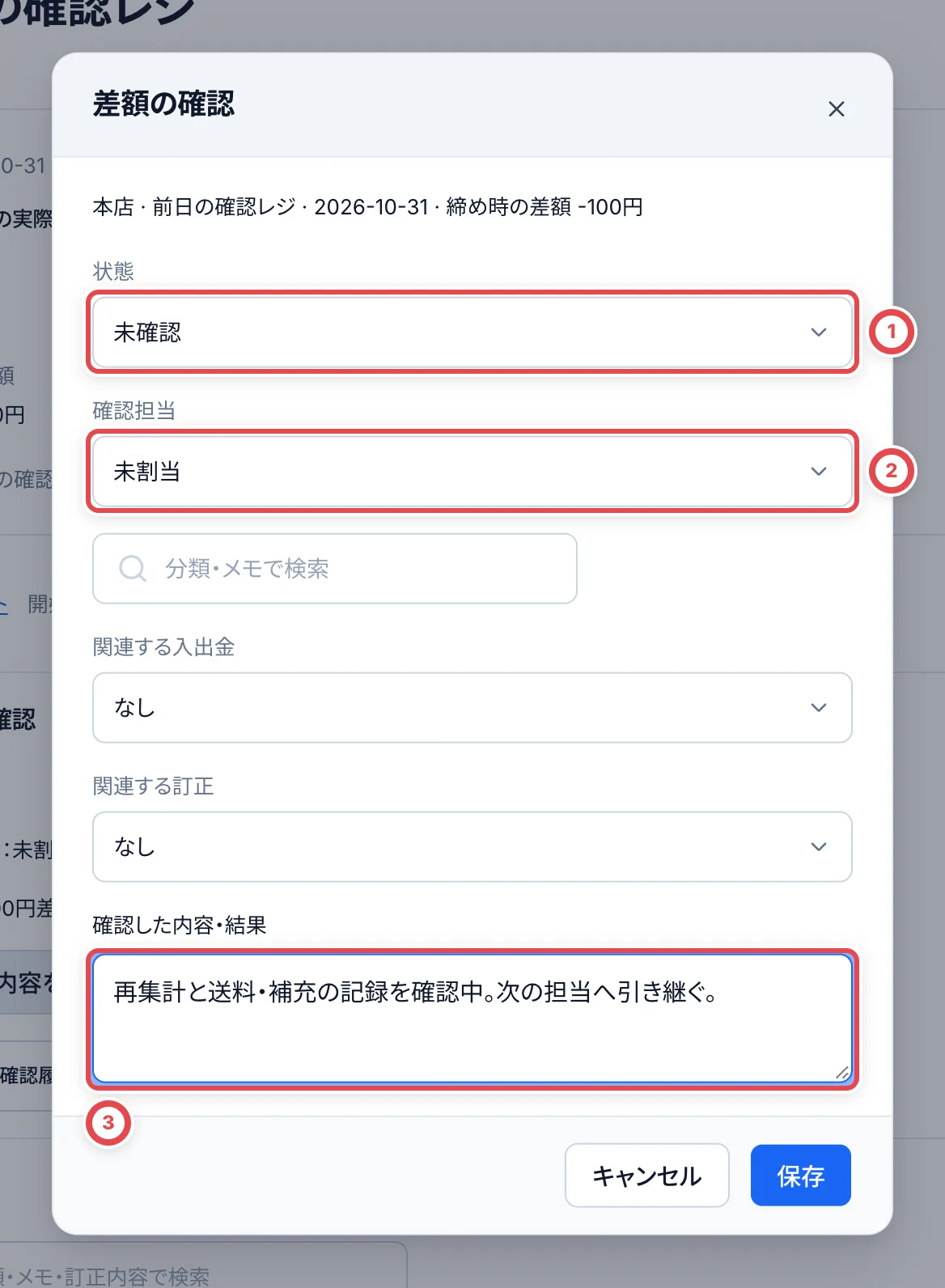
Investigate a closing discrepancy
Recount and compare the opening balance, original purchase or sale, entries, transfers and receipts. A manager may close with a reason while investigation continues. Open その他の操作 (More actions) → 差額の確認, then 確認内容を記録 to save the status, eligible store manager, notes and related entries or corrections. Search includes other sessions in the same store. Completing requires an identified or unidentified outcome, a cause and notes. An unknown cause may be completed with the checks performed. Reopen as investigating when more evidence appears. The list shows the assigned reviewer and last review time. Every update keeps its actor, timestamp and notes under 差額の確認履歴 (Investigation history).
Investigation updates never change the closed count, discrepancy, withdrawal or carryover. Correct mistaken entries from their details. Record any real later movement as a separate entry in the session when cash changes hands.
Point-in-time and store reports
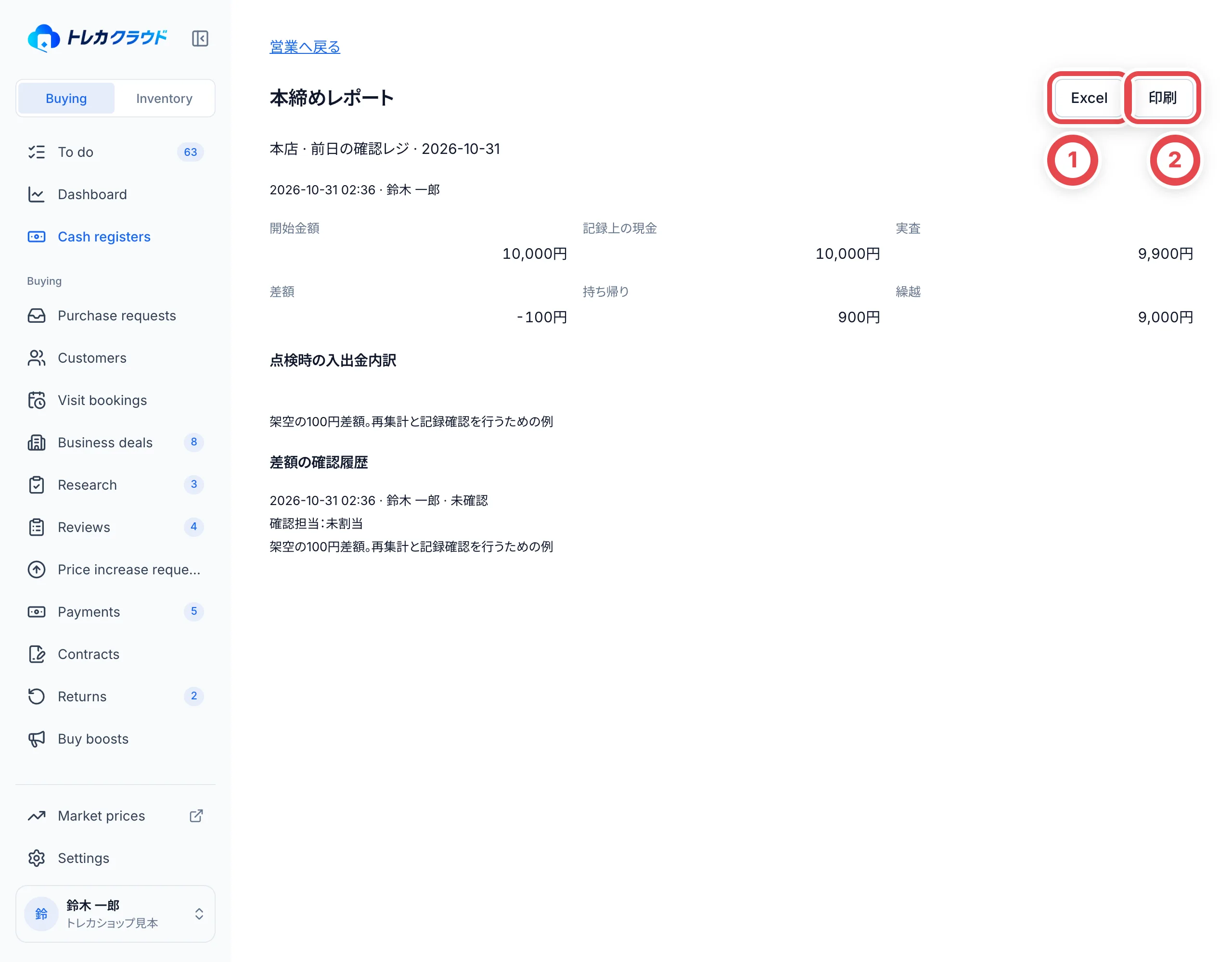
Opening, intermediate count and closing reports show the amounts, denominations, actor and time at that point, with Excel and print output. Later movements do not change an earlier count’s breakdown. Legacy records with no captured breakdown or name are labeled unavailable. Later corrections and investigation notes remain separate annotations.
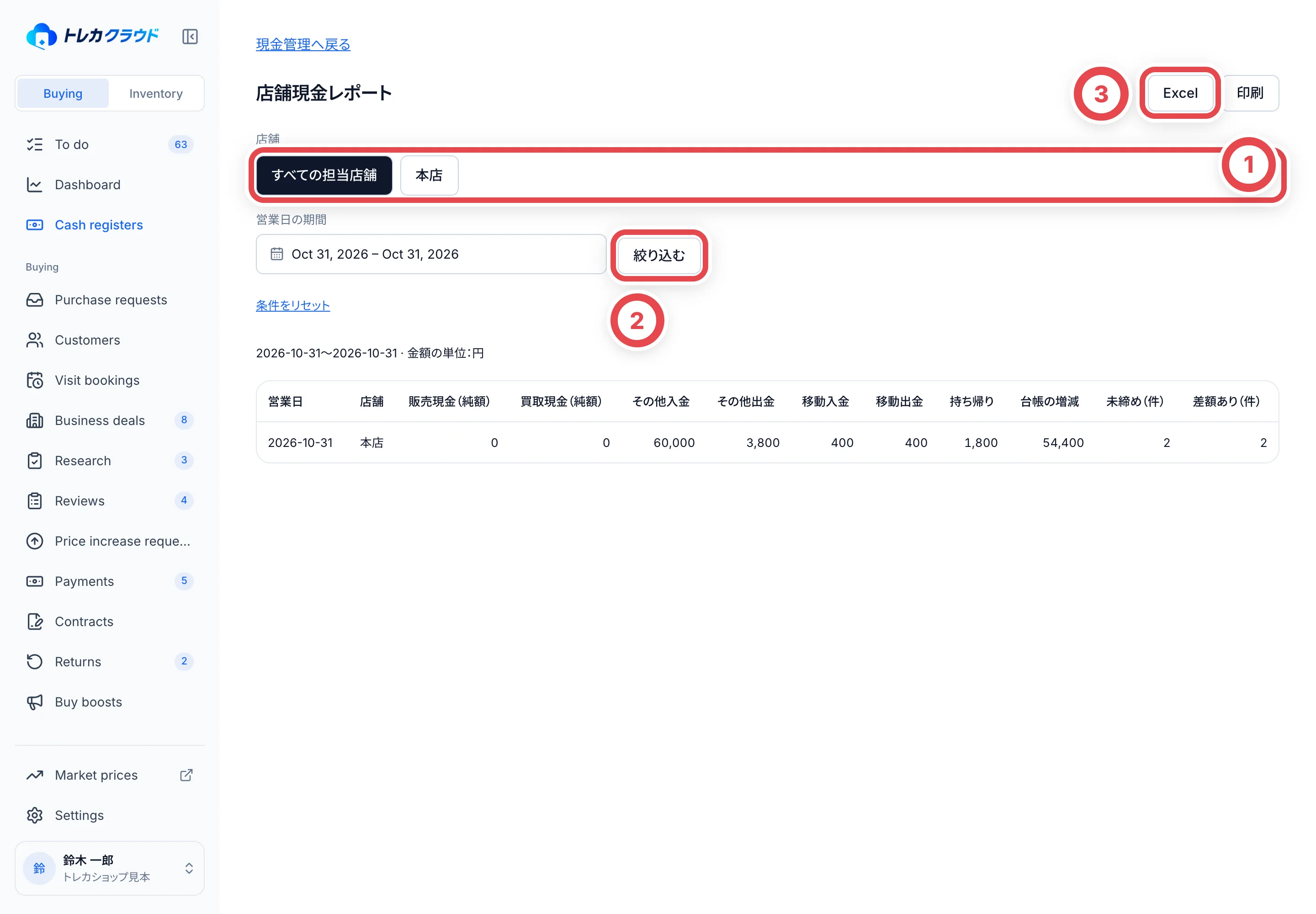
Under その他の操作 (More actions), 店舗レポート filters assigned stores and business dates up to 366 days. It exports daily/store sales, purchases, other receipts and payments, transfers, closing withdrawals, ledger movement, open-session counts and discrepancy counts. All amounts are yen. Sales and purchases are net of reversals. Ledger movement excludes opening cash and physical counting differences, so it is not the change in actual cash balances. Transfers within a store appear on both sides and net to zero.
Open 開始レポート (Opening report) in the session details, or レポート (Report) under 点検・締めの履歴 (Count and closing history). Save a spreadsheet with ① Excel, or open the print dialog with ② 印刷 (Print).
On the store report, choose assigned stores at ① and the business-date range, then apply them with ② 絞り込む (Filter). Export the current selection with ③ Excel.