

Find contracts and powers of attorney
Use Contracts in the sidebar to find purchase contracts and powers of attorney across deals. Customer and purchase read permissions are required. Reading PDFs saved by the API integration also requires the CloudSign feature.
1. Open and filter the list
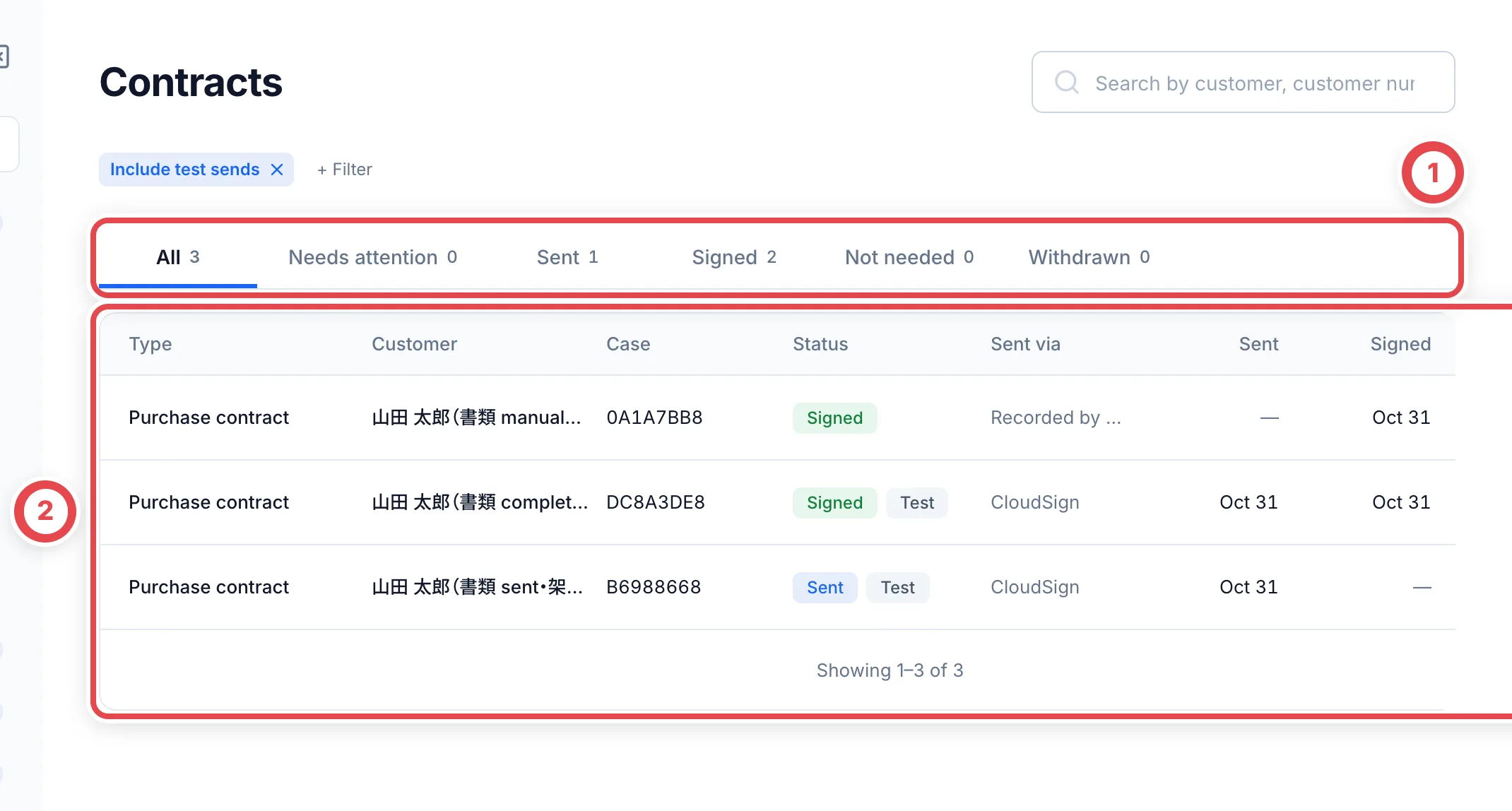
Use status tabs at ① for attention needed, sent, signed, waived and canceled documents. All excludes canceled records; use their own tab. Match customer and case in the list at ②. Use search and kind/date filters to narrow the list. Also check whether test sends are included.
2. Inspect the PDF and source deal
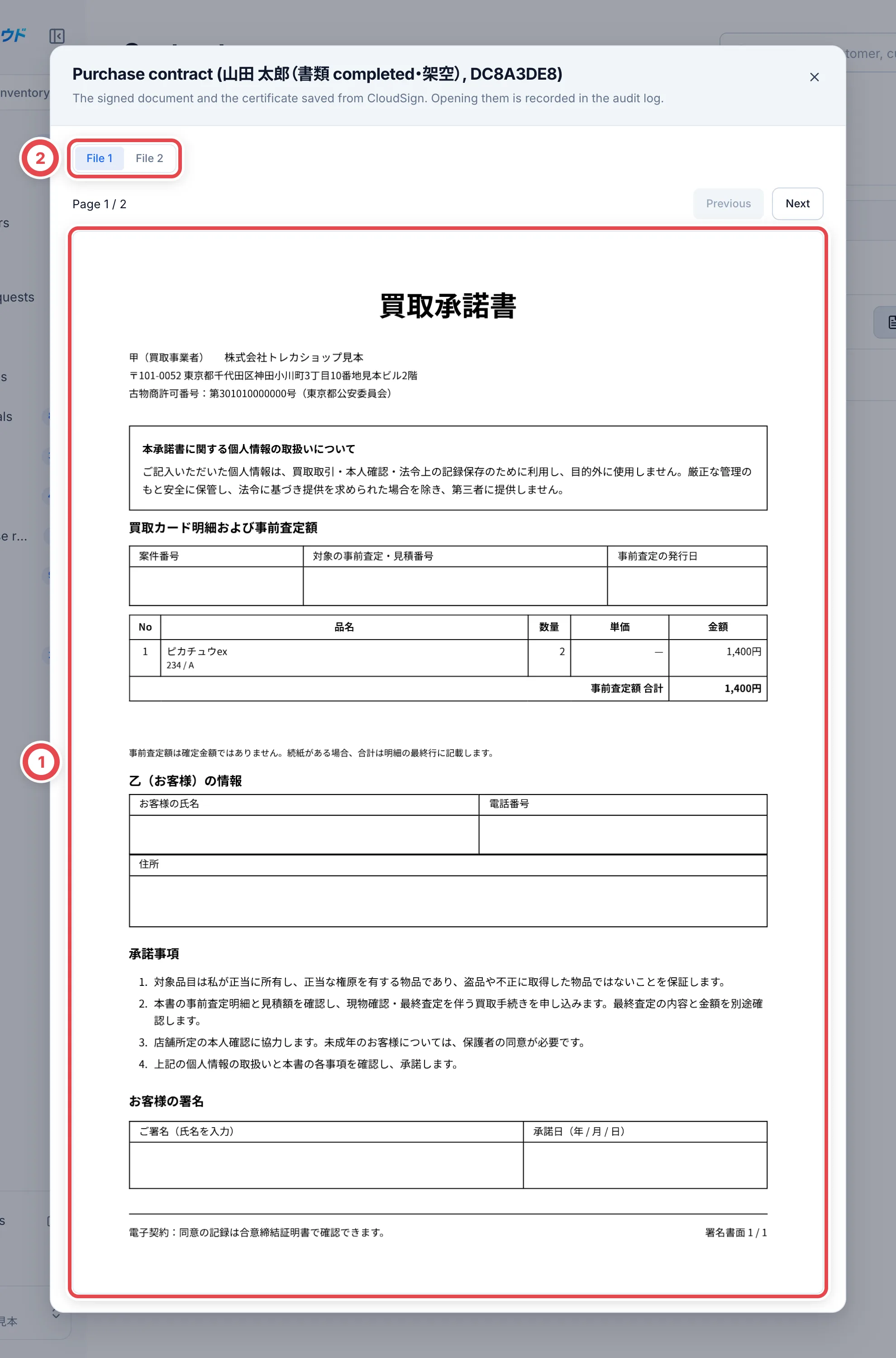
Open View PDF on a row. Review the signed file at ① and switch between the document and agreement certificate at ②. The case number on the list opens the original deal. API documents also offer a link to CloudSign.
A manual status record does not automatically attach a provider PDF. If no PDF is available, inspect the original deal or provider record.
3. Start from a customer
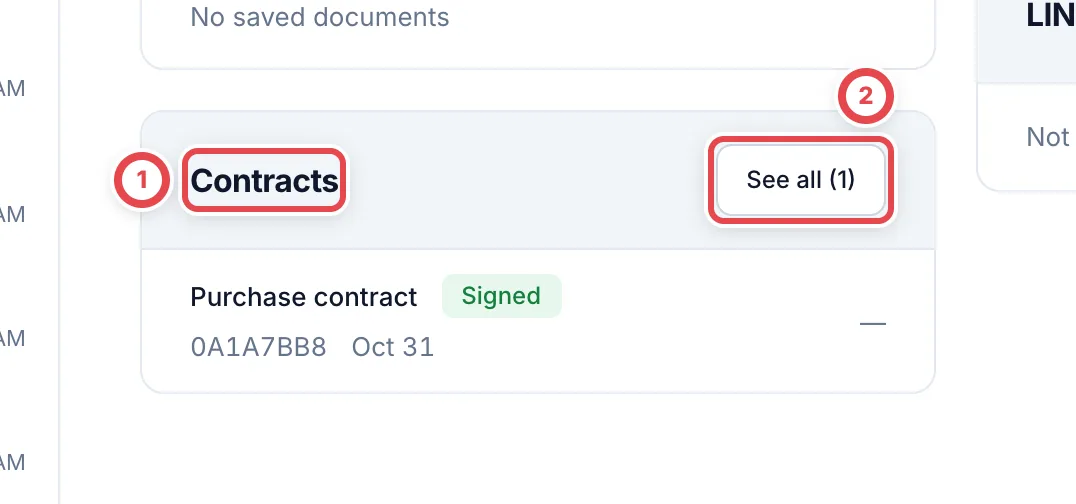
Open the customer’s Customer details. Recent documents appear in the contracts panel at ①. See all at ② opens the list filtered to that customer. Clear the customer filter to search across customers again.
Troubleshooting
| What you see | What to check |
|---|---|
| Canceled document missing | Use the canceled tab instead of All. |
| Document cannot be found | Clear customer, kind, period, status and test-send filters. |
| PDF unavailable | Check manual/API source, saved files, permissions and feature availability. |
To send a new document, see CloudSign.