

Record and handle price-increase requests
When a customer asks for a higher price on a presented quote, attach a price-increase request to the deal. This is separate from changing prices or sending a customer response.
| Source | Action |
|---|---|
| A consultation received by staff | Attach a request from the deal |
| A new LINE message produces a candidate | Review evidence under Price-increase requests → LINE suggestions |
| The consultation has been answered | Mark the request resolved from its deal |
The required shop features and read permissions must be enabled. Registration, dismissal and resolution require purchase editing permission.
1. Find requests waiting for a response
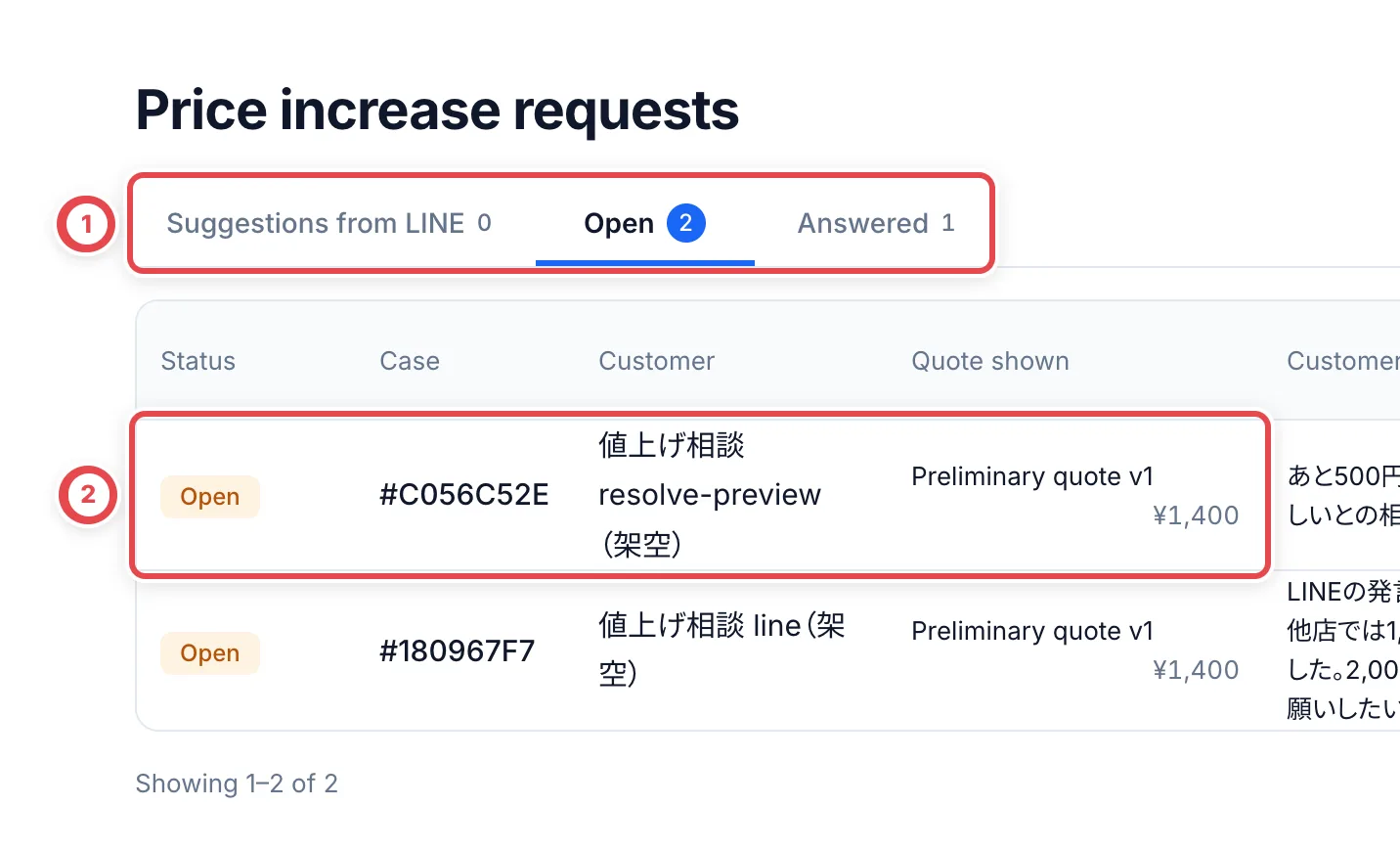
Open Price-increase requests in the sidebar. At ①, switch between LINE suggestions, open requests and resolved requests. Match the customer, deal and quote at ② before opening the deal. Suggestions and registered requests have separate counts.
2. Review LINE evidence and register the candidate
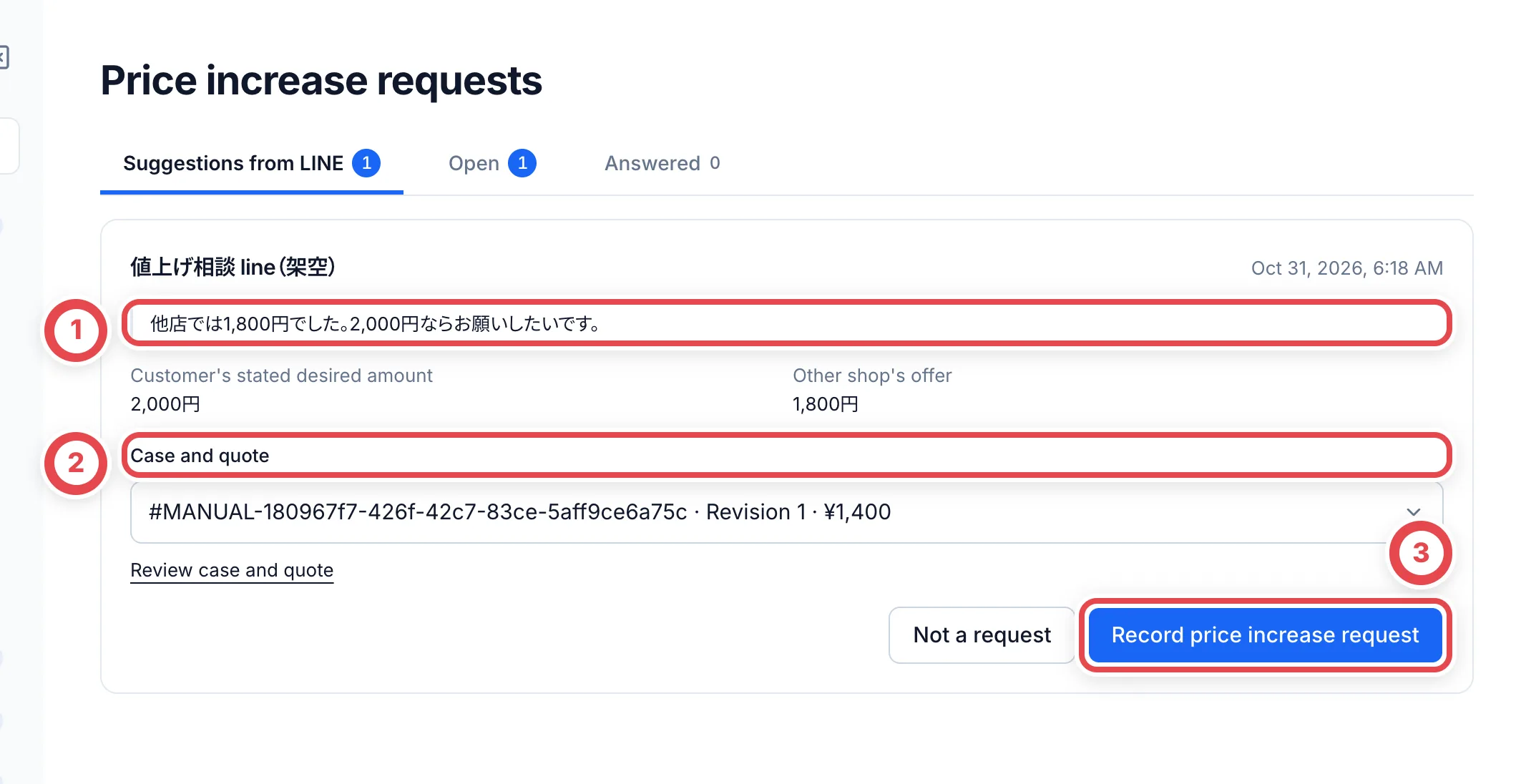
Read the customer statement and any explicit requested/competitor amount at ①. A candidate does not decide the price. Open the conversation and deal if needed. Select the target deal/quote at ②, then register at ③. Dismiss candidates that do not apply.
Registration changes neither the quote price nor the customer’s messages. Candidates are processed after LINE synchronization, so they can appear later. The feature does not turn all historical messages into candidates.
3. Attach a request manually
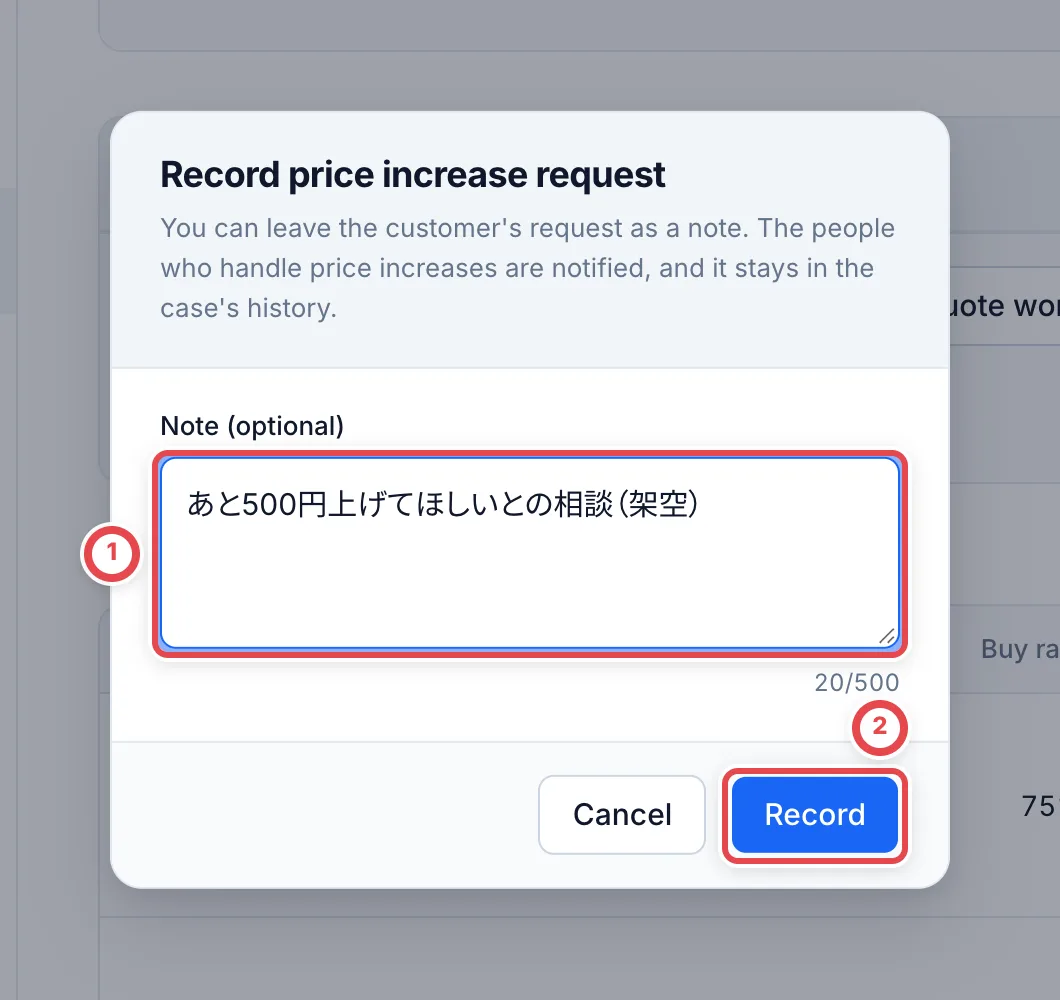
From the correct deal, open the action to attach a price-increase request. Record the customer’s request at ① and confirm at ②. It is associated with the presented quote and creates internal notification/history. If attached by mistake, remove it using the deal’s mistaken-request action.
4. Resolve after actually responding
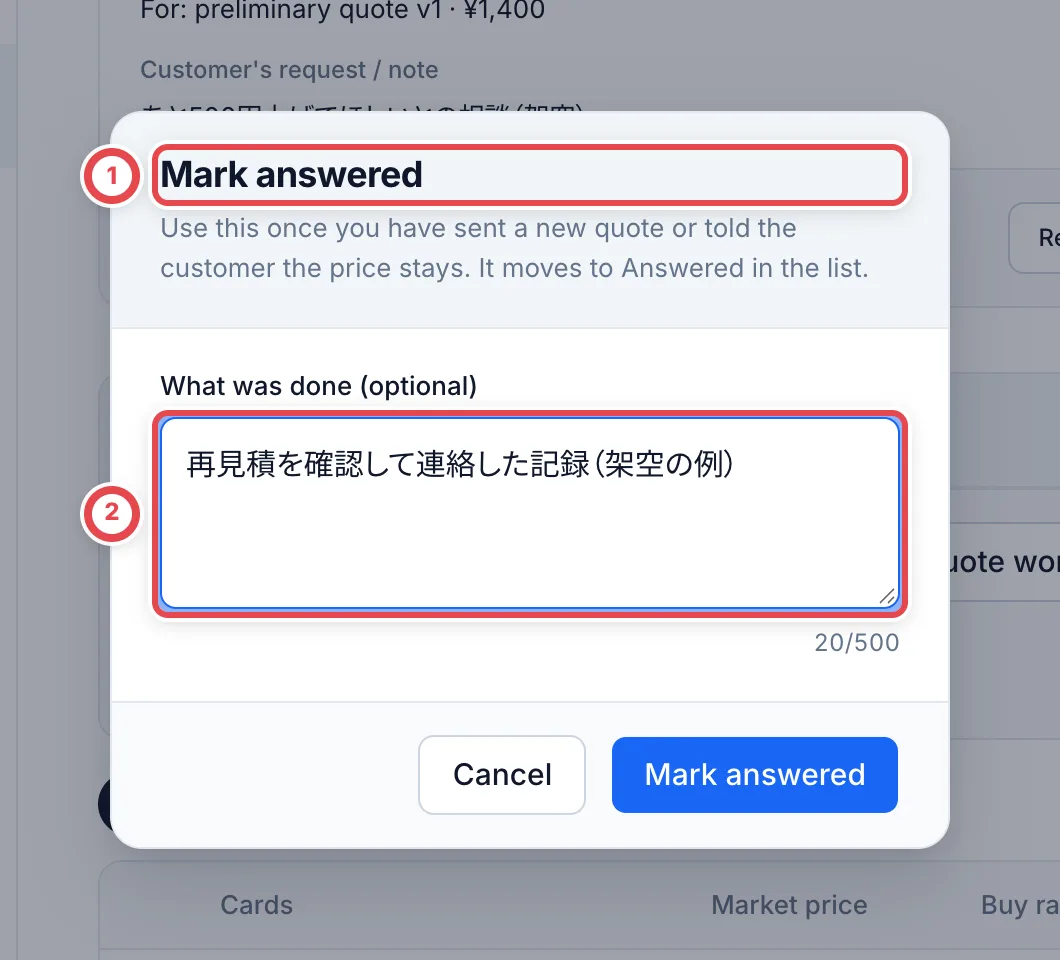
Consider the quote and actually communicate a revised quote or a decision to keep the price. Then open the resolution action at ①, record the response at ② and confirm. The request moves to resolved and remains in history. Resolving a request does not itself send a quote or record customer acceptance.
Troubleshooting
| What you see | What to check |
|---|---|
| No candidates | Check LINE sync, AI setup and presented quotes; register manually when needed. |
| Detection failed | Queue a retry and return later to check candidates and counts. |
| No eligible quote | Check revisions, acceptance, closure or prior resolution; dismiss stale candidates. |
| State changed during registration | Reload the deal and verify the current quote. |
| Read-only access | Editing permission is needed to register, dismiss or resolve. |