

Business deals and invoices
After stock registration, use the case’s three-dot menu for purchase amount, quantity and linked-record corrections. The original invoice and payment records are retained.
Handle business deals under Business deals in the sidebar. They run on the invoice. Unlike individual deals, they don’t ask you to send a quote, record acceptance of a quote, or verify identity.
When you submit a payout, you attach evidence that the seller agreed, such as a screenshot of an email or chat. This is the same as for individual deals.
What you need
- The seller’s company name, furigana, corporate number and address (for a first-time seller)
- The PDF of the invoice the seller issued
- The seller’s bank account for the payout, and your shop’s secondhand dealer license
The steps and the list tabs
| Step | What you do | List tab | Deal status |
|---|---|---|---|
| 1 | Create the business deal | Awaiting invoice | Awaiting goods matching |
| 2 | Register the invoice | Matching & appraisal | Awaiting goods matching |
| 3 | Review the product, quantity and unit-price draft | Matching & appraisal | Awaiting goods matching |
| 4 | Check the goods, adjustments and reasons | Matching & appraisal | Awaiting goods matching |
| 5 | Confirm the goods and continue to payout | Payout | Awaiting payout |
| 6 | Check the invoice and payout amounts, then go to payout | Payout | Awaiting payout |
The Next step column of the list shows the button to click next for each deal, such as Register invoice, Match received goods, Enter appraisal, Record settlement or Open in payouts.
1. Create the business deal
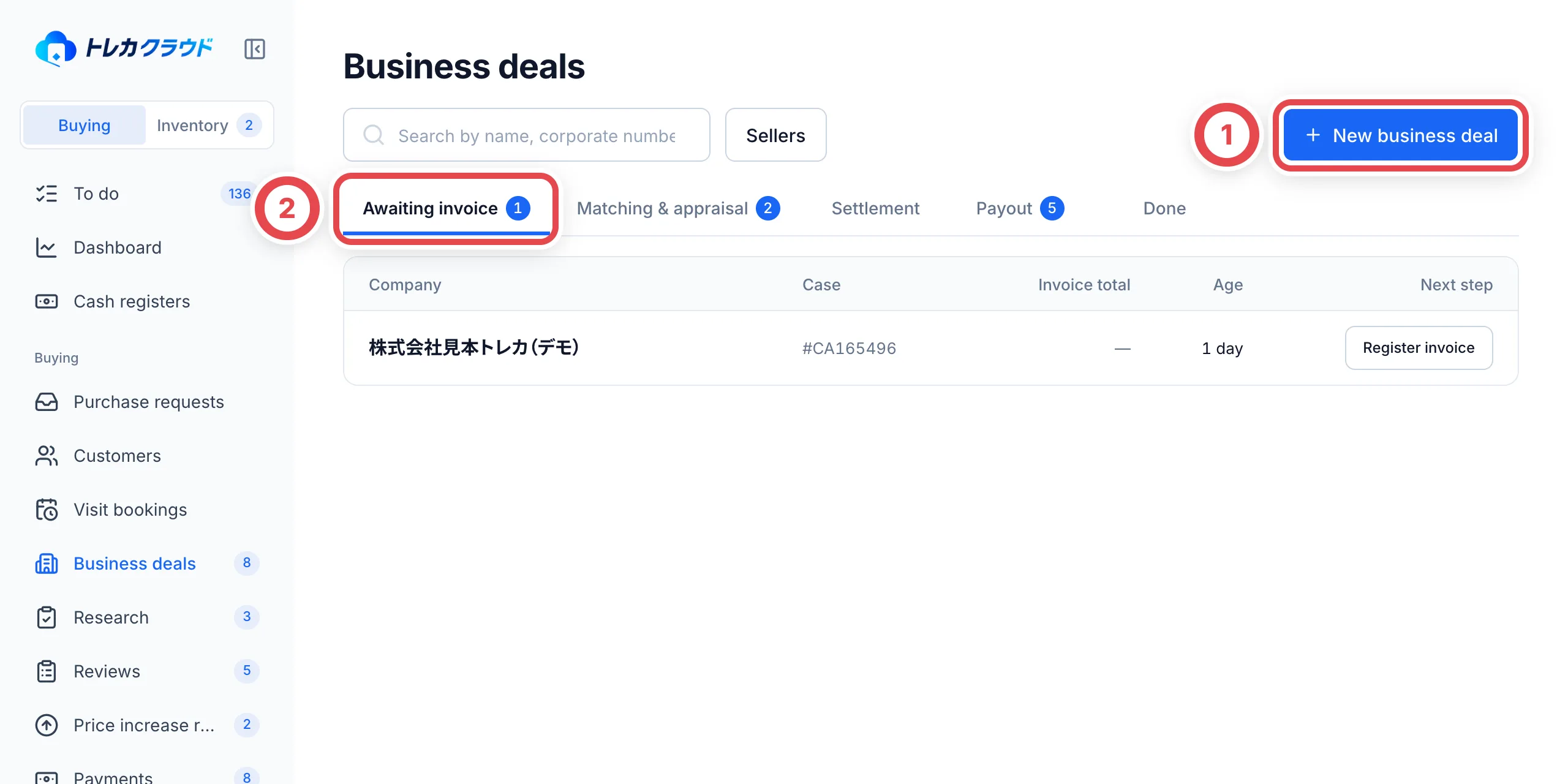
Open Business deals in the sidebar and click New business deal at ①. Use the tabs at ② to find deals by stage. You can also search by company name, corporate number or case number.
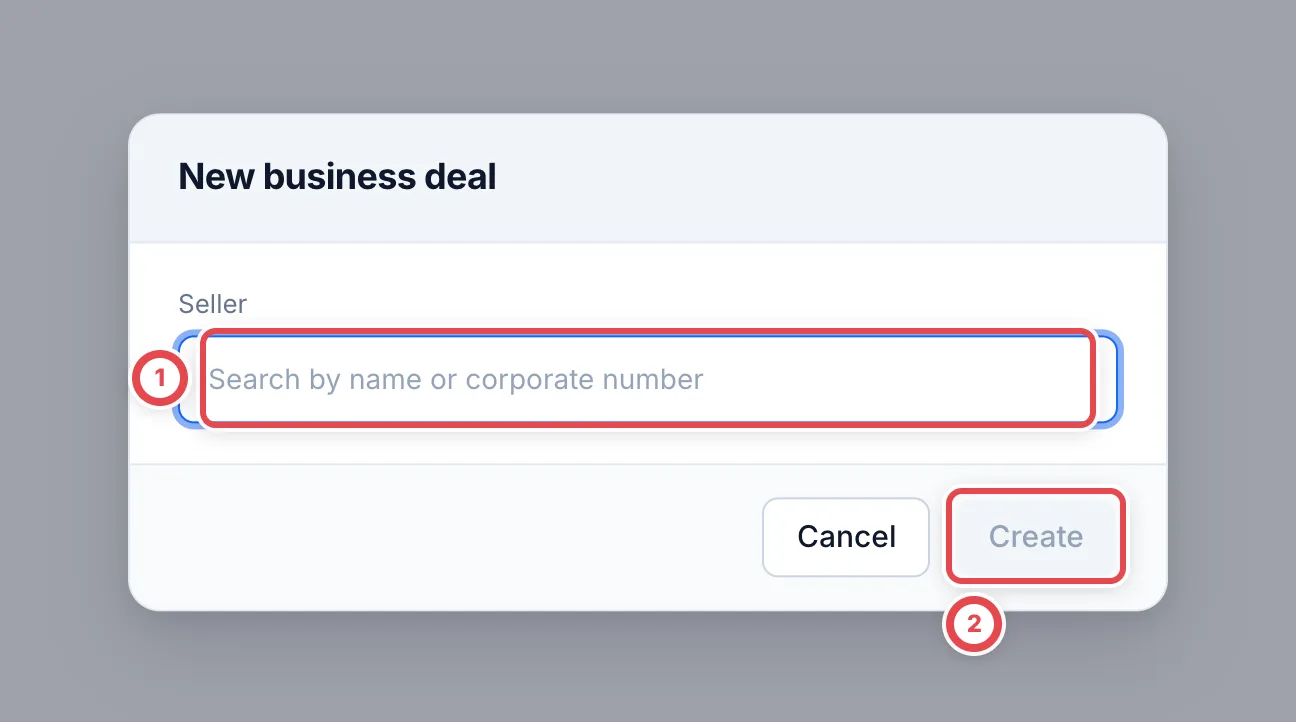
In the Seller field at ①, enter the company name or corporate number and choose a registered seller. For a first-time seller, choose Add a new seller and enter the company name, furigana, corporate number, address and so on (the registration number and building name are optional). Click Create at ②. The deal is created and its page opens. Clicking it creates the deal right away.
Enter the company’s reading without the legal entity type, such as カブシキガイシャ, in furigana. You can also check and edit seller details from Sellers on the list page.
2. Register the invoice
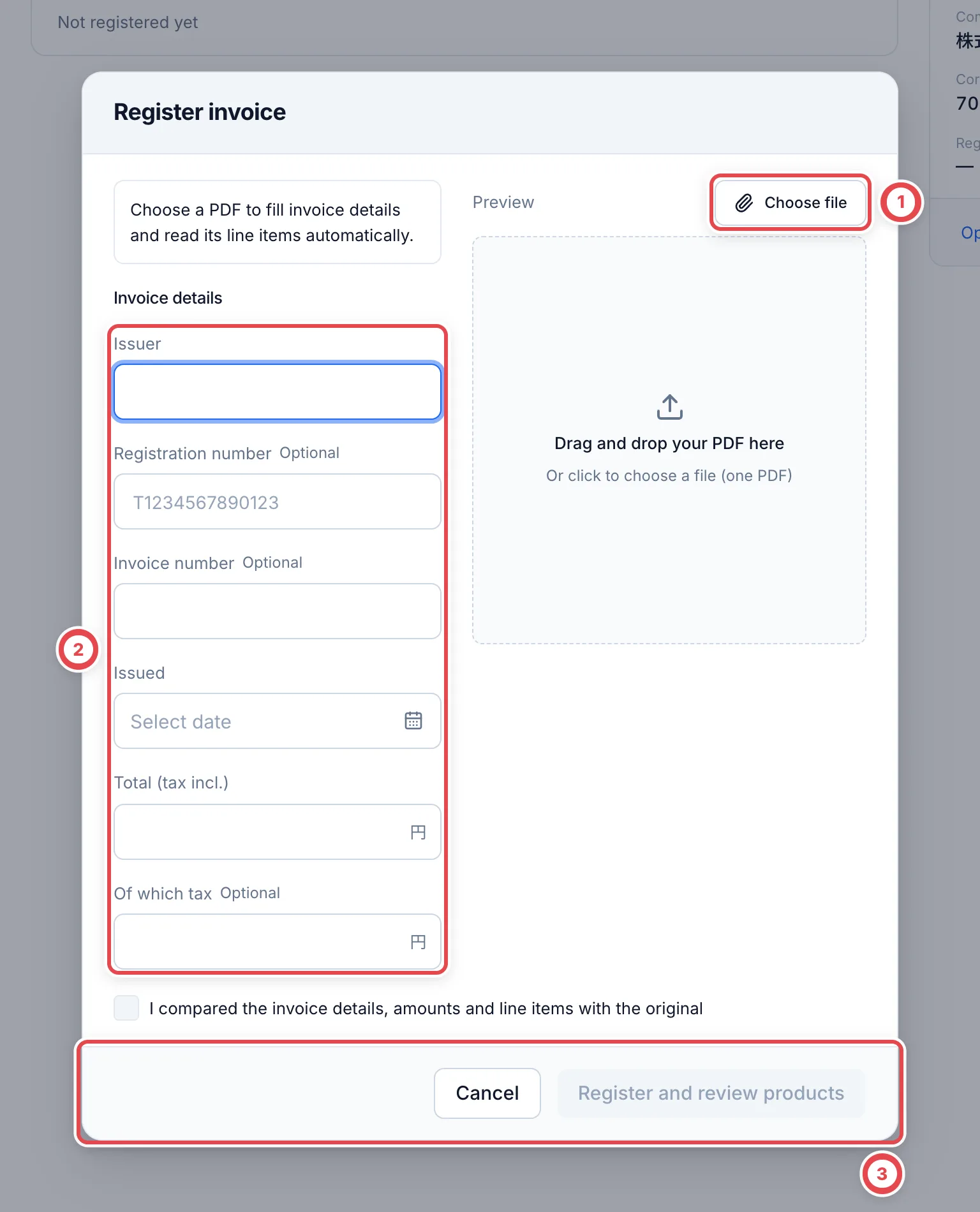
On the deal page, click Register invoice under Invoice. Choose the invoice PDF at ①. The issuer, registration number, invoice number, issue date, total and the product lines are read automatically with AI.
Compare the basic details at ② with the original and correct the fields directly. Enter them manually if extraction fails. Last, tick the checkbox to say you compared it with the original, and click Register and review products at ③. Clicking it registers the invoice right away, and you continue to the draft under Products and purchase amounts.
If the invoice has a registration number, use Check registration under Invoice to record the result of comparing it with the National Tax Agency’s public register. If the seller issues the invoice again, click Replace and register it again.
3. Check the invoice lines and register them
After invoice registration, the extraction appears as a draft under Products and purchase amounts. Compare the original invoice with the physical goods in this order. The draft currently uses Japanese labels even when the console language is English; the labels below match the screen.
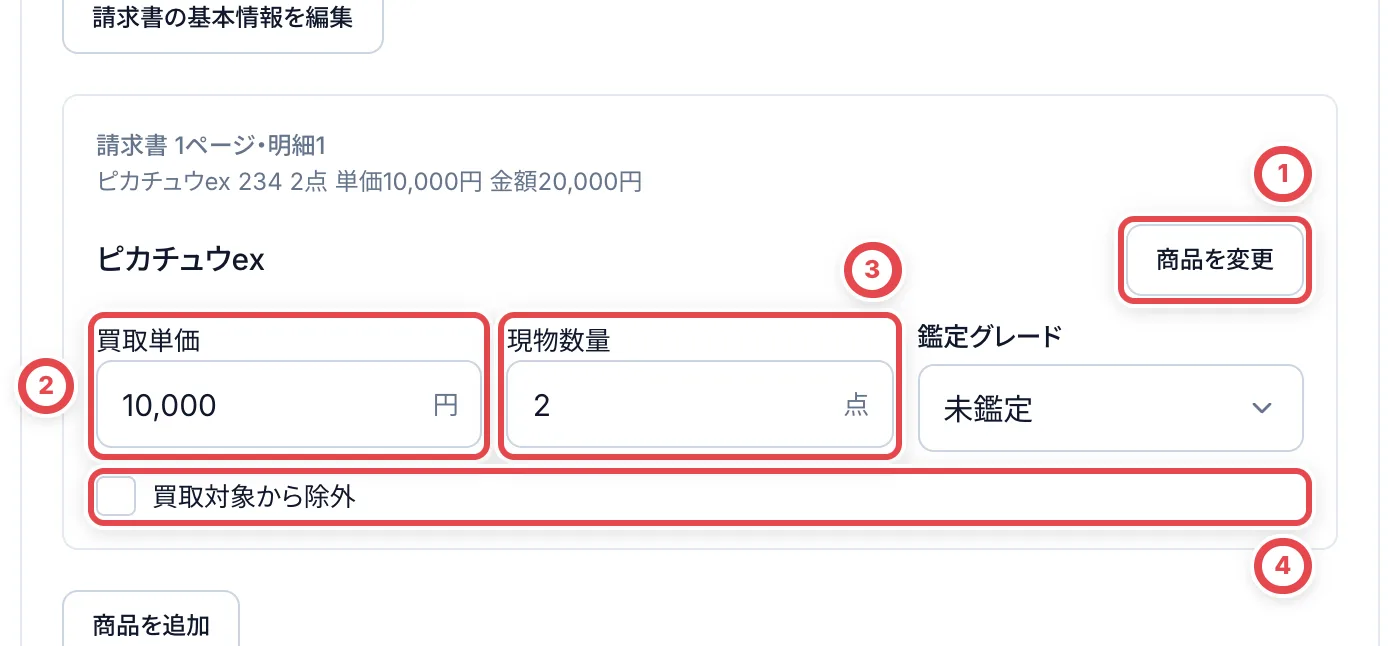
- Use ① 商品を変更 (change product) to choose the correct product and printing. An unidentified line shows 商品を検索 (search products). Check the number, set and physical card as well as the name
- Check ② 買取単価 (purchase unit price) and ③ 現物数量 (physical quantity). The product’s purchase amount is unit price × physical quantity. Business deals do not require market prices or buying rates. Also check 鑑定グレード for graded cards and 包装の状態 for sealed products
- For missing goods, returns or duplicate lines you will not purchase, tick ④ 買取対象から除外 (exclude from purchase) and enter the reason. Use 商品を追加 to add products missed by extraction
Use 下書きを保存 (save draft) when pausing. Quantities and unit prices survive a reload. Saving a draft does not register receipt, stock or a payout.
A different screen can appear if extraction is pending or failed, or if receipt or quote processing has already progressed. See Deals following the earlier steps.
4. Match the cards that arrived and enter amounts
Compare the physical goods with the invoice: product, quantity, grade, packaging and condition. Correct the draft’s quantities and unit prices to match.
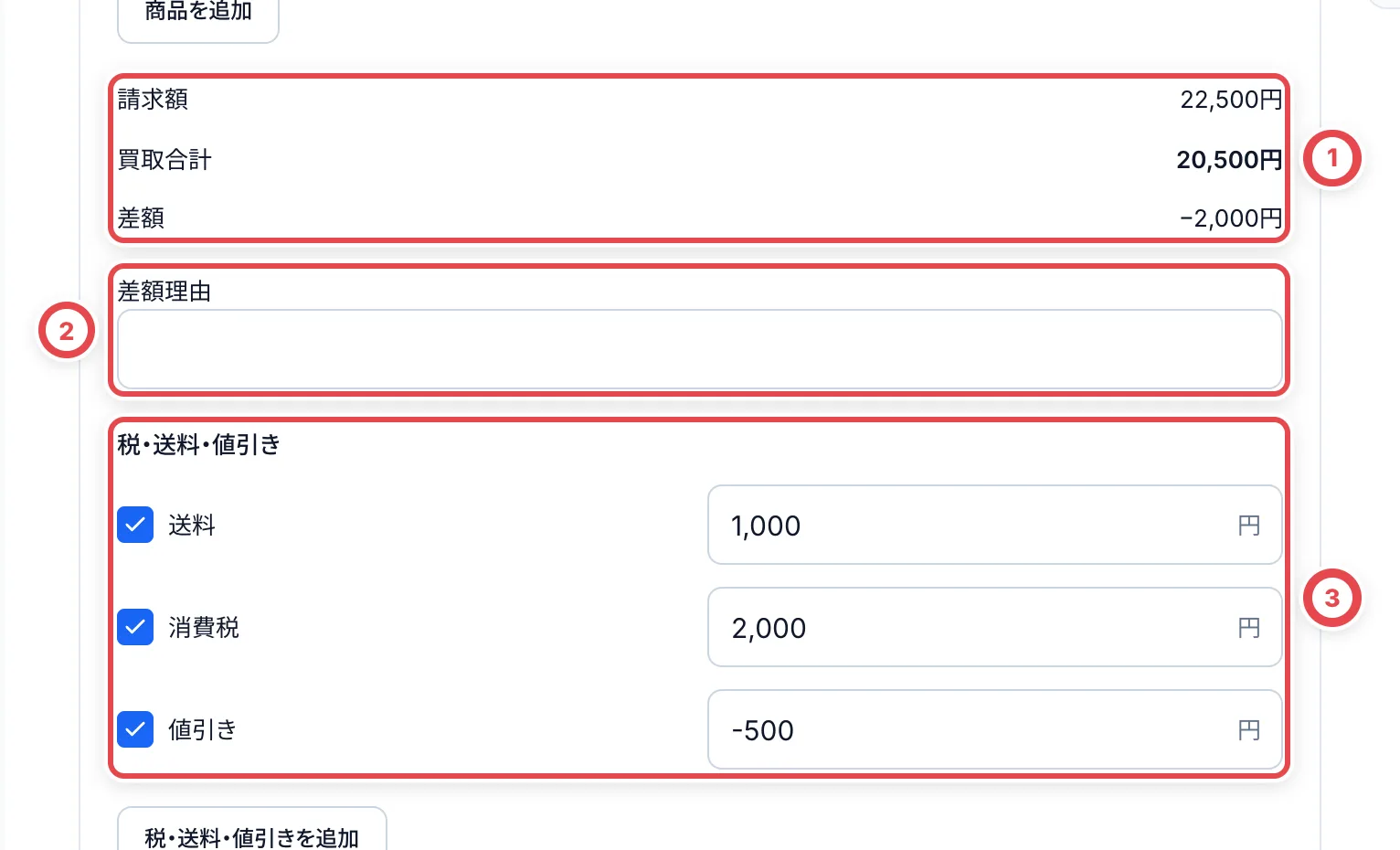
At ① compare 請求額 (invoice amount), 買取合計 (purchase total) and 差額 (difference), when shown. At ③ 税・送料・値引き (tax, shipping and discounts), check which lines are included and their amounts. Discounts appear as negative amounts. Compare with the original and avoid counting tax or shipping twice.
If you change unit prices, quantities, the invoice amount or adjustments, enter the agreement with the seller at ② 差額理由 (reason for the difference). A reason can be required even when the totals match, if original line amounts or adjustments changed.
Use 請求書の基本情報を編集 (edit invoice information) to correct misread invoice details. The original invoice and correction history are retained.
If extraction is incomplete, ① 読取が不完全なため、原本の全ページと明細を確認・補完した appears. Tick it only after checking every page and supplying missing products and amounts. While unfinished, save the draft at ② and leave ③ for later.
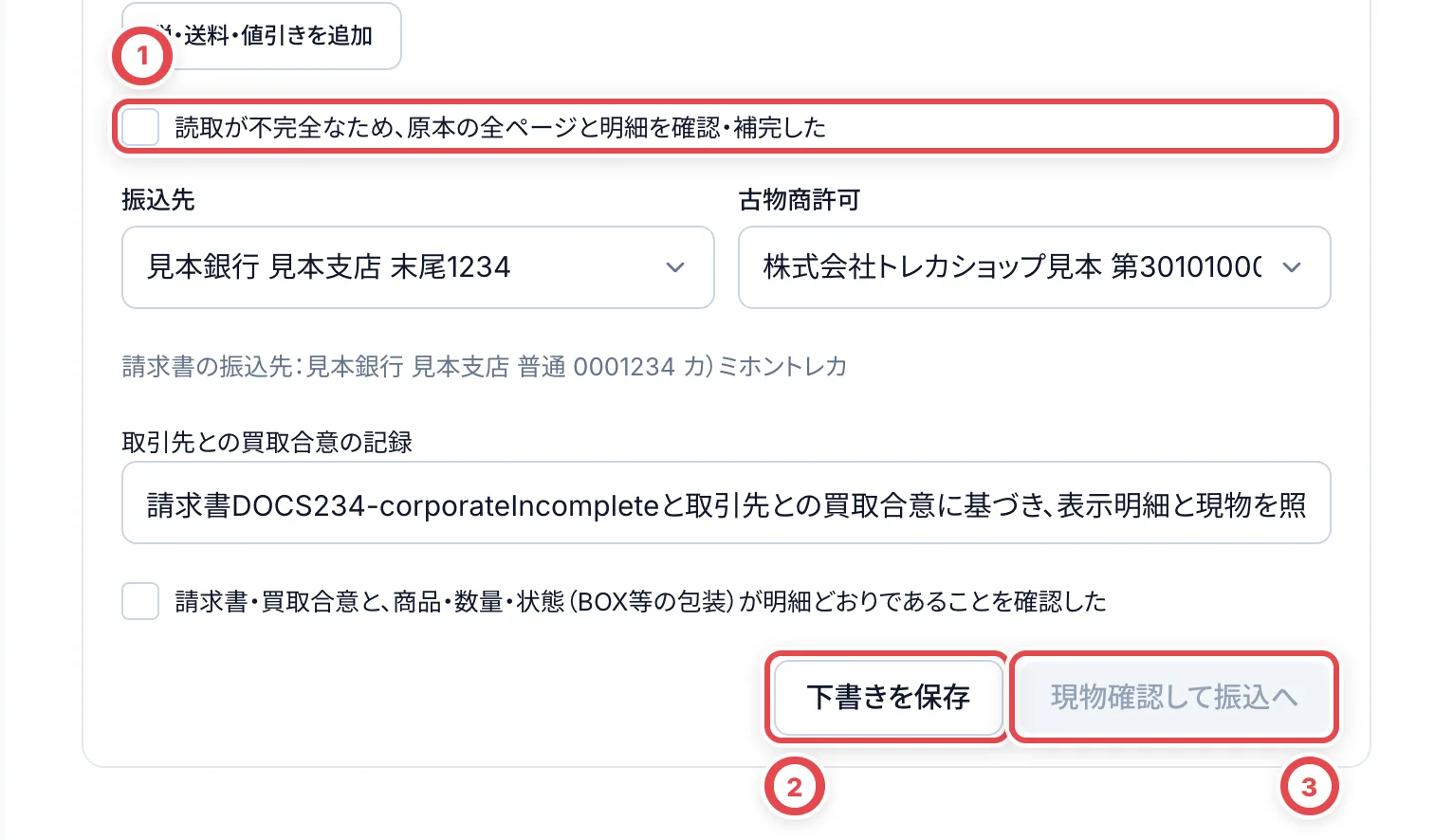
If products are already registered, an additional checkbox asks you to check for duplicates and missing lines against the invoice.
5. Record settlement
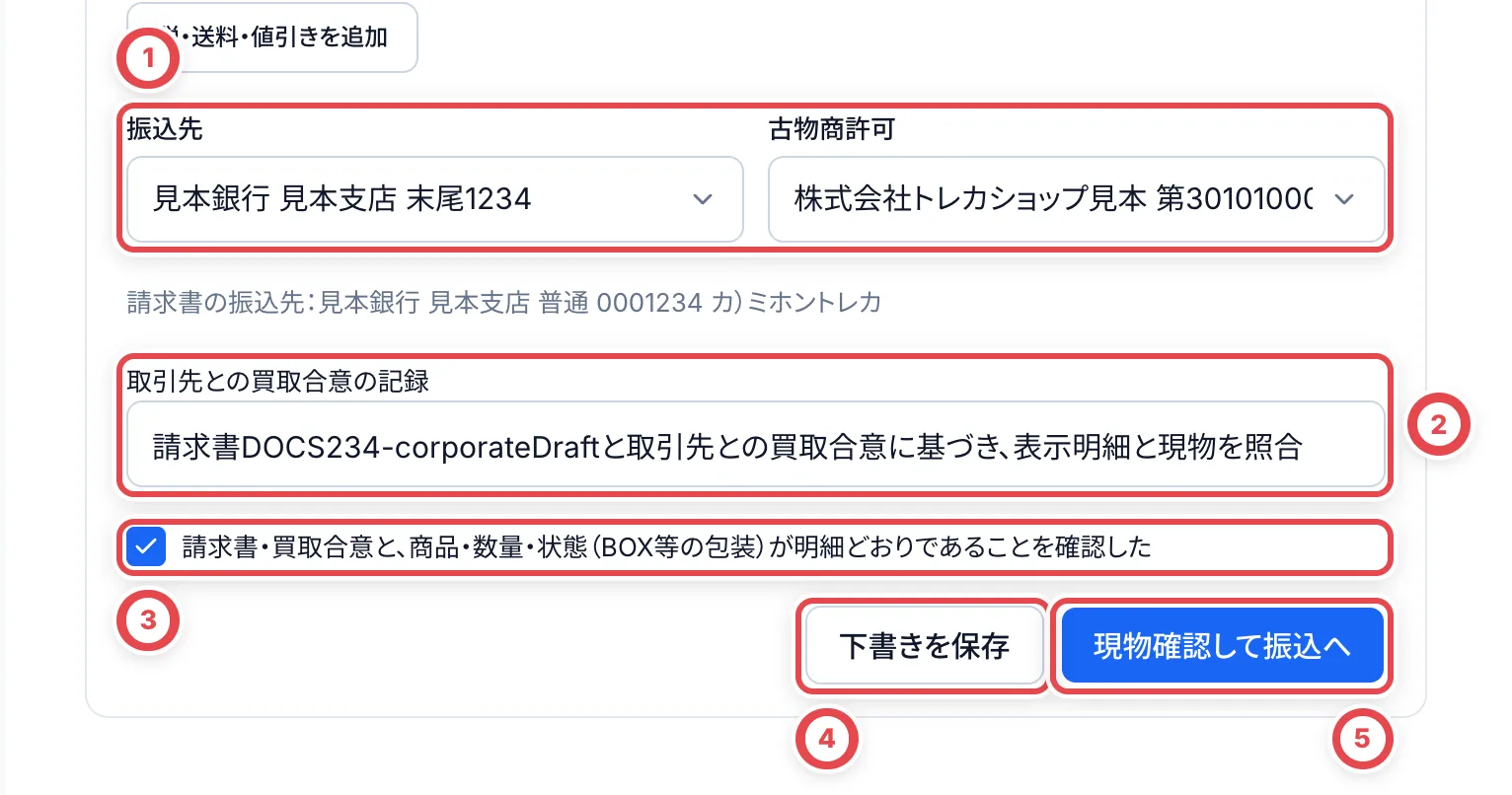
Check ① 振込先 (payout account) and 古物商許可 (secondhand dealer license). If the invoice includes bank details, compare the source text shown below. If no account is available, follow 取引先の振込先を登録してください to register one, then return.
At ② 取引先との買取合意の記録 (purchase agreement record), record what was agreed, when and how. After checking the goods and agreement, tick ③ to confirm the products, quantities and condition match. If you change any details, check them against the goods again.
Use ④ 下書きを保存 for unfinished work; click ⑤ when all checks are complete. This route continues to payout submission and approval without a separate second-review request or settlement dialog.
6. Check the invoice and payout amounts, then go to payout
After confirmation, the relevant deal opens under Payments. Check that it is awaiting payout, confirm the total, account and consent evidence, then follow Payout submission and approval. Use Open in payouts from the business-deal list to return.
The purchase agreement text and the consent-evidence attachment checked at submission are separate records. If email or chat evidence is missing, add it in the payout submission screen. Confirmation and submission do not send money from the bank.
Recheck the difference from the payout amount
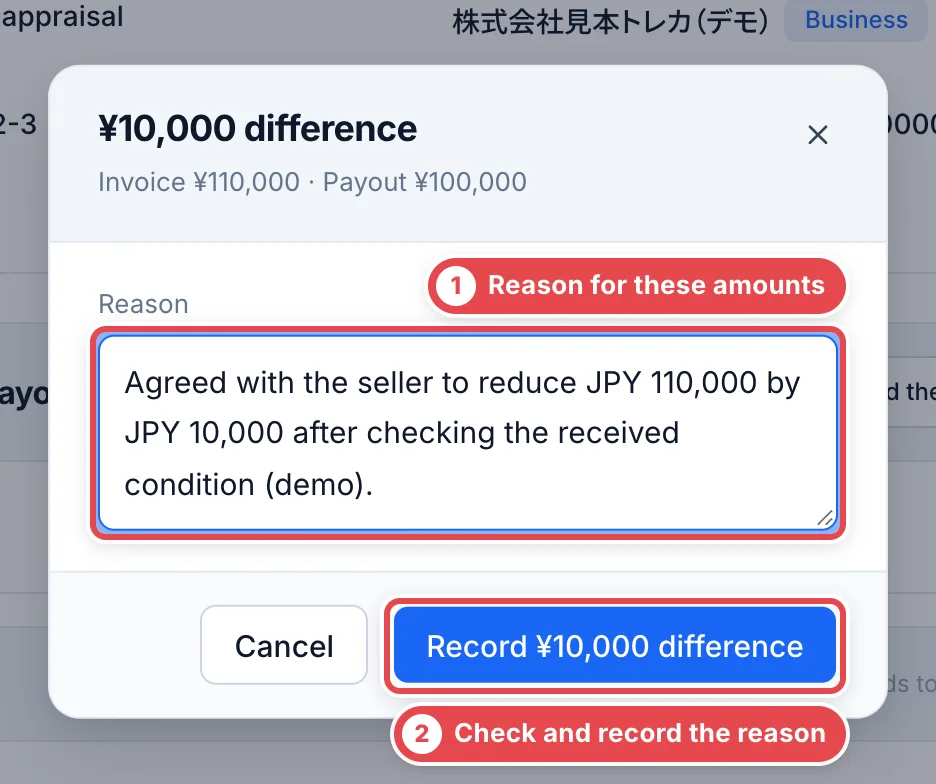
Under Invoice and payout, compare the amounts and difference at ①. Check that any recorded reason applies to the current amounts. If a reason is needed, click ② Record the reason.
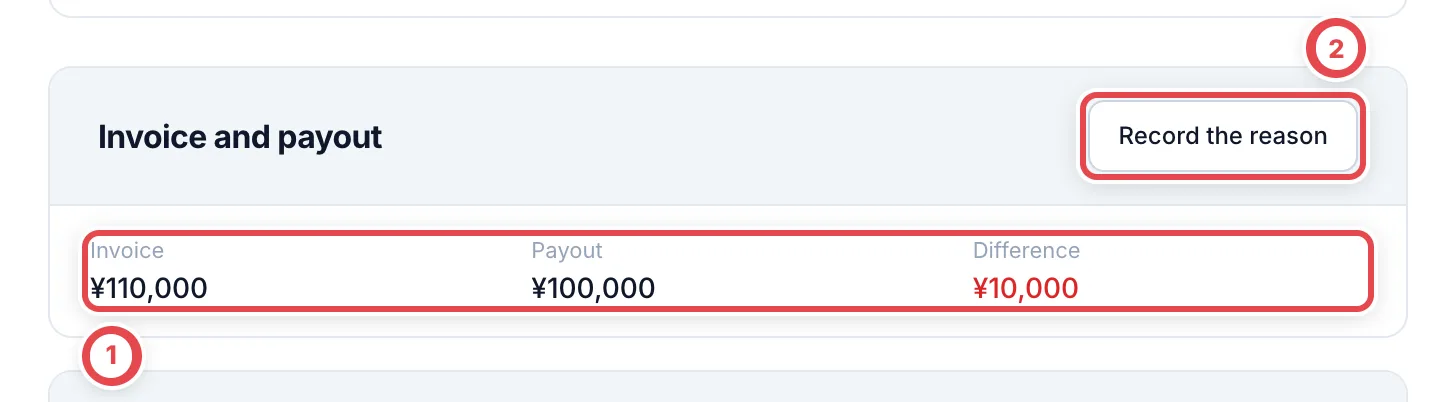
Write the reason at ① and save with ② Record N difference. If either amount changes afterwards, record the reason again for those amounts.
Deals following the earlier steps
Deals already past product registration, receipt, inspection, quote presentation or a second-review request may not use the invoice draft’s combined confirmation. Continue from the deal’s Next step.
If Confirm invoice lines opens, compare the source text with product candidates and correct them. Tick I confirmed this product, printing and quantity, then click Register confirmed lines. Goods matching and settlement wait until no unconfirmed product rows remain.
Match the goods and save purchase amounts
When the cards arrive, click Match received goods at ① under Goods matching. Clicking it records receipt and arrival right away. Click it only after the cards are in your hands. The button appears only on deals that have lines and haven’t been received yet.
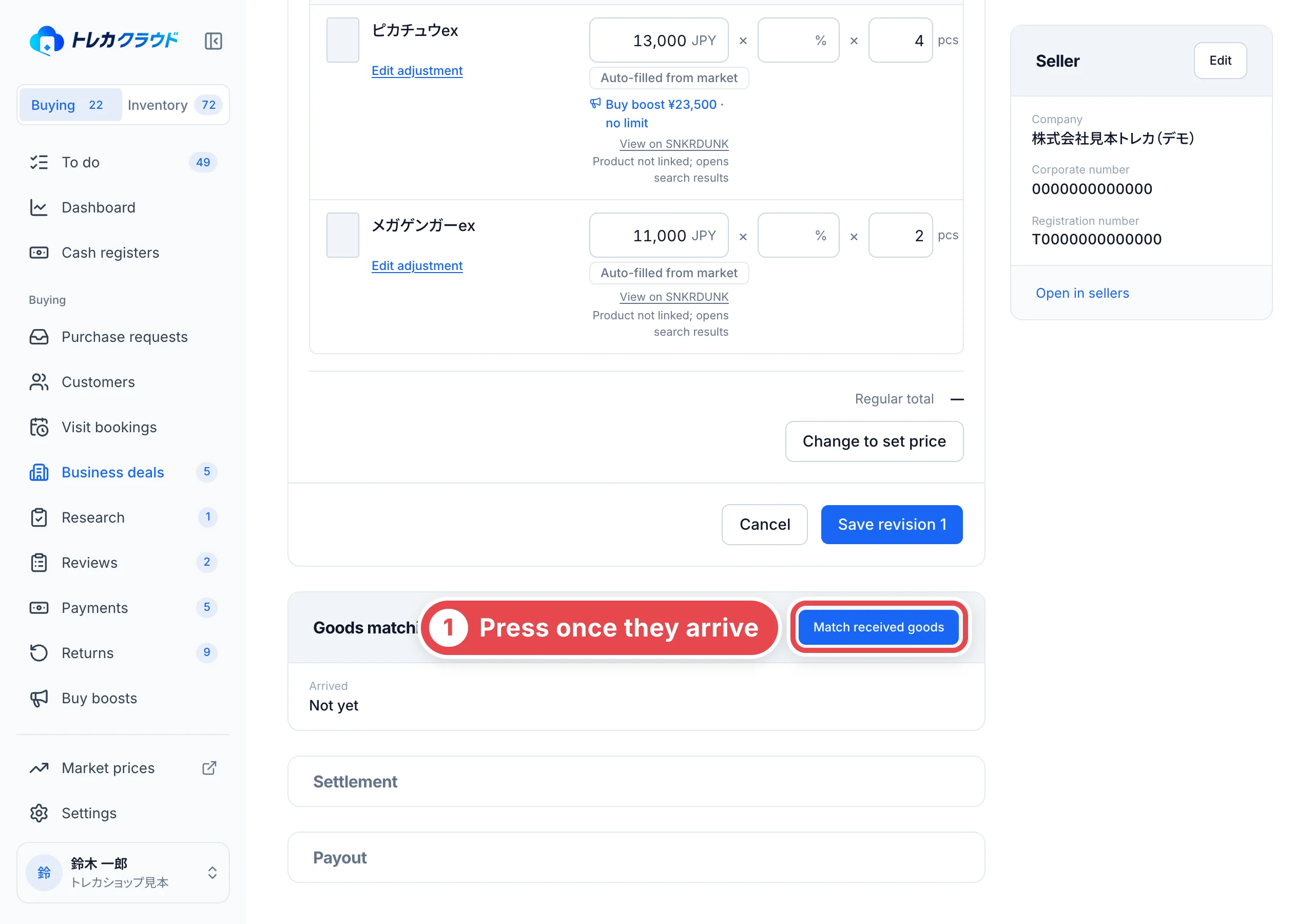
Under Products and purchase amounts, check each product’s Physical quantity and Purchase unit price, then click Save purchase amounts. Business deals do not require market prices or buying rates. The purchase amount is the unit price multiplied by the physical quantity. Confirmed invoice unit prices are used as initial values. They are displayed as values before goods matching and become editable afterwards.
For sealed products, record their condition and quantity first. Unregistered invoice products remain visible in the list; use Confirm products to select and register them. Goods matching waits until these rows have been confirmed.
Saving lets you continue to settlement without sending a quote. If your shop requires a second review, complete it first.
Register through the earlier settlement dialog
Click Record settlement under Settlement. Check the purchase price, the cards to buy and the payout account, then click Record settlement at ①. Clicking it registers stock, the secondhand ledger and the payout right away. The cards go to receiving. Registering doesn’t send money from your bank.
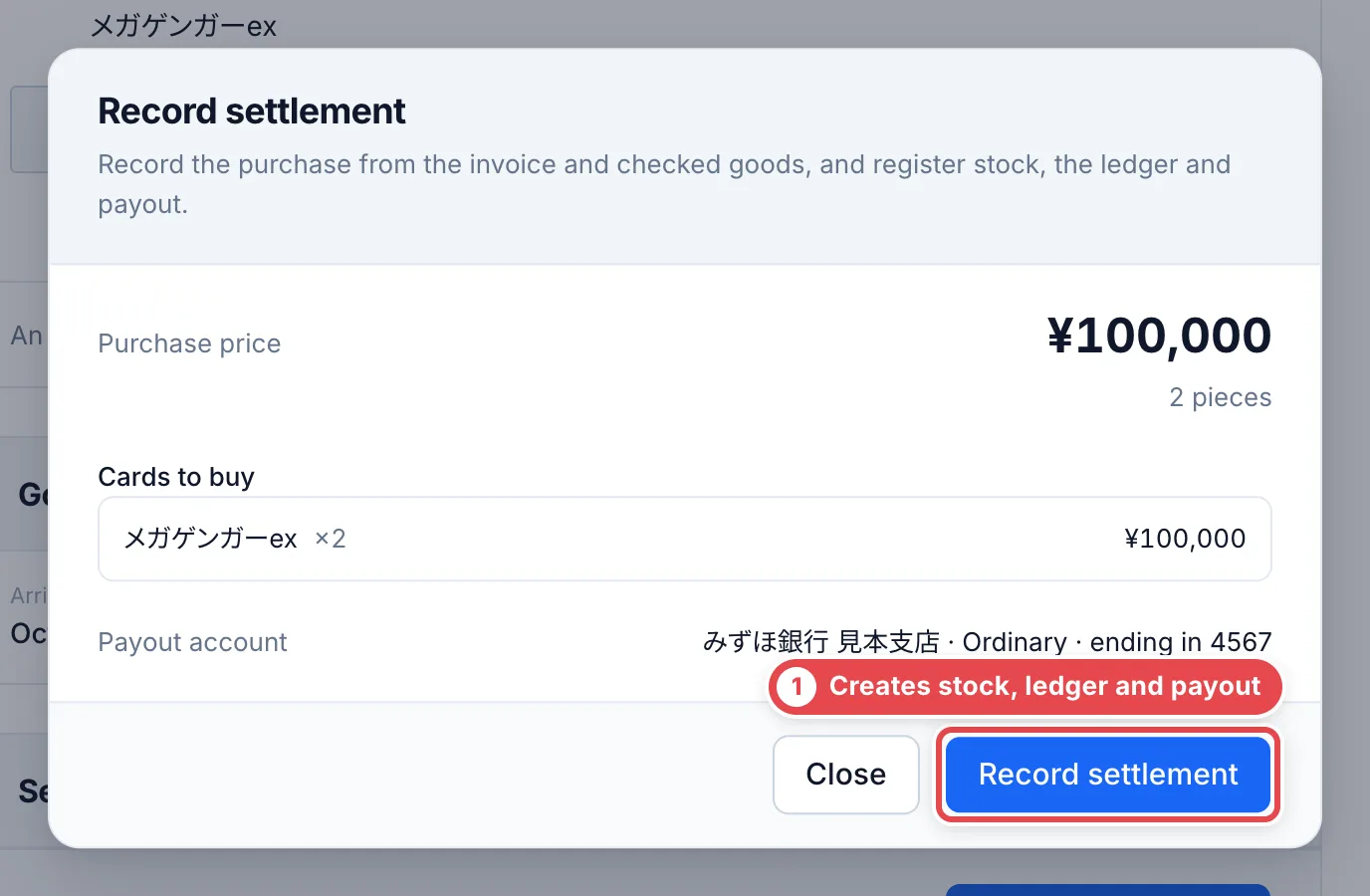
To record settlement, the invoice (PDF) must be registered, the amounts from goods matching must be saved, and the payout account, secondhand dealer license and site must all be set. If something is missing, the dialog tells you why.
Continue to Payouts for consent evidence, submission and approval.
When something goes wrong
| What is happening | What to check and how to fix it |
|---|---|
| The PDF is not read after selection | Retry extraction, or enter invoice information while comparing the original. If the PDF was saved but line extraction failed, retry from the invoice |
| A product is unidentified | Use 商品を検索 to choose the product and printing. Exclude unpurchased lines and enter a reason |
| 現物確認して振込へ is disabled | Check products, quantities, unit prices, packaging, difference reasons, incomplete pages, existing-product duplicates, account, license, agreement text and physical-goods checkbox |
| The draft saves but the confirmation button is absent | Settlement and related permissions are required. Hand over to an authorized member |
| The draft could not be loaded | Reload. Do not register a read invoice again from an outdated screen |
| Another member updated the deal | Keep a copy of your input, reopen the deal and compare it with the latest invoice and lines |
| Match received goods is absent | The new draft uses 現物確認して振込へ. For an earlier deal, check unconfirmed lines and receipt status |
| Payout approval is blocked | Check the reason for the current invoice/payout amounts, consent evidence, account and separate submitter/approver |
| A reason is requested again | An amount changed after saving. Record the reason against the current amounts |
| Check registration is absent | Check that the invoice includes a registration number |