

Review and edit registered details
Existing individual customers can review their registered details from the registration link after accepting a preliminary quote, or from a shipping-information link. They can continue unchanged or edit only the sections that need correction.
| Entry | When to use it | Result |
|---|---|---|
| A deal-specific registration or shipping link | Review an existing customer’s details, payout account and documents | Updates that customer and deal |
| The shop’s shared intake form | A new customer starts a purchase request | Creates a new customer and deal |
Business deals and appraisal-request-only links do not use this individual review.
1. The shop provides the deal-specific link
Open the correct customer and deal. Copy the registration link offered after acceptance of the latest preliminary quote, or the deal-specific link in shipping guidance. See Shipping and final appraisal.
Check the customer and deal number so you do not send a shared intake form or another deal’s link. Displaying or copying a link does not send it to the customer.
Standard staff can copy and reissue links and review and apply answers with customer form management and the required purchase, customer and identity permissions. Payout management is not required. If your shop has customized its roles, ask a manager to check the permissions in Settings → Members.
2. The customer authenticates
If a shipping-label photo is needed, the customer can send it first or select 「あとで送る」 (Send later). They then see 「ご本人の確認」 (Verify your identity) at ①. When no label is needed, the link opens this screen directly. Click 「登録済みメールに確認コードを送る」 (Send a code to the registered email) at ②. The code goes to the email already registered with the shop. This screen cannot change its destination to a newly entered address.
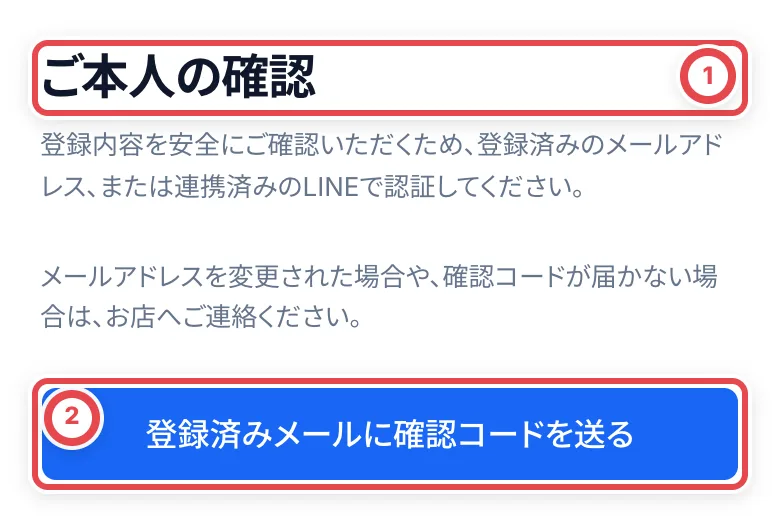
「LINEで認証する」 (Authenticate with LINE) is available when the shop has configured LINE login and the customer has a linked LINE identity. Returning from LINE opens the same review. Shops without that setup do not show the option.
Enter the six-digit code at ① and click 「認証して登録内容を確認する」 (Authenticate and review details) at ②. Codes expire after 10 minutes. Resending is available after one minute and invalidates the previous code.
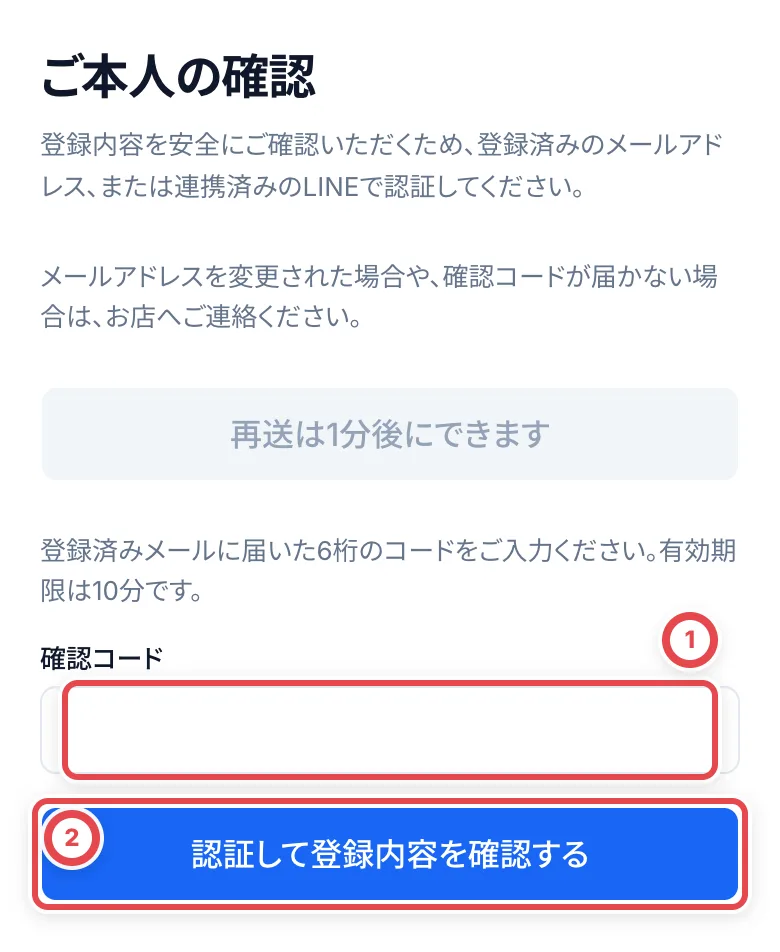
If the registered email is inaccessible, no email is registered, or LINE authentication fails, the customer should contact the shop. The link alone does not reveal the address or bank details.
3. Review personal details
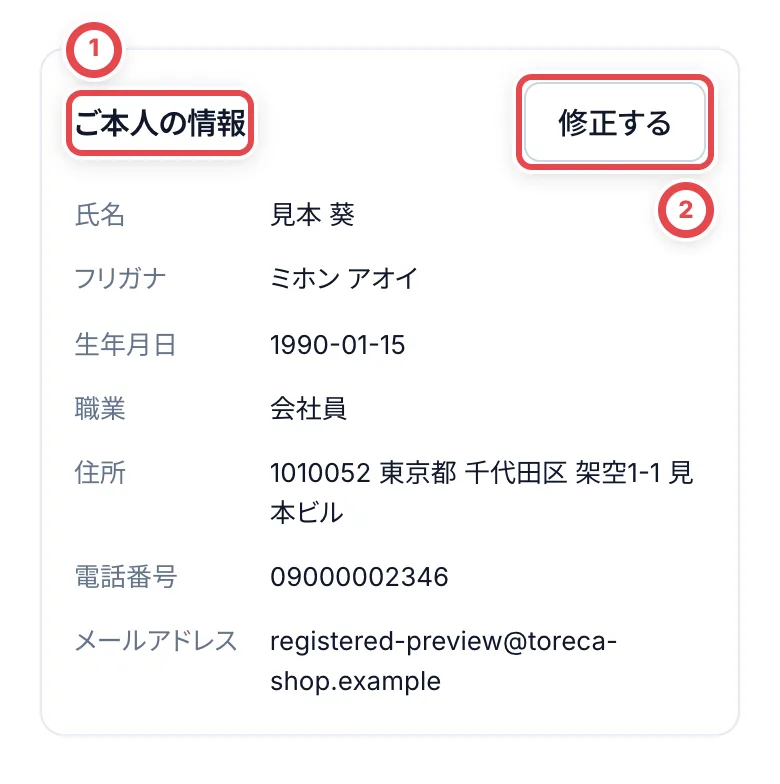
Check the name, kana, date of birth, occupation, phone, email and address at ①. For a change, click 「修正する」 (Edit) at ②.
4. Edit and submit the section
The form opens with saved values. Change the relevant fields at ① and use 「次へ」 (Next) at ② to reach the confirmation screen. Phone and postal-code input accepts pasted full-width digits and hyphens and normalizes them to half-width digits. Check the final values, including leading zeros.
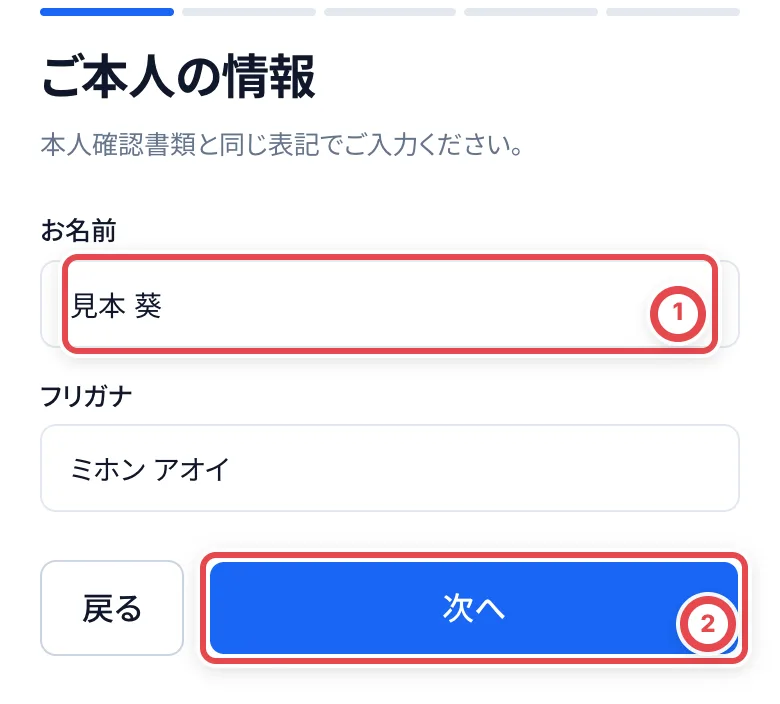
「この内容で提出する」 (Submit these details) saves the changes and returns to the list. Review the changes before submitting. Typing alone does not save. Use 「戻る」 (Back) to leave the edit without submitting.
Check the updated list. Changes to identity-related information such as name or address require current ID documents. These changes do not rewrite past deals or previously issued documents.
5. Check this deal’s payout account and documents
Under 「お振込先」 at ①, match the bank, branch, account type and last four digits. If there are multiple accounts, select the one for this deal. Selecting an account records that choice immediately. Reveal the full number only when necessary.
Use this section’s Edit action to review the detailed input and confirmation screens, including the account holder. Submit at the end to save any changes. Changing only a bank account does not always require new ID photos, but holder mismatches and powers of attorney remain separate checks. Follow the explanation when an already requested payout prevents a change.
Under 「本人確認書類」 at ②, check the document type, submission or verification date and status. Review available document images. Face-capture images are not shown here.
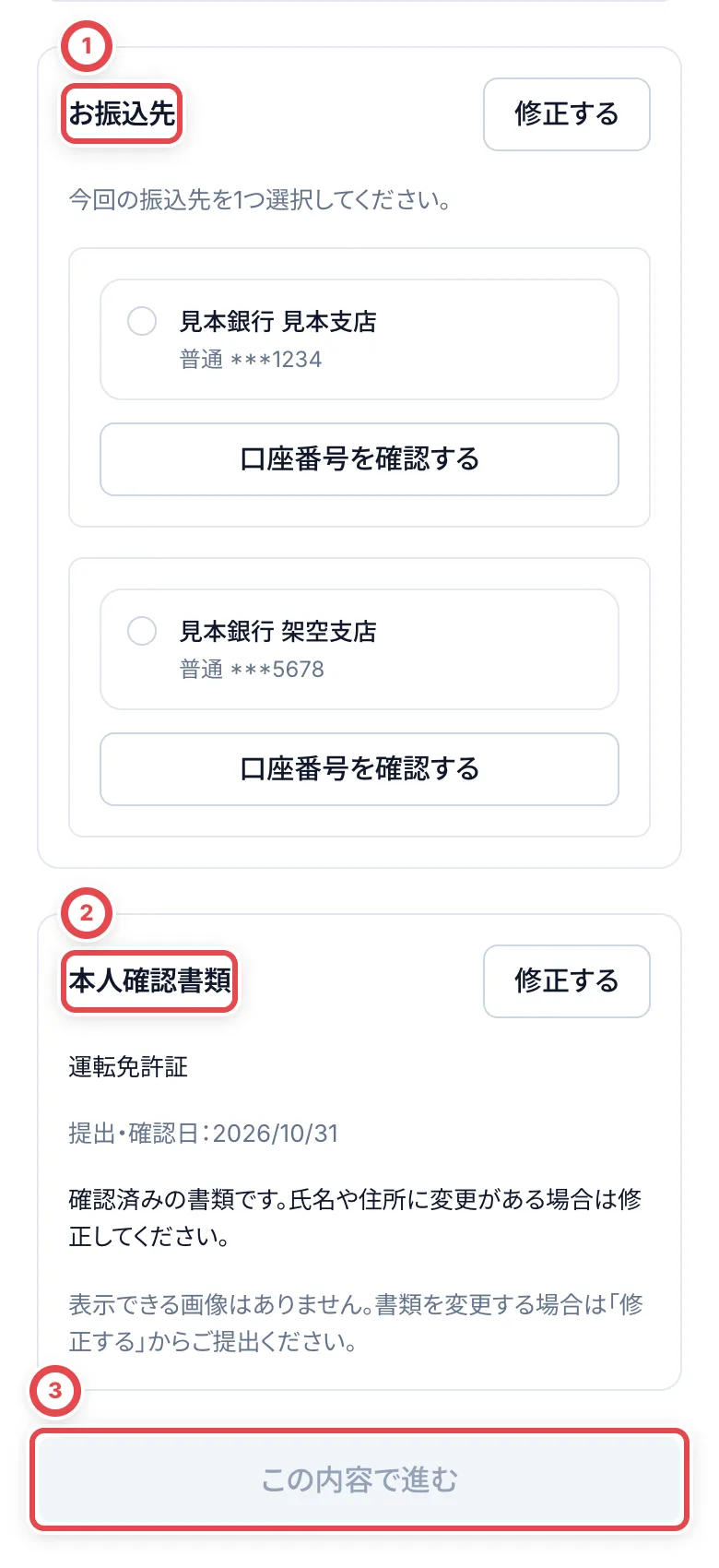
If current documents are requested, use that section’s 「修正する」 to submit them. An old approval cannot satisfy a new-document requirement. The shop reviews the latest submission using Identity verification.
6. Confirm and continue
After reviewing the profile, selected payout account and documents, click 「この内容で進む」 (Continue with these details) at ③. The review is recorded and the remaining required sections open. If the customer chose to send the label later, they can reopen the same link while it is valid to submit the photo.
The confirmation for this deal survives a reload. If another screen or shop member changes the registered data afterward, the customer must review the current values again.
Troubleshooting
| What’s happening | What to check and how to recover |
|---|---|
| The code does not arrive | Check the registered inbox and spam folder. Contact the shop rather than trying to send to another address. |
| The code is incorrect or expired | Use the newest six-digit code. Request a new code if 10 minutes have passed; do not use the old code after resending. |
| Resending or verification is limited | Follow the wait time. Resends require one minute and are limited to five per hour; each code allows five verification attempts. |
| Continue is disabled | Select this deal’s payout account and satisfy any current-document requirement. |
| Only part of the account number is shown | The default is the last four digits. Reveal the number only when needed. |
| No document images are available | Some manually recorded checks have no displayable images. If documents need changing, submit them from Edit. |
| Another screen changed the data | Use 「最新の登録内容を読み直す」 to reload and review the current values before editing or confirming. |
| The link does not open | Ask the shop to check expiry or reissuance. Do not use another deal’s link. |